20
3-1. Thinkware Dash Cam Mobile Viewer
3. Mobile Application
The distance range between the dash cam and connecting smart device is approximately 10 meters (3.3ft)
in an open eld environment
Use of ADAS features (road safety warning system) are restricted while being accessed using Thinkware
Dash Cam Mobile Viewer.
Only the selective keys and buttons will work on the connecting device (not including the power button)
when using Thinkware Dash Cam Mobile Viewer.
Cautions
3-1-1. Connect Wi-Fi with Password
①
Download and install Thinkware Dash Cam Mobile Viewer application
②
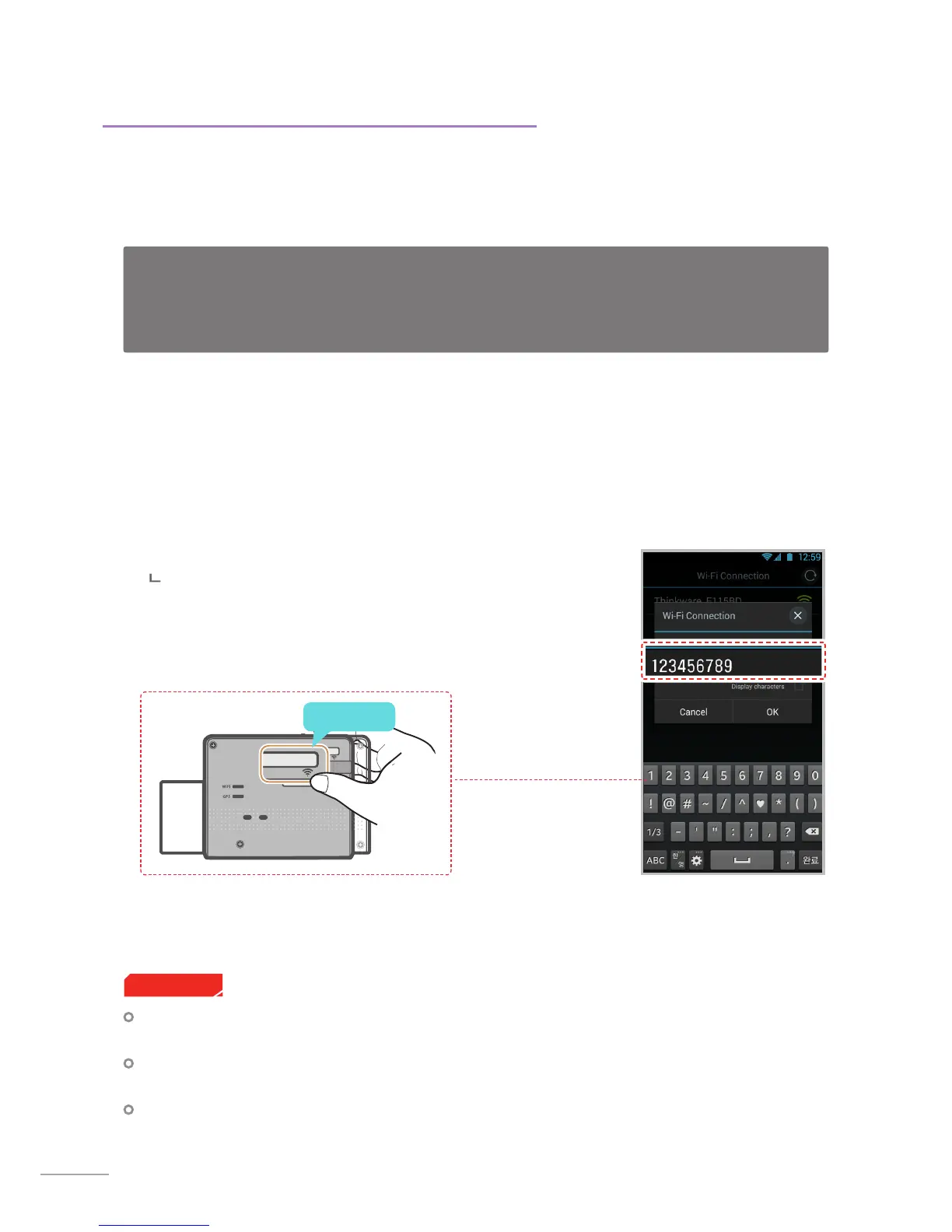
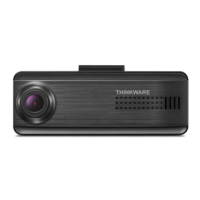
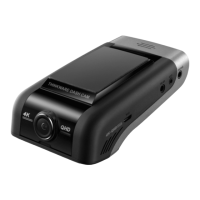
Press briey the Wi-Fi button on the dash cam to enter Wi-Fi connection mode
③
(Make sure to turn on the Wi-Fi in the device setting for iOS devices) In the Thinkware Dash Cam Mobile
Viewer application, turn on the Wi-Fi option, select “thinkware” from SSID list, and enter password as
“123456789”
Password is only required during rst time you try to connect.
The device will auto-connect in subsequent connections.
※ Dash cam will automatically turn o the Wi-Fi connection mode if not connected within 1 minute.
Press Briey
Thinkware Dash Cam Mobile Viewer App is available through Google Play and the App Store from iTunes.
Mobile App device OS version requirements: Android 4.0 (Ice Cream Sandwich) or higher, iOS 7.0 or higher.
You may disable Cellular data (Data networks) for using apps in some of devices operating Lollipop.
For iOS devices, Wi-Fi settings can only be accessed using the smartphone or tablet settings.


 To Next Page