THUNDER LASER NOVA-51
www.thunderlaser.com DONGGUAN THUNDER LASER EQUIPMENT CO.,LTD
tech@thunderlaser.com No.197, Hudong Road, Shatian Town,
Tel :(86)769 826653 Dongguan, Guangdong, China
4.6.12 Origin Set
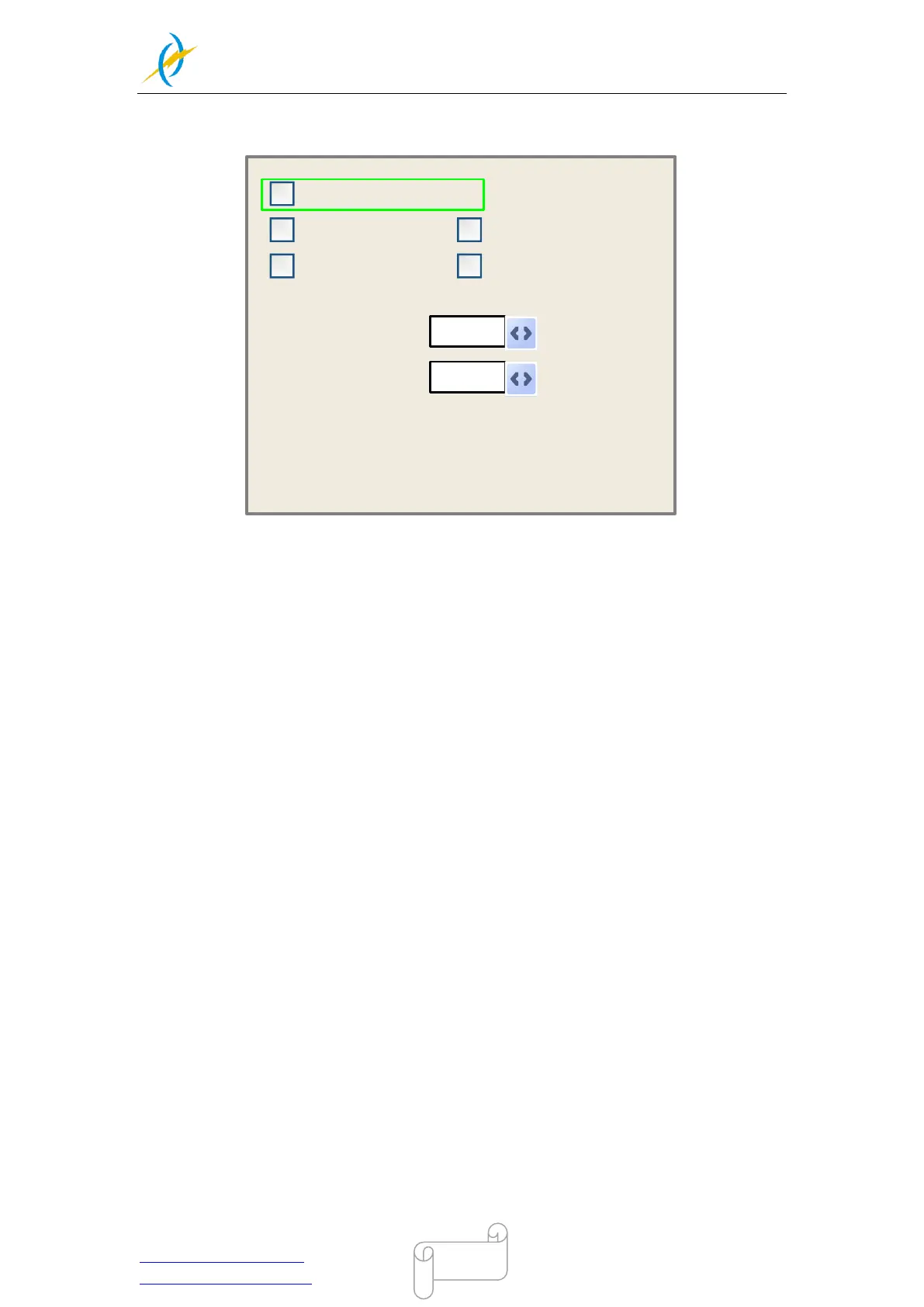
When the green block is on this item, push the “Enter” key to show as below:
Modified press Enter
Press Z/U move item
1
Origin enable1 Origin enable3
Origin enable2 Origin enable4
Set origin:
Next origin:
0
Muti origin enable
Push “Z/U” key to move the green block to the anticipant item, and when the green block
is on “enable” items, push “Enter” key to enable or disable the item, when enabled, the
small diamonds is green, and when disabled, the small diamonds is grey. When the green
block is on the “Set origin” item or the “Next origin” item, push the “X+-“ keys to select the
value.
Pay attention to if when the green block is on the “Set origin” item, push the “X+-“ keys to
select a value, then, “Enter” key must be pushed to valid the change, or, the change is
invalid.
Each item introduced as below:
Multiple Origins Enable: “Yes” or “No” can be selected. If you select “No”, the
system will use the single-origin logic. You can press the “Origin” key and set the
origin, and only this origin can become valid. If you select “Yes”, the system will
use the multiple- origin logic and the “Origin” key on the keyboard become invalid.
In such a case, the parameter of each origin must be set in the menu as follows.
Origin Enable1/2/3/4: after the multiple-origin logic is enabled, the four origins
can independently be prohibited and enabled.
Set Origin 1/2/3/4: after the multiple- origin logic is enabled, you can stop the
cursor at “Set as Origin 1/2/3/4”. Press the “Enter” key on the keyboard and the
system will take the coordinate figures of current X/Y axles as the corresponding
ones to the origin 1/2/3/4.
Next Origin: there are such five digits as 0~4 for option, which are the origins to
be used for the next figure. Origin 0 means the origin set by the “Origin” key on
the panel in the single- origin logic. 1~4 means the serial number of the origins in
the multiple- origin logic. Next origin can be modified to any one of origin 1~4, so
as to control the start location of next work (the premise is that the origin is
enabled), but it can’t be modified to origin 0.


 To Next Page