15
9. Connecting a home device to your Wi-Fi extender
Home devices can be connected to the IHD103 in one of two ways. Either using an Ethernet
cable or using Wi-Fi. Do not use both methods as this might cause connection problems for
your home device.
9.1 Connecting a computer by Ethernet cable
The LAN port of the IHD103 can be used to connect a home device to the home network.
This is typically be used for stationary computers and Set Top boxes that has no Wi-Fi.
Connect the Ethernet port on your home device with an Ethernet cable to the LAN port
marked LAN on one of the IHD103.
9.2 Connecting a computer by using WLAN (Wireless LAN)
Normally, if the Wi-Fi extender(s) are connected to the home network over Wi-Fi and use the
cloning procedure described earlier, the Wi-Fi extender will offer Internet service to all home
devices without any specific additional configuration of the home devices as they are already
configured to connect to the router Wi-Fi SSID. Since the Wi-Fi extender use the same SSID
and password, the devices will connect to the Wi-Fi device that is in closest range.
If the cloning procedure was not used, or could not be used, then there are two options
available to connect a home device to the Wi-Fi extender.
Use the WPS procedure. This procedure is easy to use, but it is not supported by all
home devices types.
Connect to the Wi-Fi SSID presented by the IHD103 and enter the WPA key when
requested to do so. If the standard Wi-Fi network names are used, then they are
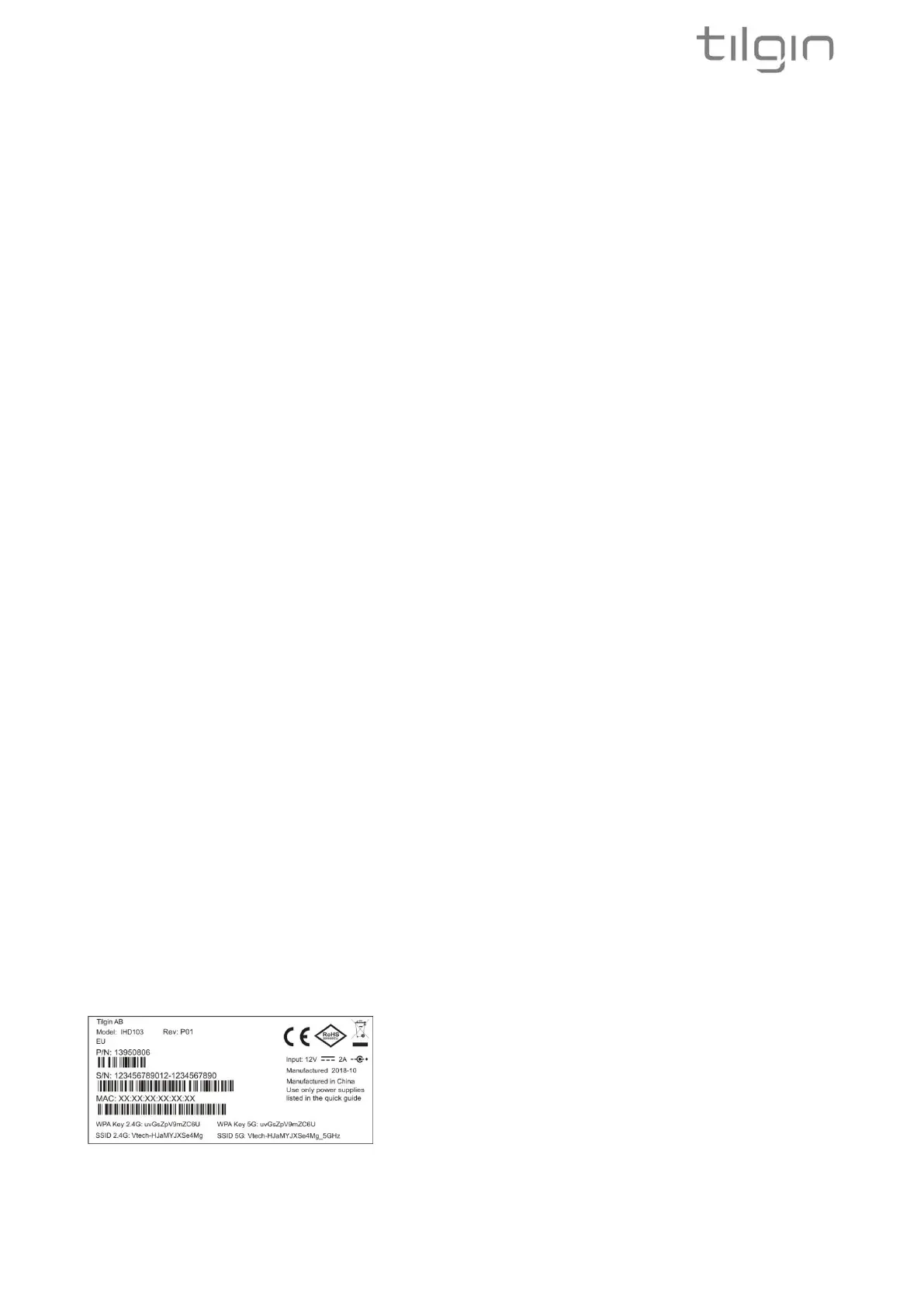
printed on the label of the Wi-Fi extender.
Default WLAN port settings
Check that the parameters for WLAN are set according to SSID and WPA key found on the
casing label on bottom of the IHD103.
SSID = Tilgin -<12 random characters>
Example: Tilgin-1wa23sbg9skm
Channel = Auto
Note: Your operator may instruct you to use a WPA key that they provide to
you, or use the WPA key printed on the label on the IHD103.
Make sure your WLAN profile is saved, and make sure your computer network settings are
configured properly.


 To Next Page