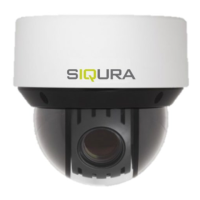
This document serves as a user manual for Network Dome cameras, specifically models TKID45F2S, TKID85F2S, TKID45M1S, and TKID85M1S, manufactured by TKH Security Solutions. It provides comprehensive instructions for configuring, operating, and maintaining these devices.
Function Description
The Network Dome cameras are designed for electronic surveillance, offering real-time video monitoring and recording capabilities. They are equipped with various settings to optimize image quality, network connectivity, and overall performance in diverse environments. The device supports both IPv4 and IPv6 protocols for network communication and can be configured to obtain IP addresses automatically via DHCP or manually.
Key functionalities include:
- Real-time Video Monitoring: Users can view live video streams through a web management system.
- Video Playback: The system allows for querying and playing back recorded videos, which can be stored on an SD card or NAS.
- Device Configuration: Extensive settings are available for image parameters, network settings, and intelligent analysis.
- PTZ Control: For dome cameras, pan, tilt, and zoom (PTZ) parameters can be set.
- Snapshot and Local Record: Users can capture snapshots and record video locally.
- Intelligent Analysis: The device supports opening or closing intelligent analysis features.
Important Technical Specifications
The manual outlines several technical specifications and configurable parameters:
Network Parameters:
- IP Protocol: Supports IPv4 (32-bit address length) and IPv6 (128-bit address length).
- IP Address: Default value is 192.168.0.120.
- Subnet Mask: Default value is 255.255.0.0.
- Default Gateway: Default value is 192.168.0.1.
- Preferred DNS Server: Default value is 192.168.0.1.
- Alternate DNS Server: Default value is 192.168.0.2.
- MTU (Maximum Transmission Unit): Range from 800 to 1500, with a default value of 1500. Users are advised not to change it arbitrarily.
- DHCP: Option to enable or disable automatic IP address acquisition.
Image Settings:
- Brightness: Total brightness of an image, default value 50. Increasing the value makes the image brighter.
- Contrast: Contrast between bright and dark parts of an image, default value 50. Increasing the value increases contrast.
- Saturation: Color saturation of an image, default value 50. Increasing the value makes the image more colorful.
- Sharpness: Sharpness of the image plane and edge, default value 50. Increasing the value improves detail contrast.
Exposure Parameters:
- Exposure Mode:
- Auto: System performs auto exposure based on the monitoring environment.
- Manual: Allows adjustment of brightness using Shutter Setting, Iris Setting, and Gain Setting.
- Shutter Priority: Users set shutter setting, and iris and gain are automatically adjusted.
- Iris Priority (for high speed dome): Users set iris setting, and shutter and gain are automatically adjusted.
- Meter Area:
- Whole: Metering all areas of an image with equal weight.
- Center pot: Metering the central pot with the highest weight.
- Center Area: Metering the middle area (1/2 of total area) with the highest weight.
- Max Shutter: Adjusts the shutter time based on ambient brightness, default value 1/25.
- Max Gain: Adjusts the gain based on external light, default value 50.
- Iris (for IP camera):
- Auto: Iris is automatically adjusted.
- Open fully: Iris is fully open.
White Balance (WB) Settings:
- Mode:
- Auto: System performs white balance automatically based on the monitoring environment.
- Tungsten, Fluorescent, Daylight, Shadow: Preset modes.
- Manual: Allows manual selection of WB mode.
- Red Gain: Gain applied to red channels, default value 0. Higher values lower color temperature.
- Blue Gain: Gain applied to blue channels, default value 0. Higher values raise color temperature.
Day/Night Mode Settings (DNR parameters):
- D/N Setting Mode:
- Auto: Image color and filter status switch automatically based on ambient brightness.
- Day mode: Image is colored, filter prevents infrared light.
- Night mode: Image is black and white, filter allows infrared light.
- Timing: Set day-to-night and night-to-day switching times.
- TRANSI.(D->N)(dB): Day-to-night switching threshold in auto mode, default value 70. System enters night mode if gain exceeds this value.
- TRANSI.(N->D)(dB): Night-to-day switching threshold in auto mode, default value 30. System enters day mode if gain is below this value.
- Delay(s): Delay time for day-to-night or night-to-day transitions, default value 0.
- IR LED:
- Auto: Infrared lamp enabled/disabled based on LDR.
- ON: Infrared lamp forcibly enabled.
- OFF: Infrared lamp disabled.
- Strength: Strength of IR LED, default value 50. Higher values make the image brighter.
- DTN Time: Time of day to night, default 18:00.
- NTD Time: Time of night to day, default 6:00.
Noise Reduction (DNR) Parameters:
- 2D NR: Reduces image noise, default Auto.
- 3D NR: Reduces image noise, default Auto.
- Max Strength: Valid in auto noise filter mode, default 50. When 0, noise filter is disabled.
- Fixed Strength: Valid in manual noise filter mode, default 50.
Enhance Image Parameters:
- WDR (Wide Dynamic Range): Used to display foreground and background at the same time with large brightness difference, default 50. Higher values improve image effect.
- HLC (Highlight Compensation): Provides a clearer view in highlight environments, default 50.
- BLC (Backlight Compensation): Provides a clearer view in backlight environments, default 50.
- Anti-shake: Reduces image shakes, enabled by ticking the mode.
- DeFog: Provides a clearer view in fogged environments, default 50. Higher values make the image clearer.
Zoom Focus Parameters:
- D/N Auto Focus: Triggers auto focus when switching between day and night.
- Auto Focus Once: Triggers auto focus once.
- Lens Initialization: Returns the camera lens to its initial position.
Usage Features
The manual details the steps for initial setup and ongoing configuration:
Quick Configuration:
- Login: Access the web management system via Internet Explorer. The default IP address is 192.168.0.121. The default username and password are "admin."
- Install Plugins: For first-time login, users will be prompted to download and install a plugin. The browser must be closed during installation.
- Local Network Parameters: Configure IP protocol, IP address, subnet mask, gateway, DNS servers, and MTU. DHCP can be enabled for automatic IP assignment.
- Change Password: Users are strongly advised to change the default password immediately after the first login for security reasons. The new password must be at least 7 characters long, include letters, numbers, and special characters, and not be the same as the username or entered backwards.
Parameter Setting:
- Sensor Setting Interface: Right-click on the surveillance image to access sensor settings, including Full Screen, Sensor, ZoomIn, ZoomOut, and Restore Panorama.
- Time Segment: Configure time segments for various settings, enabling or disabling them for specific periods.
- Image Setting: Adjust brightness, contrast, saturation, and sharpness.
- Scene Mode: Select between Outdoor and Indoor modes. Configure mirror settings (Normal, Horizontal, Vertical, Horizontal and vertical).
- Exposure: Configure exposure mode, meter area, max shutter, max gain, and iris settings.
- WB Setting: Adjust white balance mode (Auto, Tungsten, Fluorescent, Daylight, Shadow, Manual) and red/blue gain.
- Daynight: Configure D/N setting mode, day-to-night/night-to-day switching thresholds, delay, IR LED behavior, IR LED strength, and DTN/NTD times.
- Noise Reduction: Enable and adjust 2D and 3D noise reduction.
- Enhance Image: Configure WDR, HLC, BLC, Anti-shake, and DeFog features.
- Zoom Focus: Trigger auto focus and perform lens initialization.
Maintenance Features
The manual provides guidelines for proper device maintenance and troubleshooting:
General Precautions:
- Electrical Safety: Adhere to local electrical safety standards and use LPS-marked power adapters. Ground the device in places with unsteady voltage or frequent lightning to prevent damage.
- Environmental Protection: Prevent water or liquids from entering the device. Avoid placing the camera near high-intensity radiation sources (sun, laser, arc welder) or high heat sources, as this can affect accuracy and permanently damage the detector.
- Installation: During outdoor installation, adjust the sun shade to prevent direct sunlight on the lens. Avoid heavy loads, intensive shakes, and soaking during transport and storage.
- Static Sensitivity: The device is static sensitive; proper ESD protection and grounding are essential during installation and uninstallation.
- Physical Protection: Protect the device from falls and intensive strikes. Keep it away from magnetic fields and avoid installing it on shaking surfaces.
Cleaning:
- Use a soft, dry cloth for cleaning the device body. For stubborn dirt, use a small amount of mild detergent on a dry cloth, then wipe dry.
- For the front window (precision optics), use a clean, soft cloth moistened with water. For further cleaning, use isopropyl alcohol or detergent. Improper cleaning can cause damage.
Troubleshooting:
- Login Issues:
- If the IP address in the browser is incorrect, verify the IP address and ensure the certificate is installed.
- If the web management system cannot be accessed, check network connectivity (ping command) and ensure the PC is directly connected to the camera.
- If the IP address is used by another device, change the IP address.
- If the IP addresses of the PC and IP camera are on different networks, check network settings (IP address, subnet mask, gateway).
- After an IP camera upgrade, if the web management system cannot be accessed, clear the browser cache (Tools > Internet Options > Delete Browsing History).
- PTZ or Dome Control Issues: If PTZ or dome cannot be controlled, check the protocol, baud rate, and address settings. If the signal cable is not properly connected, check signal strength and cable connection.
- Upgrade Issues: If the IP camera cannot be upgraded, confirm network connectivity, check network settings, and ensure the correct upgrade package is used.
Special Announcement:
- The manufacturer is not responsible for device damage caused by users' non-conformance to installation requirements.
- The manufacturer reserves the right to update the manual and device information without prior notice. Users should refer to the latest version.

 Need help?
 General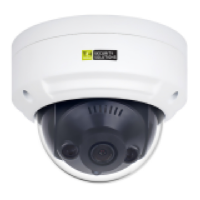

 To Next Page