110
1 ) Visit http://tplinkwifi.net, and log in with the username and password you’ve set
for the router.
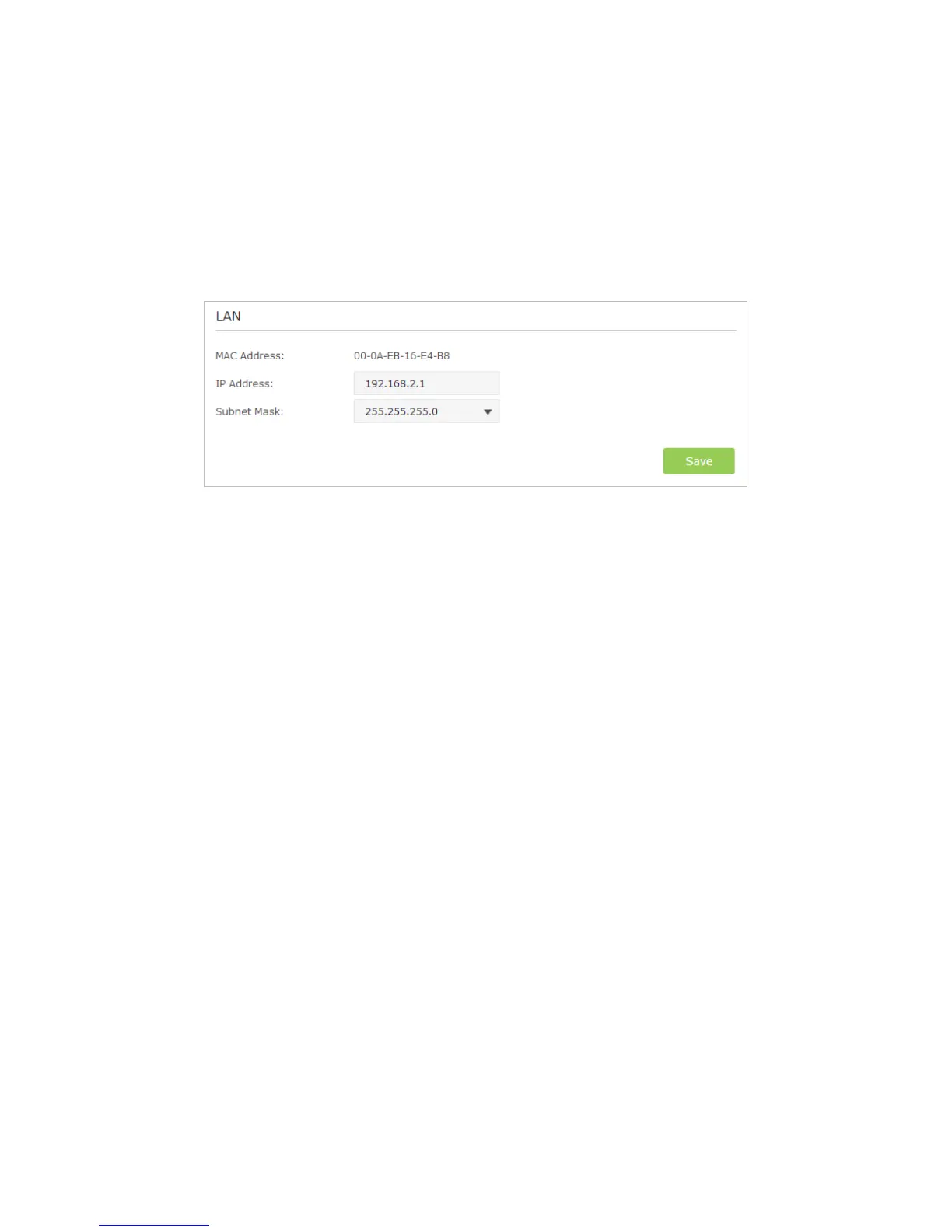
2 ) Go to Advanced > Network > LAN.
3 ) Modify the LAN IP address as the follow picture shows. Here we take 192.168.2.1
as an example.
4 ) Click Save.
• Power cycle the modem and the TP-LINK router.
1 ) Power off your modem and TP-LINK router, leave them off for 1 minute.
2 ) Power on your modem first, wait about 2 minutes until it get a solid cable or
Internet light.
3 ) Power back TP-LINK router.
4 ) Wait another 1 or 2 minutes and check the Internet access.
• Double check the Internet Connection Type.
1 ) Confirm your Internet Connection Type, which can be learned from the ISP.
2 ) Visit http://tplinkwifi.net, and log in with the username and password you’ve set
for the router.
3 ) Go to Advanced > Network > Internet.
4 ) Select your Internet Connection Type and fill in other parameters with the help
of page tips.
5 ) Click Save.


 To Next Page