28
Chapter 5
5. 1. Create Guest Network
1. Visit http://tplinkwifi.net, and log in with the username and password you set for the
router.
2. Go to Advanced > Guest Network.
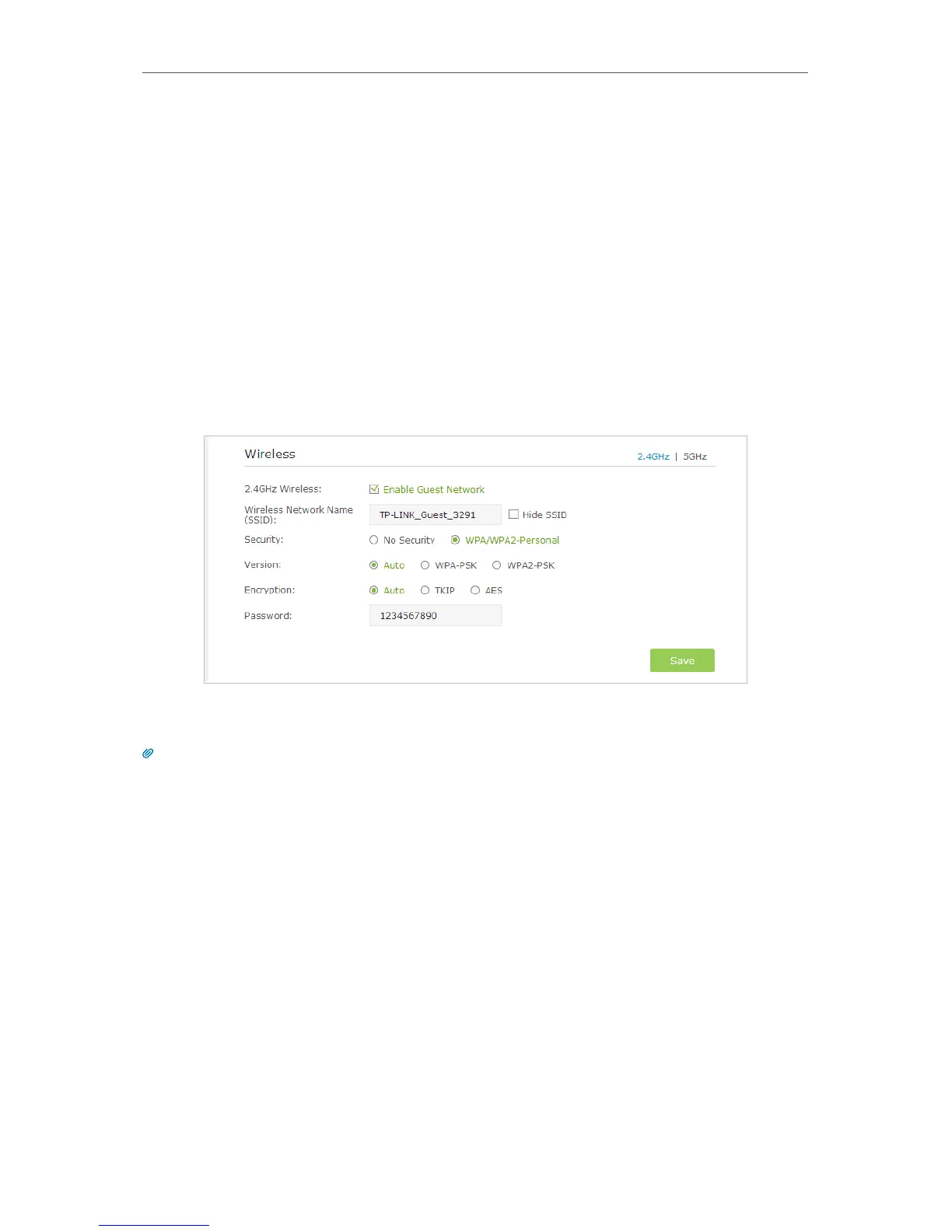
3. Create a 2.4GHz or 5GHz guest network according to your needs.
1 ) Enable Wireless Network 2.4GHz or Wireless Network 5GHz.
2 ) Set an easy-to-identify SSID. Don‘t select Hide SSID unless you want your guests
and other people to manually input this SSID for Wi-Fi access.
3 ) Set Security to WPA/WPA2 Personal, keep the default Version and Encryption
values, and set an easy-to-remember Password.
4. Click Save. Now your guests can access your guest network using the SSID and
password you set!
Tips:
To view guest network information, go to Advanced > Status and find the Guest Network section.
5. 2. Customize Guest Network Options
1. Visit http://tplinkwifi.net, and log in with the username and password you set for the
router.
2. Go to Advanced > Guest Network.
3. Customize guest network options according to your needs.


 To Next Page