41
Chapter 6
6. 3. 1. Access the USB Disk
1. Connect Your USB Disk
Insert your USB storage device into the router’s USB port directly or using a USB
cable. Wait several seconds until the USB LED becomes solid on.
Tips:
• If you use USB hubs, make sure no more than 4 devices are connected to the router.
• If the USB storage device requires using bundled external power, make sure the external power has been
connected.
• If you use a USB hard drive, make sure its file system is FAT32 or NTFS.
• Before you physically disconnect a USB device from the router, safely remove it to avoid data damage: Go
to Advanced > USB Settings > Device Settings and click .
2. Play the Media on Your USB Disk
Now the DLNA-supported devices (such as your computer and pad) connected to
the router can detect and play the media files on the USB disks.
Windows
computer
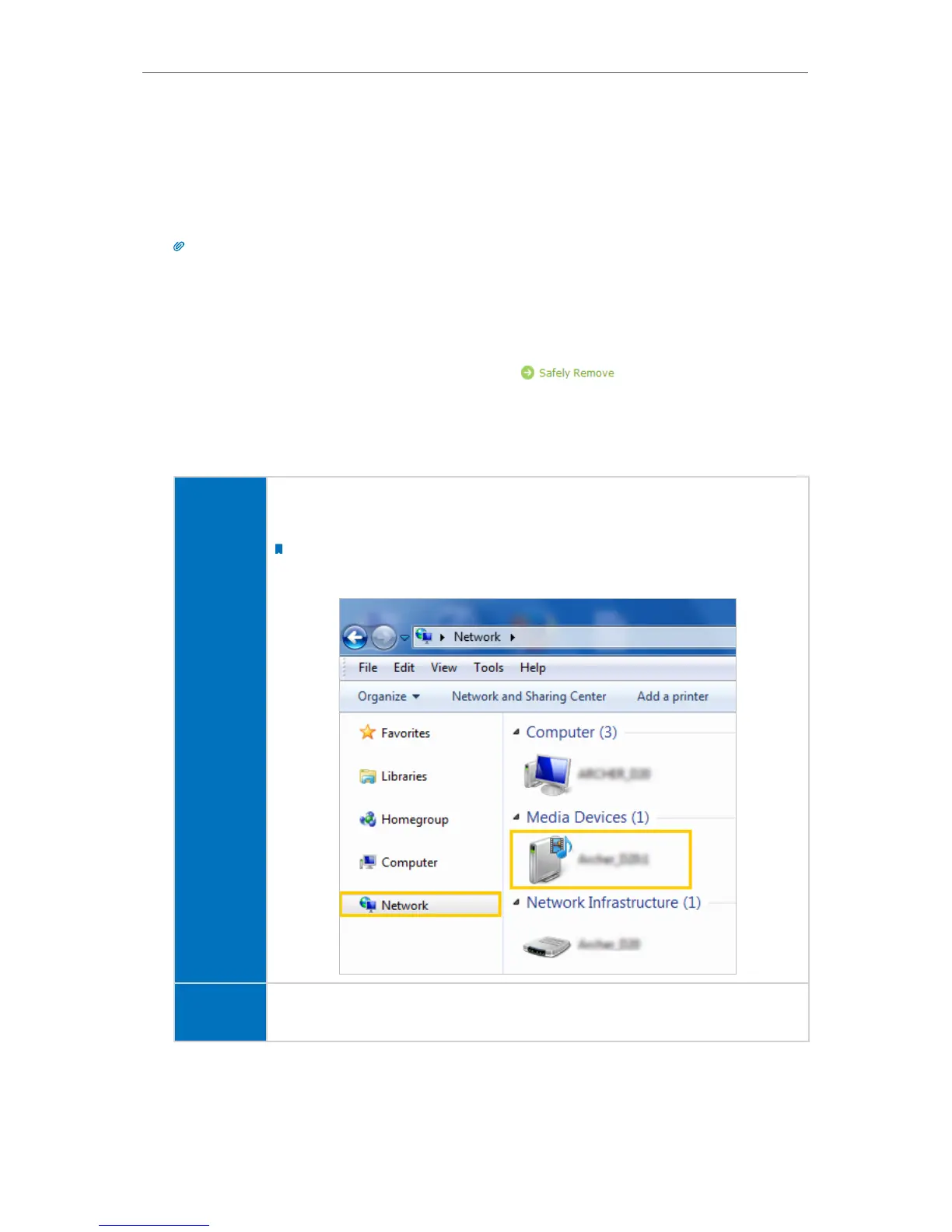
Go to Computer > Network, then click the Media Server Name
(AD7200-Share by default) in the Media Devices section.
Note:
Here we take Windows 7 as an example.
Pad
Use a third-party DLNA-supported player.


 To Next Page