80
Chapter 12
2 ) Click Save.
3 ) After configuring IGMP proxy, IPTV can work behind your
router now. You can connect your set-top box to any of
the router’s Ethernet port.
If IGMP is not the technology your ISP applies to provide
IPTV service:
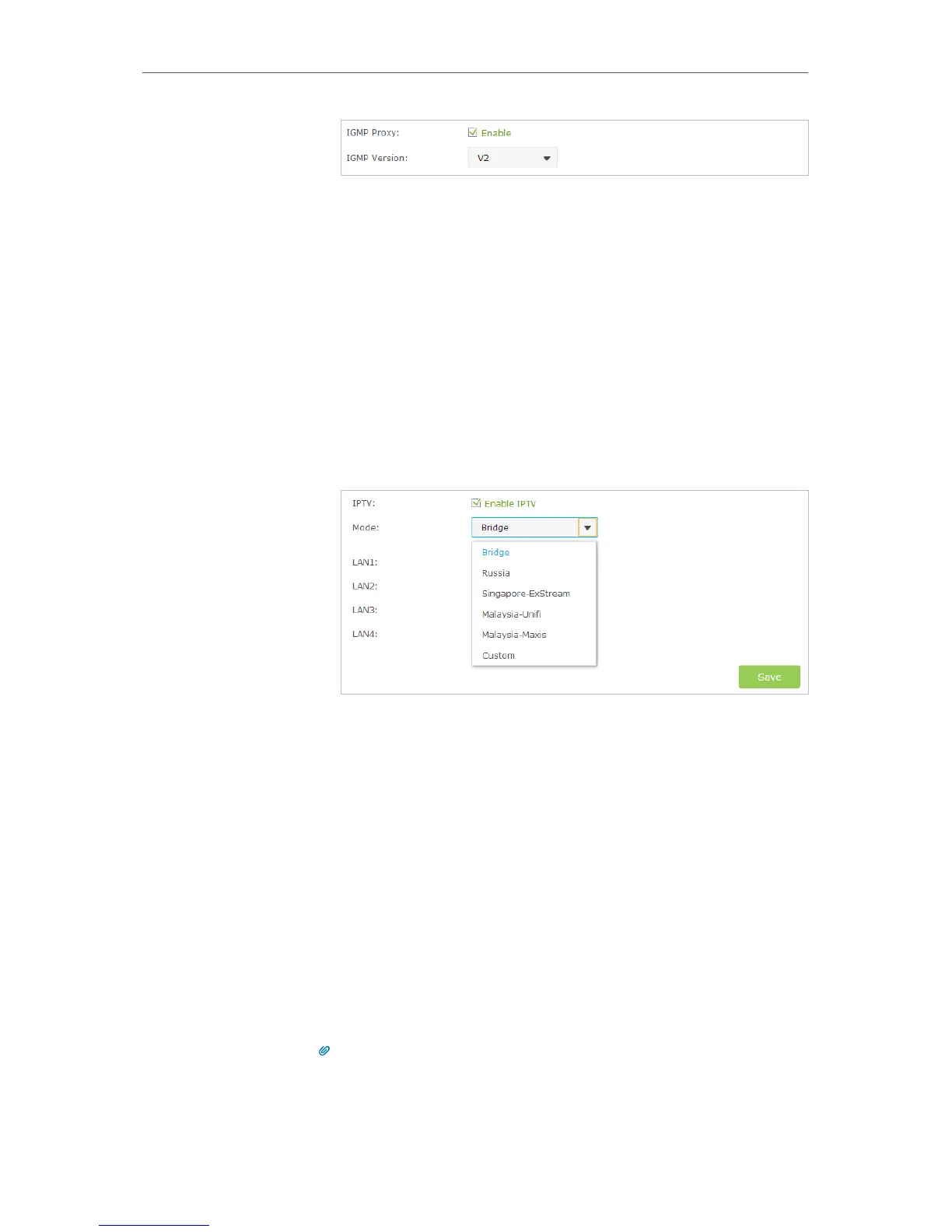
1 ) Tick the Enable IPTV check box.
2 ) Select the appropriate Mode according to your ISP. Select
Bridge if your ISP is not listed and no other parameters
are required, and then skip to Step 4. Select Custom if
your ISP is not listed but provides necessary parameters.
3 ) After you have selected a mode, the necessary parameters
are predetermined. You can perform other configuration,
e.g. enter the IPTV Multicast VLAN ID and select the IPTV
Multicast VLAN Priority in Russia mode according to your
ISP.
4 ) For Russia, Singapore-ExStream, Malaysia-Unifi and
Malaysia-Maxis mode, connect the set-top box to the
predetermined LAN port. For Bridge and Custom mode,
select the LAN type and connect the set-top box to the
corresponding port.
5 ) Click Save.
Your IPTV setup is done now! You may need other configurations
on your set-top box before enjoying your TV.
Tips
Qos and IPTV cannot be enabled at the same time.
Done!


 To Next Page