33
Chapter 8
SMS
5. Click Send to send the message or click Save to save the message to the Drafts.
8. 3. View Sent Messages
1. Visit http://tplinkmodem.net, and log in with the password you set for the router.
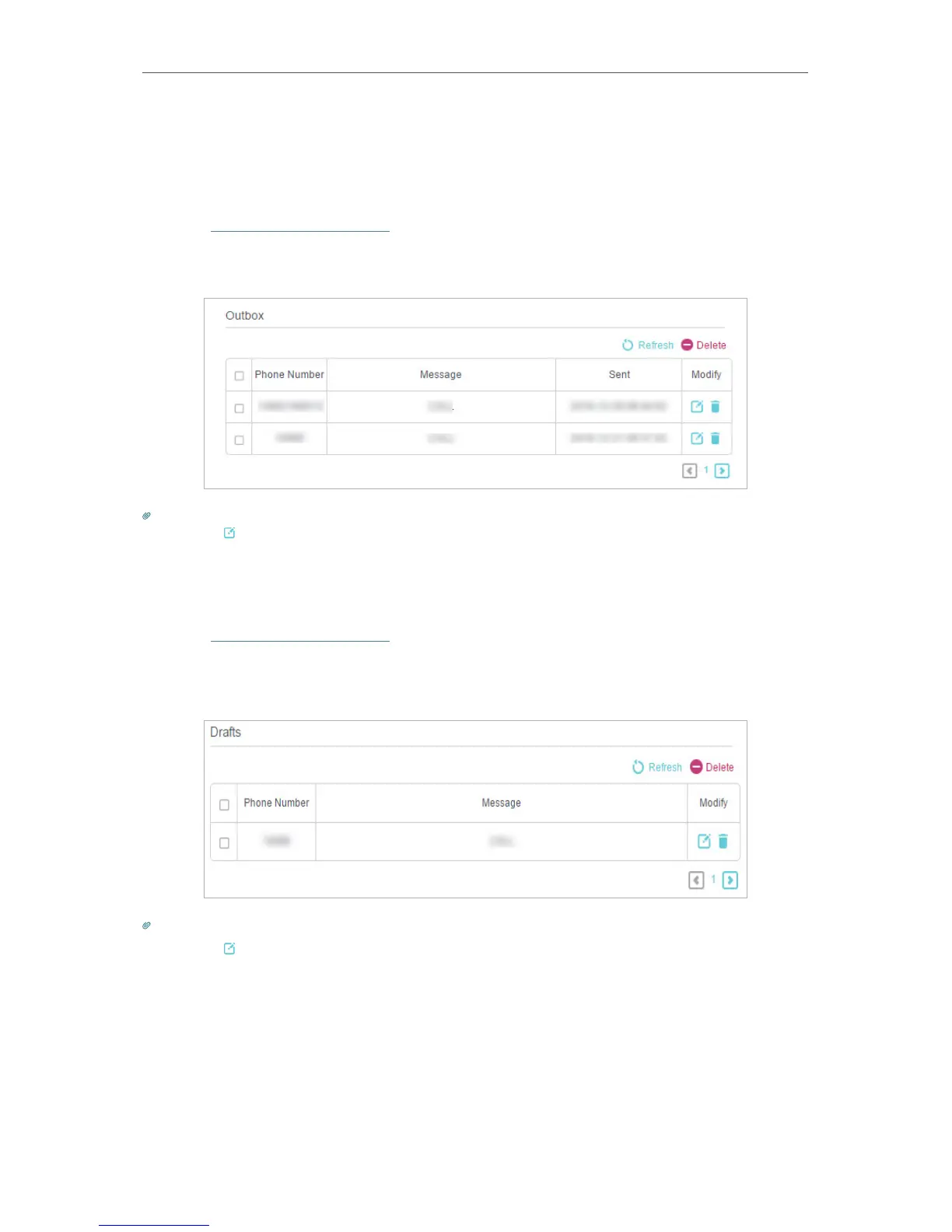
2. Go to Advanced > SMS > Outbox page. All the messages you sent are listed in the
Outbox table.
Tips:
You can click to edit and forward the message.
8. 4. View Drafts
1. Visit http://tplinkmodem.net, and log in with the password you set for the router.
2. Go to Advanced > SMS > Drafts page. All the unsent messages are listed in the
Drafts table.
Tips:
You can click to edit and forward the message.
8. 5. SMS Settings
SMS Settings allows you to configure the Message Center. When the Message Center
is enabled, you can change the Message Center Number via which messages will be
sent. It is not recommended to change it for a wrong message center number will affect
the SMS function of the router.










 To Next Page