42
Chapter 10
NAT Forwarding
Note:
DMZ is more applicable in the situation that users are not clear about which ports to open. When it is enabled, the DMZ
host is totally exposed to the internet, which may bring some potential safety hazard. If DMZ is not in use, please disable
it in time.
Make the home PC join the internet online game without port
restriction.
For example, due to some port restriction, when playing the
online games, you can log in normally but cannot join a team
with other players. To solve this problem, set your PC as a DMZ
with all ports opened.
1. Assign a static IP address to your PC, for example
192.168.1.100.
2. Visit http://tplinkmodem.net, and log in with the password
you set for the router.
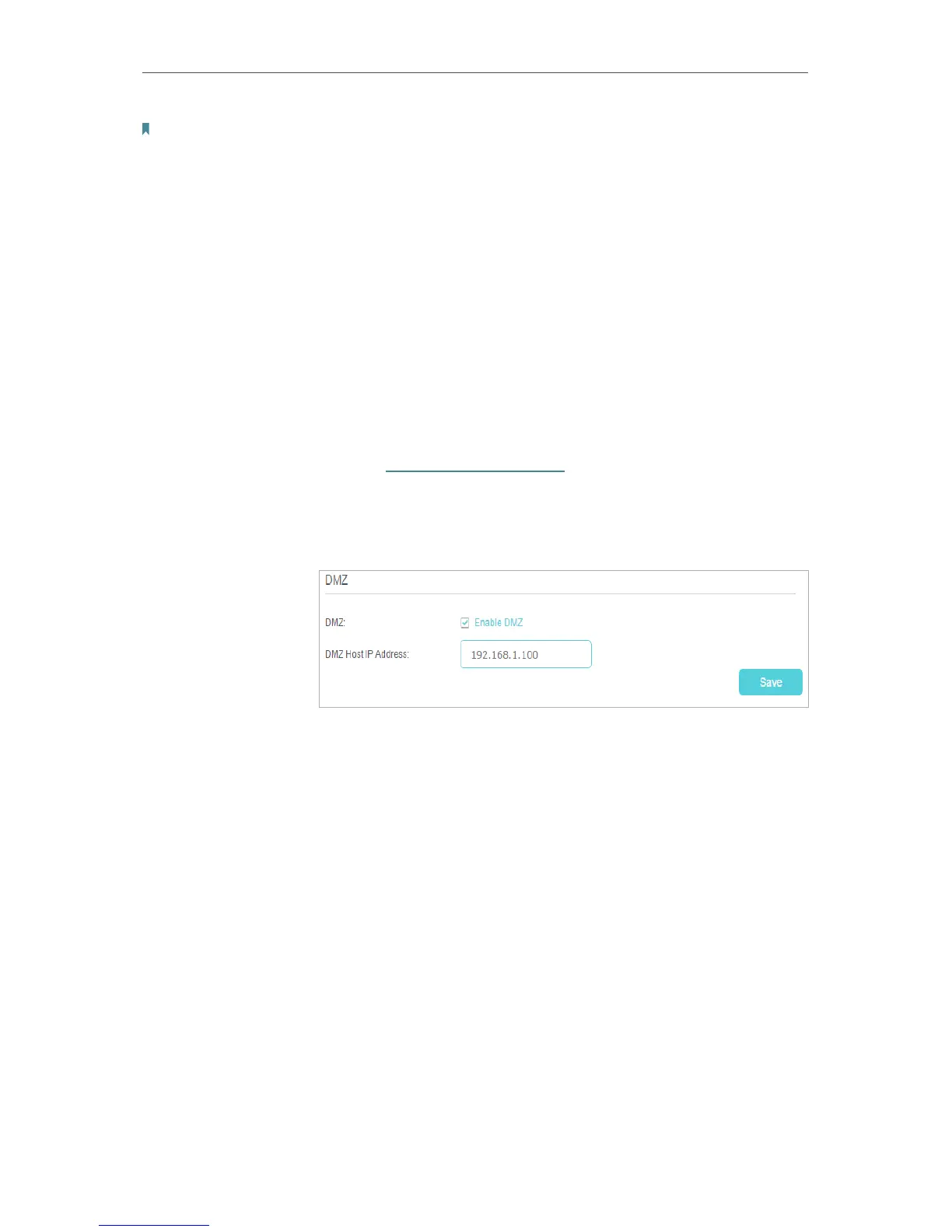
3. Go to Advanced > NAT Forwarding > DMZ and select the
checkbox to enable DMZ.
4. Enter the IP address 192.168.1.100 in the DMZ Host IP
Address filed.
5. Click Save to save the settings.
The configuration is completed. You’ve set your PC to a DMZ
host and now you can make a team to game with other players.
10. 4. Make Xbox Online Games Run Smoothly by
UPnP
UPnP (Universal Plug and Play) protocol allows the applications or host devices
to automatically find the front-end NAT device and send request to it to open the
corresponding ports. With UPnP enabled, the applications or host devices in the
both sides of NAT device can freely communicate with each other, realizing the
seamless connection of the network. You may need to enable the UPnP if you want
to use applications for multiplayer gaming, peer-to-peer connections, real-time
communication (such as VoIP or telephone conference) or remote assistance, etc.
I want to:
How can I
do that?
Done!










 To Next Page