78
Chapter 11
Customize Your Network Settings
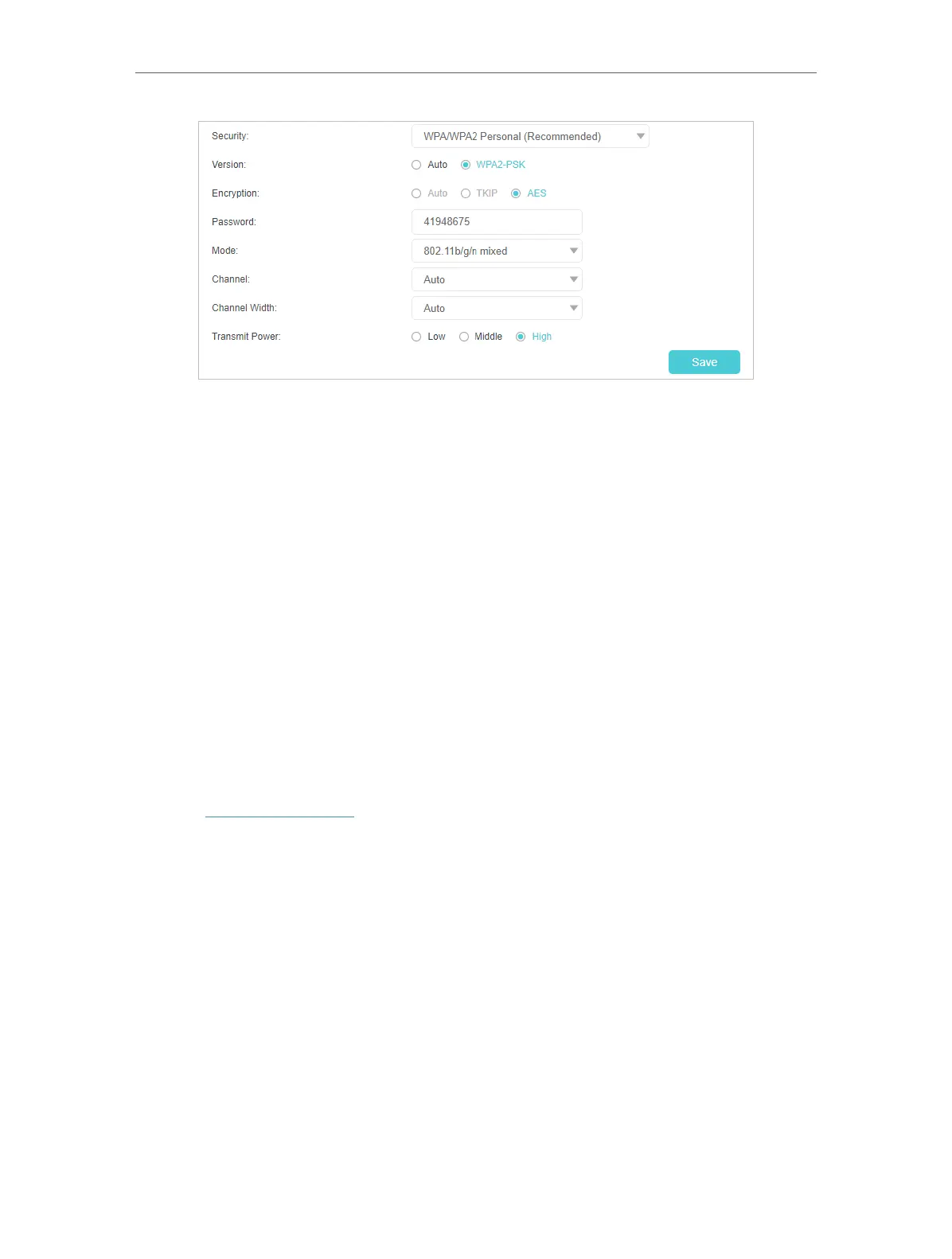
2. Select an option from the Security drop-down list. The router provides three
options, No Security, WPA/WPA2 Personal (Recommended), and WPA/WPA2
Enterprise. WPA2 uses the newest standard and the security level is the highest.
We recommend you don’t change the default settings unless necessary.
¾ To enable band steering function:
Band steering can detect what a device supports and automatically assign it to the best
wireless band based on actual conditions to balance network demands.
1. Go to Advanced > Wireless > Wireless Settings page, and locate the Band Steering
section.
2. Select the Enable check box, and click Save to make the settings effective.
11. 7. 2. View Wireless Information
¾ To view the detailed wireless network settings:
1. Visit http://tplinkwifi.net, and log in with the password you set for the router.
2. Go to Advanced > Status page. You will find the Wireless panel.
3. Select 2.4GHz or 5GHz to view the wireless details.


 To Next Page