84
Chapter 11
Customize Your Network Settings
If you want to allow the wireless devices on the guest-SSID network to
communicate with the devices connected to the router’s LAN ports or main
network via methods such as network neighbors, Samba, Ping, and FTP, select
the Allow Guests to Access My Local Network check box.
5 ) Repeat step 1) to step 4) to set other wireless networks if needed, and click
Save to make the settings effective.
11. 8. Use WPS for Wireless Connection
You can use WPS (Wi-Fi Protected Setup) to add a new wireless device to your existing
network quickly and easily.
11. 8. 1. Method 1: Use the WPS button
Use this method if your client device has a WPS button.
1. Press the WPS button of the router.
2. Press the WPS button of the client device directly.
3. The WPS LED flashes for about 2 minutes during the WPS process.
4. When the WPS LED is on, the client device has successfully connected to the router.
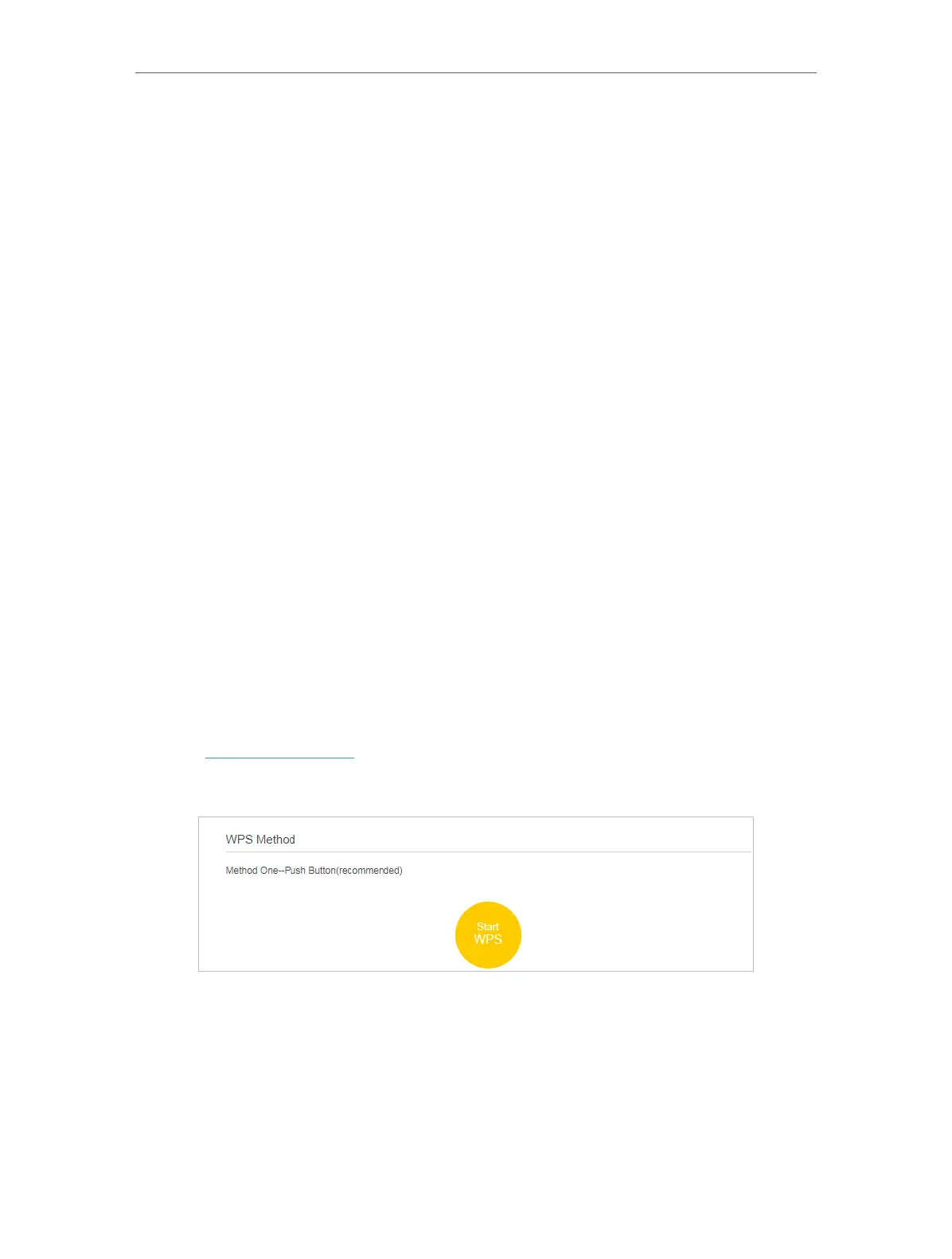
11. 8. 2. Method 2: Use the WPS button on the web management page
Use this method if your client device has a WPS button.
1. Visit http://tplinkwifi.net, and log in with the password you set for the router.
2. Go to Advanced > Wireless > WPS page.
3. Click the Start WPS button on the page.
4. Press the WPS button of the client device directly.
5. The WPS LED of the router flashes for about 2 minutes during the WPS process.
6. When the WPS LED is on, the client device has successfully connected to the router.


 To Next Page