83
Chapter 11
Customize Your Network Settings
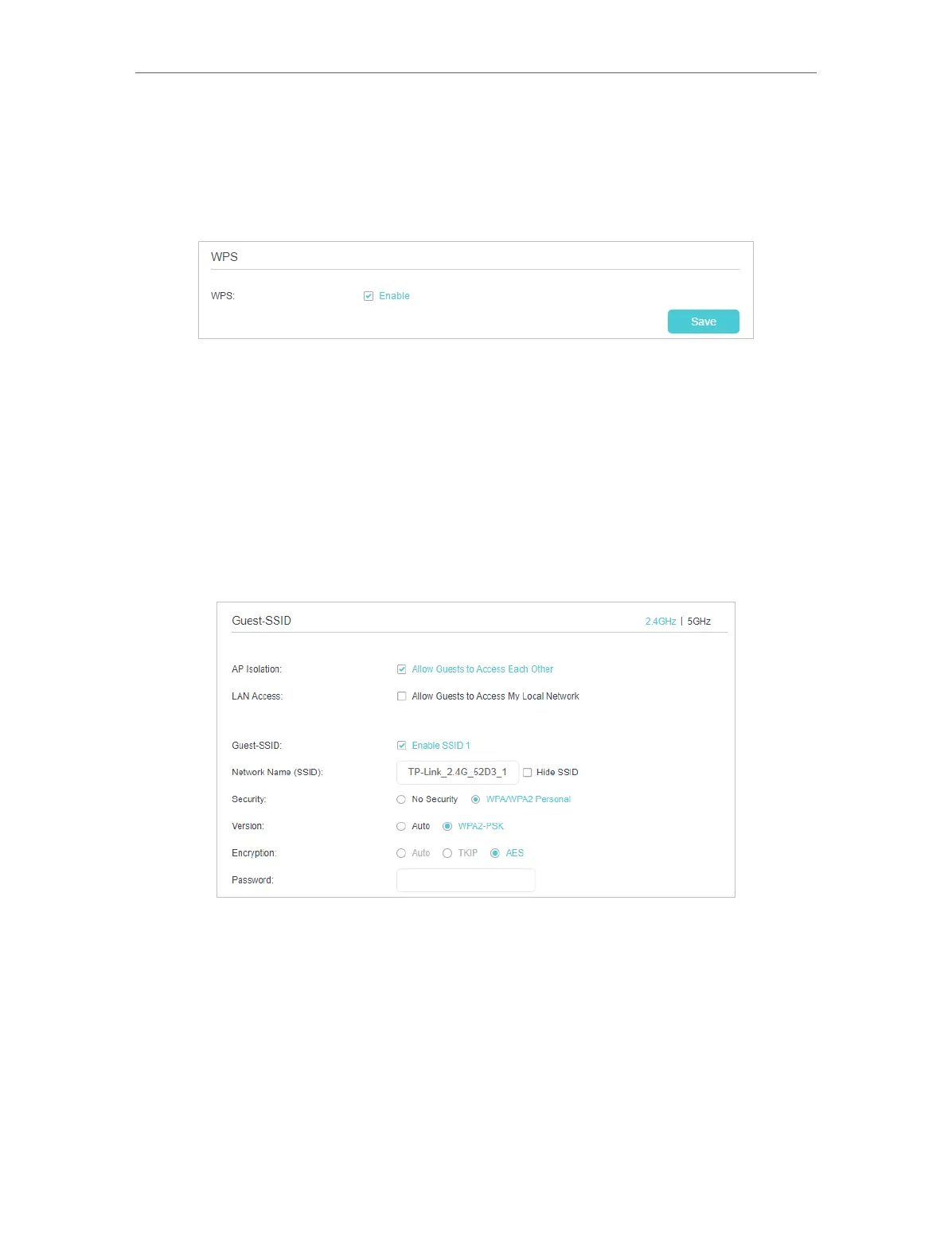
¾ To enable or disable WPS function:
WPS (Wi-Fi Protected Setup) provides you with an easier approach to set up a security-
protected Wi-Fi connection. This function is enabled by default, but if you do not need
this function, clear the WPS Enable check box and then click Save.
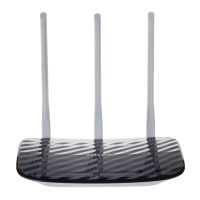
¾ To create guest-SSID network:
The router supports additional up to three guest-SSID wireless networks for client
access in each wireless band. You can specify the access and security settings to
ensure network security and privacy according to your situation.
1 ) Locate the Guest-SSID section, and click 2.4GHz or 5GHz to open the
corresponding setup page.
2 ) Select the Enable SSID 1 (2 or 3) check box(es) to enable the corresponding
guest-SSID network.
3 ) Enter a new Network Name (SSID) or use the default name, this field is case
sensitive. Don‘t select Hide SSID unless you want your guests to manually input
the SSID for Wi-Fi access.
4 ) Select the Security option for the guest-SSID network, WPA/WPA2 Personal is
recommended, and you can set a password for the network.
If you want to allow the wireless devices on the guest-SSID network to
communicate with each other via methods such as network neighbors, Samba,
Ping, and FTP, select the Allow Guests to Access Each Other check box.


 To Next Page