17
Issue Solution
If the corresponding issues cannot be solved by referring to the above methods, please contact our Technical Support
at https://www.tp-link.com/support/contact-technical-support/.
Abnormal Noise
There may be foreign matter entangled in the main brush, side brush, or wheels. Please clean up after
shutdown.
Poor Cleaning
1. There may be too much dust on the oor. Please increase the vacuum power in the Tapo app and set
two or more cleaning times.
2. The dustbin may be full. Please tap the Empty button in the Tapo app or press on the robot vacuum
to empty the dustbin.
3. The main brush may be entangled by foreign matter. Please check and clean the main brush.
4. The lter may be clogged. Please clean or replace the lter.
Schedule is not working
1. The battery level may be low. Please charge the battery until it is above 20%.
2. The cleaning is already in progress when the schedule starts.
3. Check if Do Not Disturb is set in the Tapo app. Make sure the schedule is not within the set Do Not
Disturb period.
4. There is no internet access for your Wi-Fi network and your robot vacuum has restarted. Make sure
your network has internet.
Failed to
automatically collect
the dust
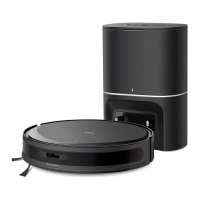
1. Ensure the dock is powered on and you have closed the cover of the dock.
2. Automatic dust collection will not start until the robot vacuum has cleaned for more than 30 minutes
in total.
3. Don’t collect the dust again within 10 minutes.
4. Check if Do Not Disturb is set in the Tapo app.
5. Check if a dust bag is installed properly. If not installed or improperly installed, the dock LED will ash.
6. Check if the dust bag is full and replace it.
Oine
1. Ensure the Tapo app and the robot vacuum rmware is up to date.
2. Ensure the area receives good Wi-Fi signals.
3. Ensure your router is working properly. Reboot the router and robot vacuum.
4. Try to change the router’s channel to 6, and width to 20MHz.
5. Try to change the router’s DNS to 8.8.8.8.
6. If the robot vacuum does not respond, press and hold for 5 seconds to force shutdown,
then press and hold for 3 seconds to turn it on and check.
Scan for Support


 To Next Page