13
Connection through USB Cable
Following are the steps to properly connect to the TDM-C500 by using USB Cable:
1. Turn off your computer/notebook.
2. Connect the ADSL port of your TDM-C500 Router to the wall jack of the ADSL/ADSL2/ADSL2+ Line with a
RJ-11 cable.
3. Connect the provided USB cable to the back of the TDM-C500 Router (USB Port).
4. Connect the other end of the USB cable to a free USB Port socket on your computer.
5. Connect the Power adaptor to the TDM-C500 Router and plug it into a Power outlet.
6. Turn on your computer.
7. This completes the setting up of your TDM-C500 hardware. Please proceed to the next section for
information on installing the TDM-C500 USB Drivers.
USB Driver Installation- Windows Vista /Windows 7
Step 1: Power On your computer.
Step 2: Insert the Square end of the USB cable into the USB port of the USB ADSL Router. Connect the
other end of the USB cable to a free USB Port socket at the back of your computer.
Step 3: The following window pop-up. Click “Cancel
”.
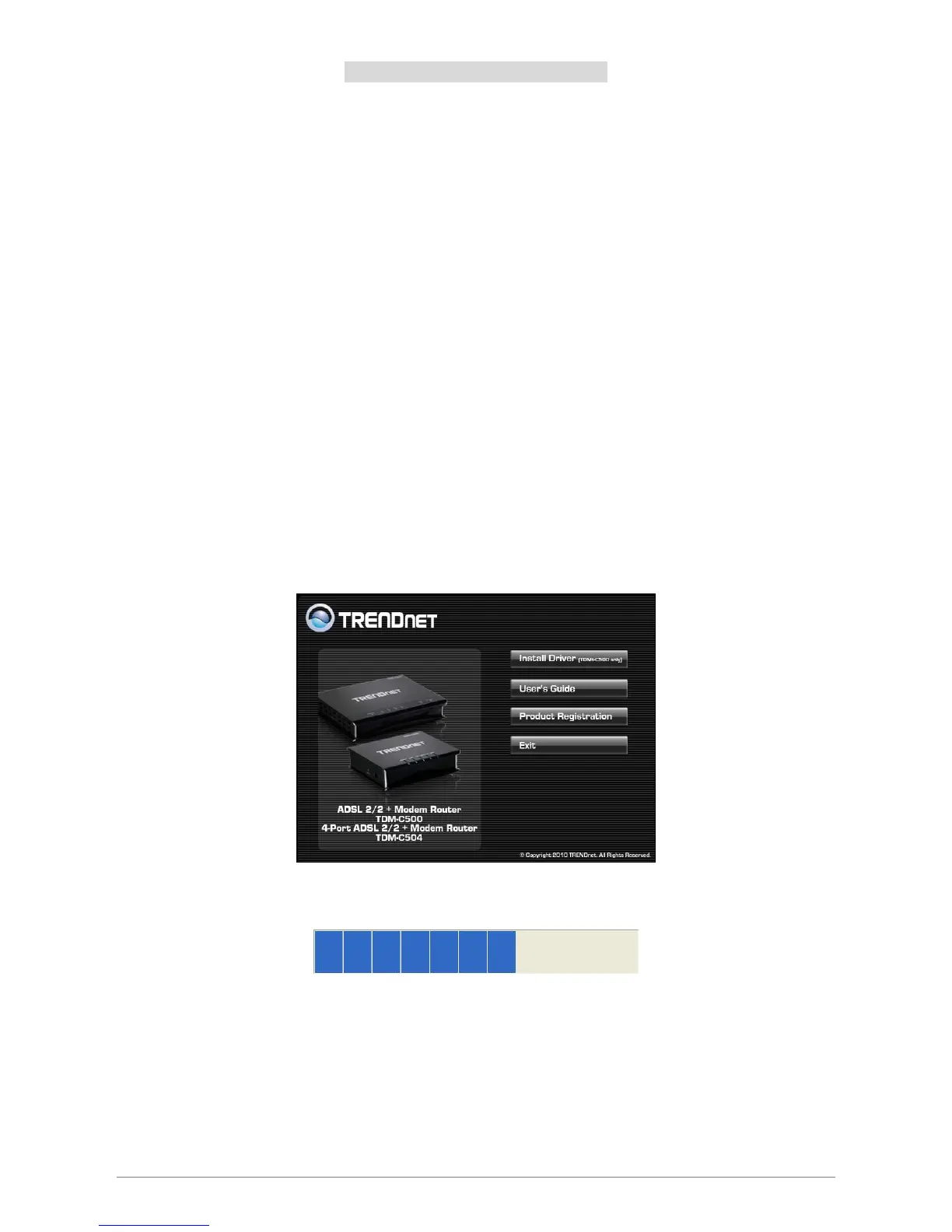
Step 4: Please insert your installation CD into your CD drive, and then the CD will auto-run and show the
main installation screen as below. Please click “Install Driver” to start the installation.
Step 5: Your Windows system will automatically install the device driver and copy all the necessary files to
your system. An icon will appear indicates the files copying process.
Step 6: Click “Install this driver software anyway”.





 To Next Page