Triggertrap Mobile App Manual | Page 19
Remote Trigger: Wi-Fi Triggering
In addition to the SLR triggering and the internal triggering,
we have an awesome wireless mode built into Triggertrap
Mobile. You can use Wi-Fi triggering on a series of dierent
triggering modes in Triggertrap Mobile. To find instructions
on how to set up Wi-Fi triggering, go to the Reference and
Help section in the app menu and select ‘Setting up Wi-Fi’.
How does it work?
The Wi-Fi triggering mode in Triggertrap Mobile enables
photographers to trigger their cameras using one mobile
device as a ‘slave’, and the other as a ‘master’.
The ‘master’ device will be the one you use to trigger the
‘slave’ device. Both of them need to be connected to the
same Wi-Fi network.
Limitations
The Wi-Fi triggering is only a “one-shot” trigger. In other
words, it only sends a “please trigger now” signal without any
length information to the slave device.
This means it doesn’t work for bulb modes which require
variable length pulses, such as HDR and Star Trail.
Setting up your Master device
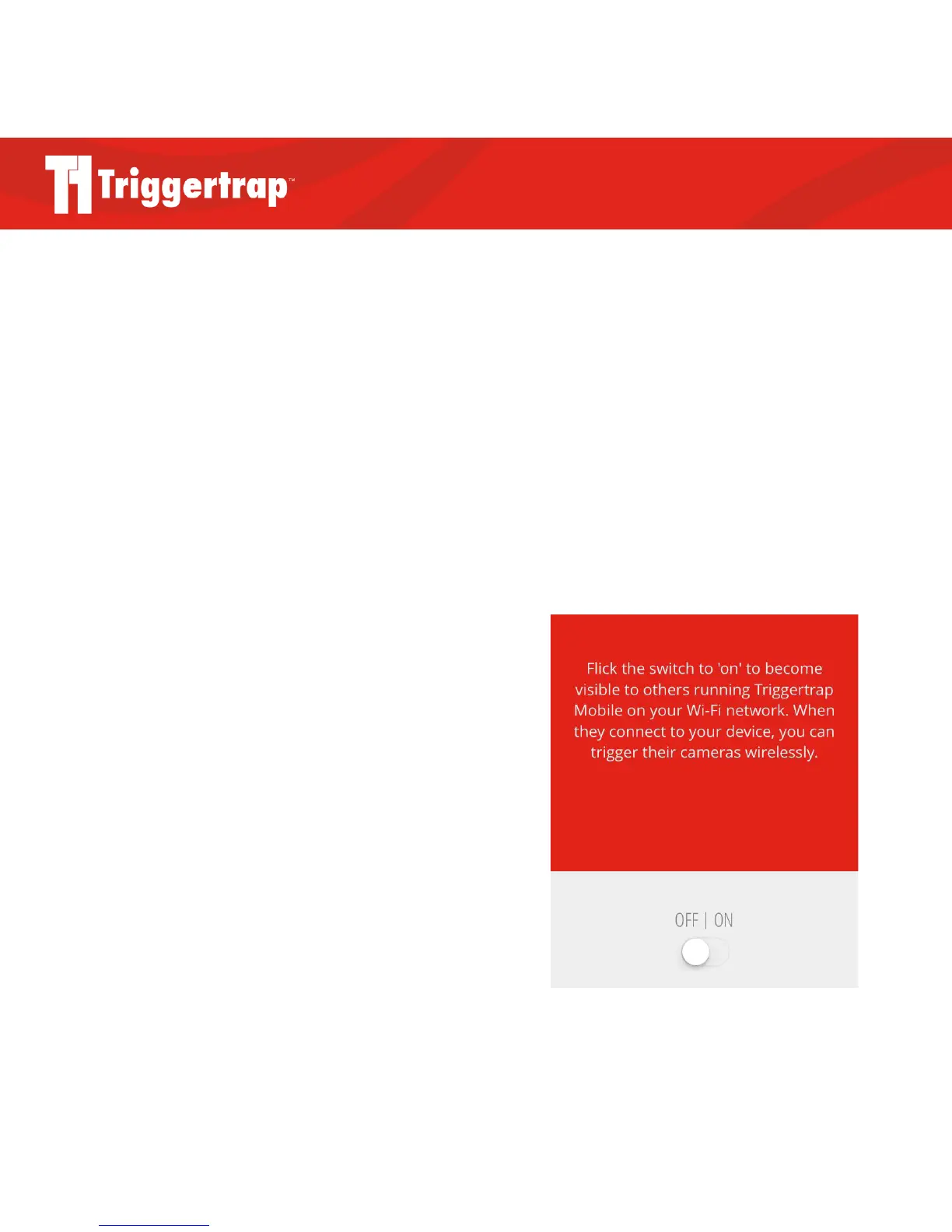
On your Master device, go to the ‘Wi-Fi Master’ in the
settings section of the menu (right at the bottom) you’ll find
a switch – switch it to ‘on’.
Setting up your Slave device
Plug your Triggertrap Mobile Dongle into the slave device,
and connect your dongle to your camera as usual. In the
menu, you’ll find a Wi-Fi Slave mode. This is just like any
other trigger, except that instead of sound or vibration, it’s a
signal over the Wi-Fi network that triggers your camera(s).
Press ‘start’, then connect to a Master device. Once you’re
connected, you can choose what you want to trigger (such
as the internal camera or a Mobile Dongle) as usual.



 To Next Page