CamView IP Pro, Pro-C, and Pro+ User Manual 5
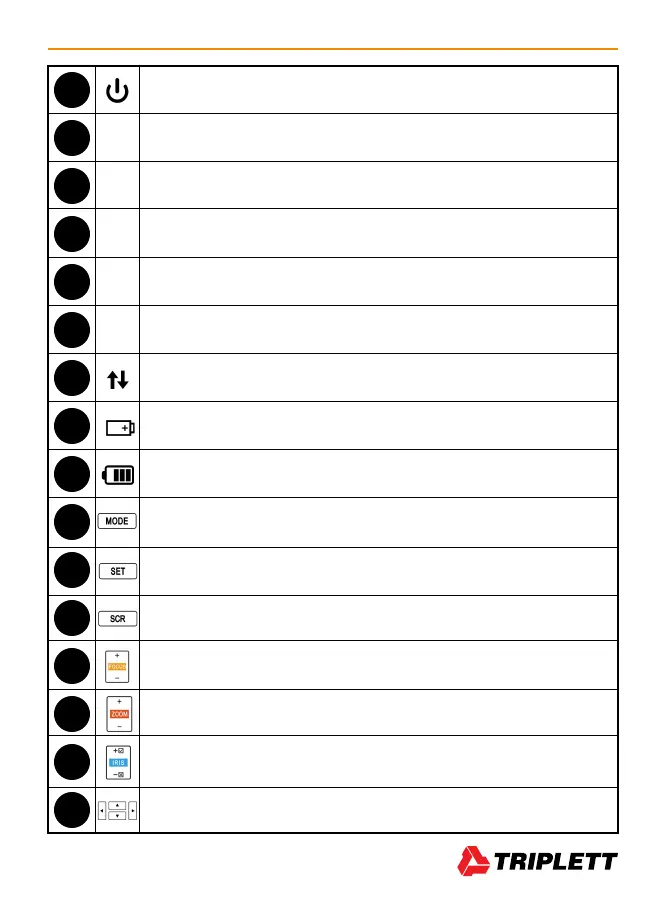
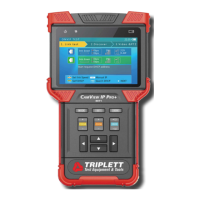
Power Indicator — Lights up when powered on.
Title Bar — Displays current function mode and system time.
Display Area — Displays various user interface menus.
On-Screen Instructions — Displays what your options are in the current screen
and how to apply them.
Bumpers — Rubber protectors to improve handling and protect the tester.
QWERTY Keyboard — Flip open this area to access the QWERTY keyboard.
Data Transmission Indicator — Red light flashes when data is being transferred.
Charge indicator — Red when charging, off when fully charged.
Battery Level Icon — Indicates battery Level.
Mode Button/Function Select Key — Click to bring up Function Select menu.
Click multiple times or use Up/Down and Right Arrow Keys to select function.
Setting Button — Brings up Settings Menu for various functions.
Screen Button — Switches full screen video display on/off.
Focus Control Key — Controls PTZ focus and other functions depending on the
individual screen. Use of this button will be indicated by Focus+ / Focus-
Zoom Control Key — Controls PTZ and other functions depending on the
individual screen. Use of this button will be indicated by Zoom+ / Zoom-
Iris Control Key — Controls PTZ Iris and other functions depending on the
individual screen. When altering settings, use Iris+
to confirm and Iris- to cancel.
Arrow Keys — Use these to navigate menus, alter settings, and pan/tilt cameras.
1
2
3
4
5
6
7
8
9
10
11
12
13
14
15
16


 To Next Page