Conventional Fieldwork
59
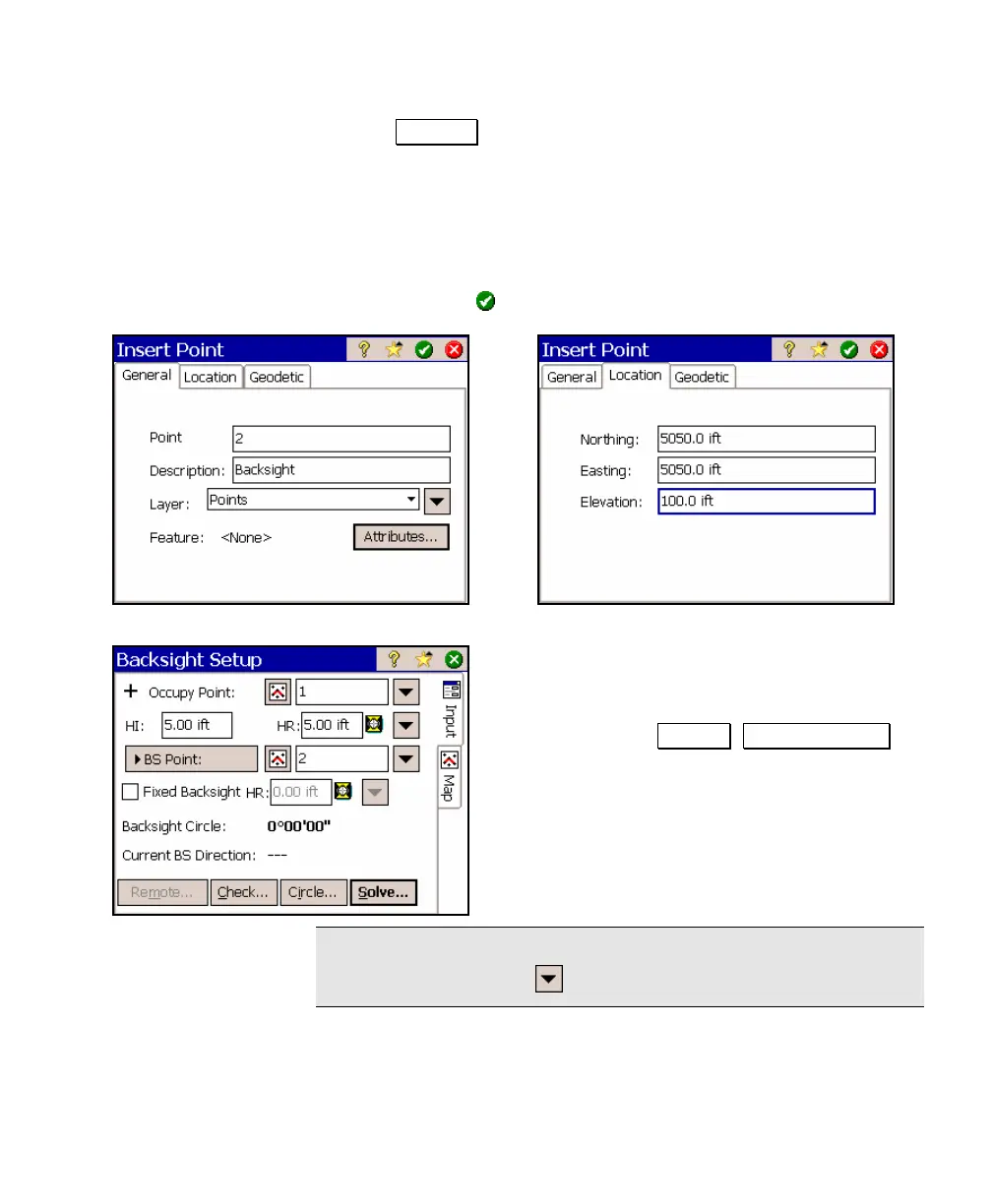
b. Tap Insert… and enter a new point using the General and
Location cards with the following values, as shown: Point
Name: 2
Northing: 5050
Easting: 5050
Elevation: 100
Description: Backsight
and then tap
.
4. Set up your backsight. In this example, we
will set up on Point 1 and backsight Point
2, which was just created.
a. Access the Survey , Backsight Setup
screen.
b. In the Occupy Point field, enter 1 as the
point name.
Tip: You can also select an existing point from a map view or
from a list by using the power button.



 To Next Page