A
13
3.10 Settings > System
Click the “Settings” menu button and the “System” submenu
button to display the Settings > System page.
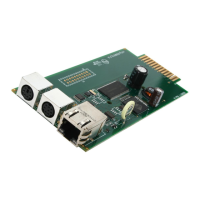
The SNMPWEBCARD has a real-time clock with a backup
battery that keeps the clock running when the card is powered
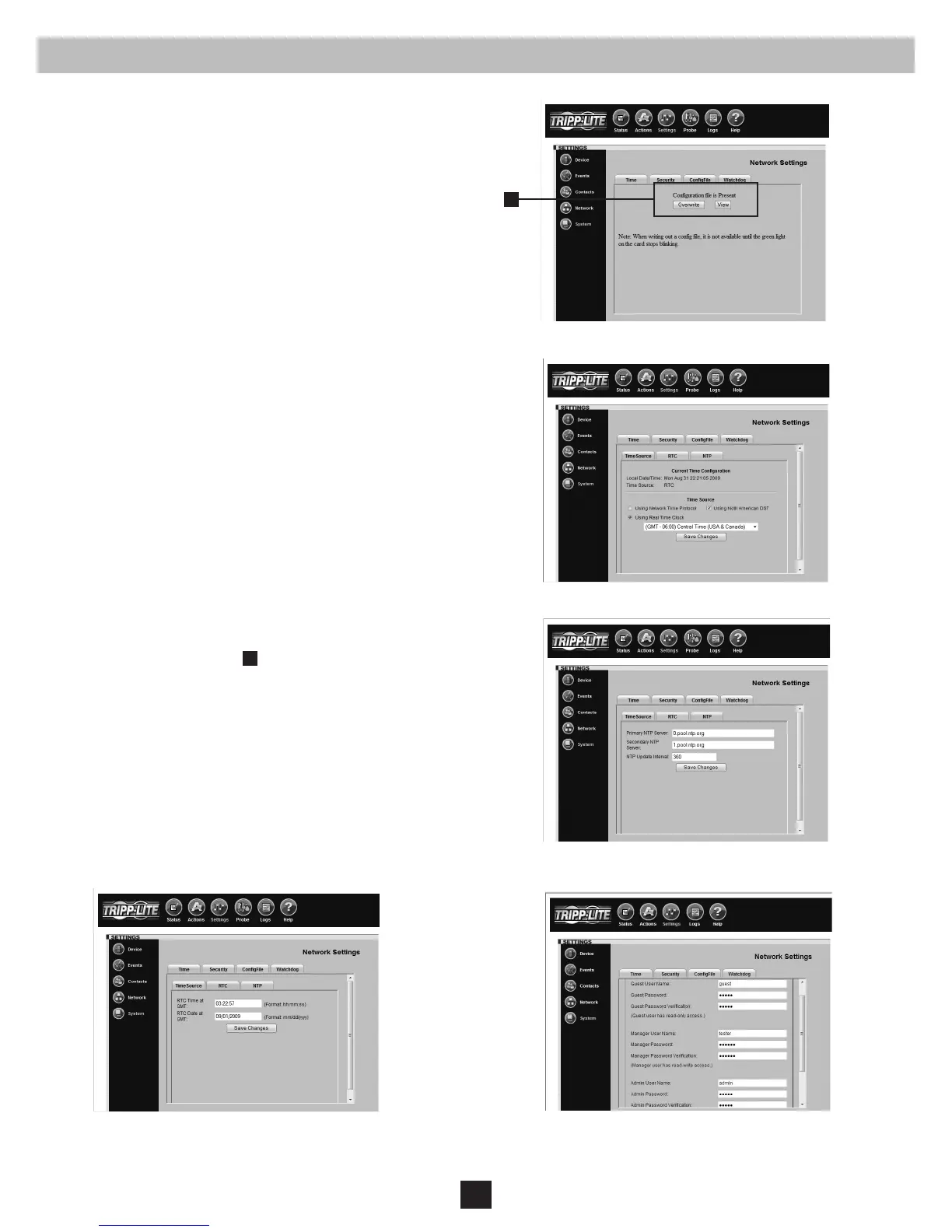
off. The “CongFile” and three “Time” tabs (Figures 3-23
through 3-26) allow you to set the date and time manually or to
dene a Network Time Protocol server for periodic network time
synchronization. The time zone can also be specied. If you don’t
know the correct Network Time Protocol server settings, contact
your network administrator.
The “Security” tab (Figure 3-27) allows you to dene usernames
and set passwords for three user levels: guest, manager and
administrator (admin). Guest users have read-only access and
do not have telnet access. Manager users have similar rights to
Admin users, however, they are not allowed to change security
settings. Admin users have read/write access, which means that
they can control the SNMPWEBCARD and change its settings.
Tripp Lite recommends dening passwords for both user levels.
Note: For rmware version 12.04.0019 and 12.03.0024, the default
admin password is blank. For rmware version 12.04.0030 and
above, the default admin password is admin.
Write Conguration/View Conguration
The SNMPWEBCARD can maintain a copy of its current
conguration as a backup in the event of system problems or to
congure other SNMPWEBCARDs via FTP.
To generate a conguration le (pacong.ini), select the “Write
Cong” button at the bottom of the page. This le can also be
viewed and saved to your computer
A
by clicking the “view”
button. You will be prompted with a login screen, at which time
you may enter Administrator username and password.
To distribute the conguration le to other SNMPWEBCARDs
(12.04.0040 or above), FTP to the SNMPWEBCARD’s IP address.
In binary mode, “PUT” the conguration le (pacong.ini) to
the SNMPWEBCARD, then close the FTP session. When the
SNMPWEBCARD reboots, it will operate according to the new
conguration le. Note: The admin password will be required to
view or download the conguration le.
Fig. 3-23: Settings > System > CongFile
Fig. 3-24: Settings > System > Time > TimeSource
Fig. 3-25: Settings > System > Time > NTP
Fig. 3-26: Settings > System > Time > RTC Figure 3-27: Settings > System > Security Tab


 To Next Page