B
D
E
F
A
C
4
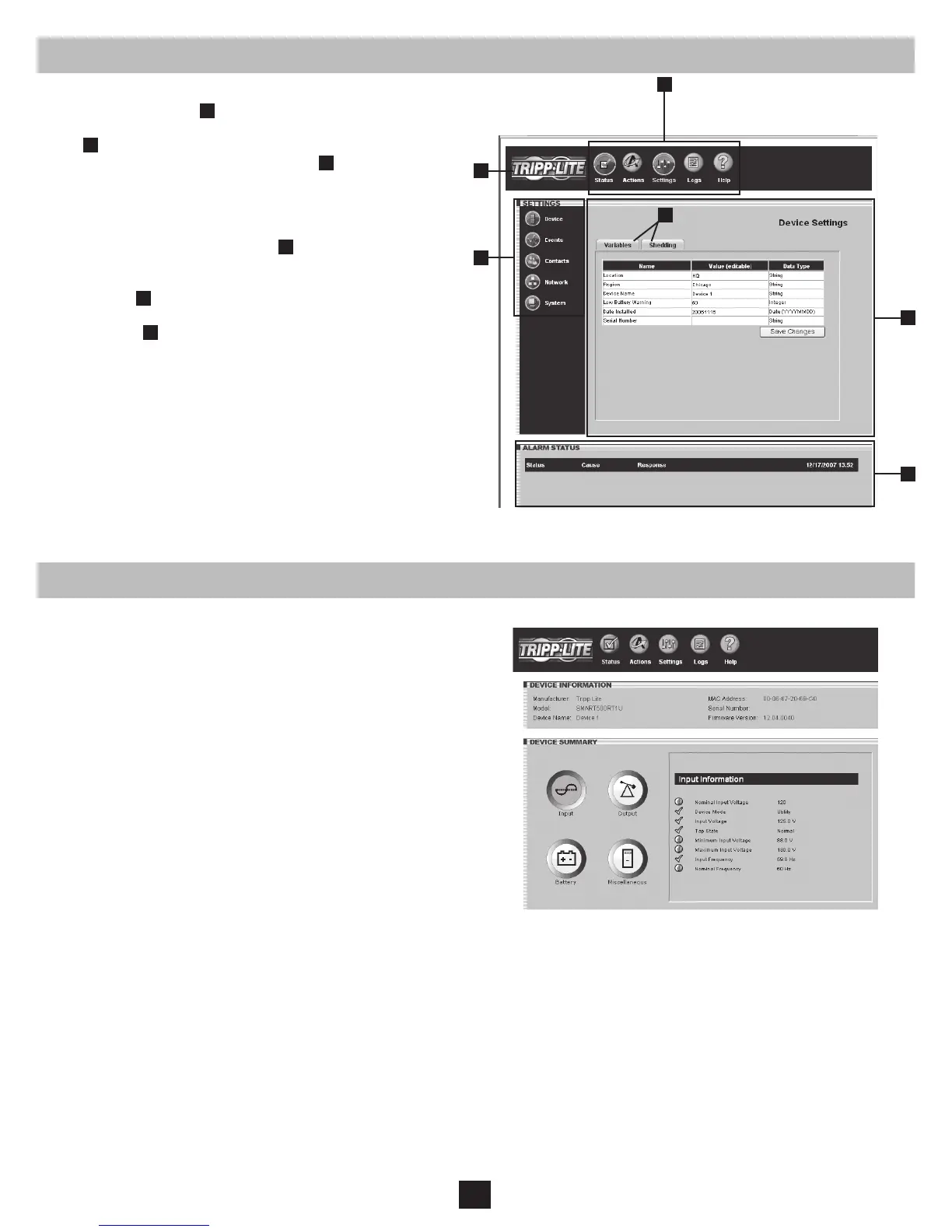
3.2 Web Console Interface
3.3 Status
Clicking the Tripp Lite logo
A
in the header opens Tripp Lite’s Web
site in a new browser window. The header also contains the menu
buttons
B
, which are the main navigational icons of the console.
Clicking a menu button reveals submenu buttons
C
on the left side
of the console that are applicable to the selected menu button. When
you click a menu or submenu button, the text changes from white to
green.
Each submenu has an information section
D
that appears when the
submenu is selected. The information section contains data, settings
and/or controls. Several of the information sections are further
divided into tabs
E
.
The alarm section
F
appears at the bottom of the console window
regardless of which submenu is selected. If an alarm or other
notication condition occurs, the alarm section will show the
severity of the condition, the cause of the condition (such as “UPS on
Battery”) and the automatic response or recommended user response
(such as “Prepare system for shutdown”).
Click the “Status” menu button to display the status page (Figure
3-3), which displays device information, device summary and
alarm status. Four additional buttons within the window allow
you to select information categories: input information, output
information, battery information and miscellaneous information such
as additional device information and system information. When you
activate an information category, the button for that category changes
from white to blue. The status of each information item is indicated
by the icon next to the item.
Figure 3-2: Console Interface Overview
Figure 3-3: Status Page


 To Next Page