7
3.4.1 Actions > Control > Economy Mode (Continue d)
3.5 Actions > Loads
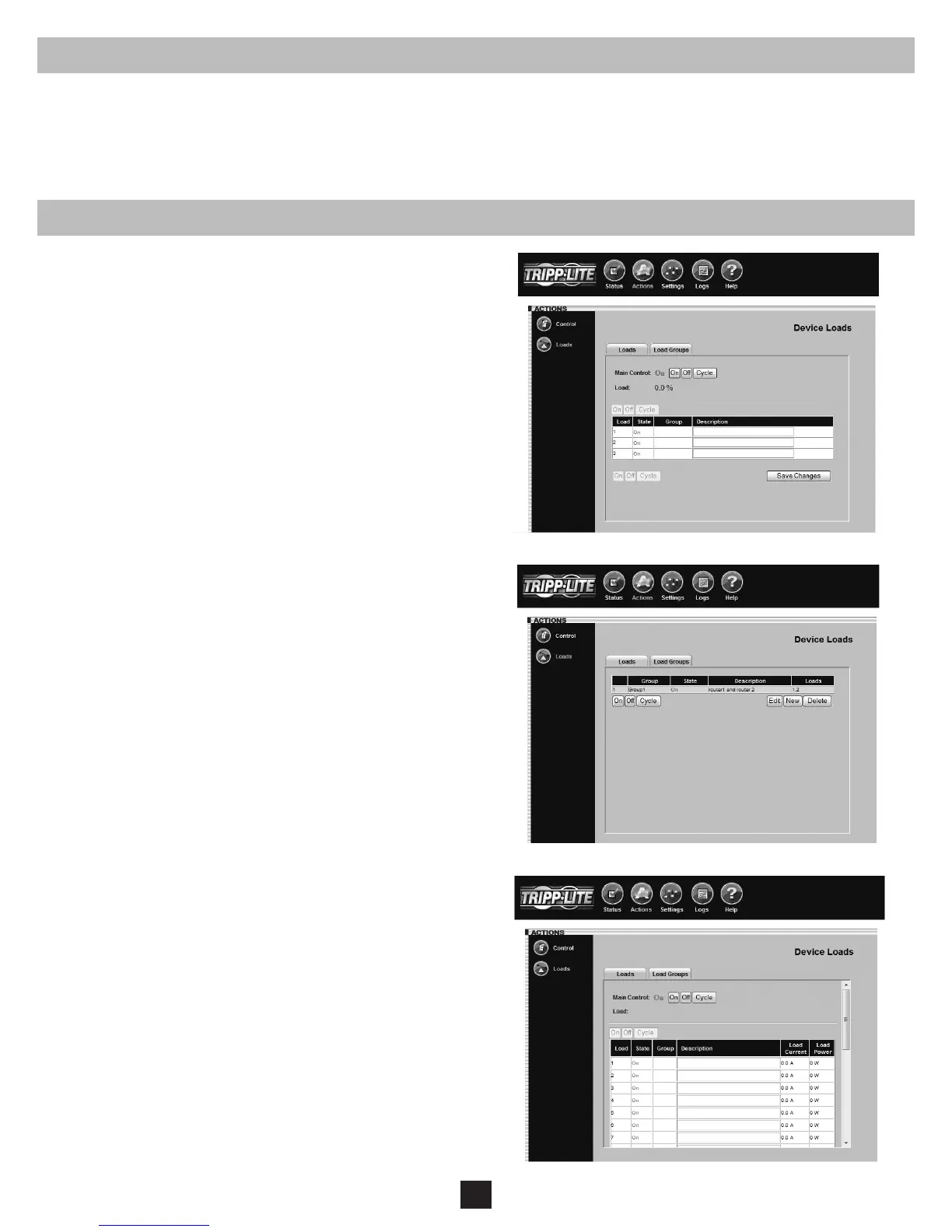
Click the “Actions” menu button and the “Loads” submenu button
to display the Actions > Loads page (Figure 3-10). You can control
the outlets of the managed device by selecting the load and then
clicking the appropriate “On,” “Off” or “Cycle” button. The load
of connected equipment is displayed as a percentage of maximum
capacity, allowing you to see whether additional equipment can be
added safely. (Load uctuates with the power demands of connected
equipment. It is prudent to limit the load to approximately 80% of
maximum capacity in order to accommodate higher startup power
demands and other increased power needs.)
If your device has controllable load banks, additional buttons allow
you to control each load bank. (Each load bank consists of one or
more outlets.) You can use the “Description” eld to label the banks
for easy reference. The main control buttons affect all outlets at
once. Note: If the control buttons remain grayed out when a load is
selected, this condition indicates the outlet is non-controllable.
Warning: The load controls start or stop the ow of electricity
to your device’s outlets. Make sure you know which equipment
is connected to each load bank before attempting to use these
controls. Check the outlet labels and/or test the load banks
by plugging a circuit tester or small light into each outlet and
observing the effects of the controls.
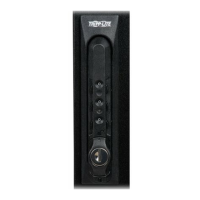
Note: On select PDUs and UPS systems it is possible to dene
logical outlet groups (groups of individual outlets) that can be
controlled through a single command to turn ON/OFF or Cycle (see
Figure 3-10a). This feature is only available on models that support
Ramping and Shedding. See Section 5—Load Ramping and Shedding
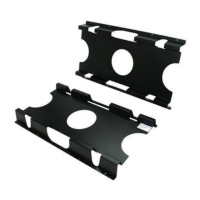
for more information. For select PDUs, support is available for
individual outlet current and power information. If the PDU supports
individual current and power information, additional columns (for
Current and Power) will be displayed on the Loads page (see Figure
3-10b).
Figure 3-10: Actions > Loads Page
Figure 3-10a: Actions > Loads > Load Groups
Figure 3-10b: Actions > Loads > Load Current/Power
Disabling Economy Mode:
To put a Tripp Lite SmartOnline UPS System out of Economy Mode, go to the “Actions” menu button and the “Control” submenu button. Select either
“Disable Economy Mode” or “Set Economy Mode”, depending on the UPS. If the UPS has “Set Economy Mode”, enter a “0” in the “Parameters-Value” eld
and then click the “Execute Command” button. On the front panel of the UPS system, the “LINE”, “ONLINE”, and“LOAD” LEDs will illuminate green.


 To Next Page