8
3.7 Settings > Events
Click the “Settings” menu button and the “Events” submenu button to
access the Settings > Events page (Figure 3-12). The Settings > Events
page allows you to congure responses to changes in operating and
environmental conditions.
Events are divided into four categories: Critical, Warning,
Information and Ofine. Each event category has an icon associated
with it. The icon will be displayed in the alarm status section of the
console window (with other event information) when an event of that
category occurs.
You can congure settings for several event types, including “On
Battery” and “Battery Low.” (Events vary by device.) See Figure 3-13
Settings > Events > Details Tab. You can congure several settings
categories that specify actions to be executed when the selected event
takes place:
“Shutdown”• –Turns the device off after a specied period of time.
“Contact Notication”• –Sends an e-mail to an e-mail address(es)
in your contact list. (Requires an e-mail contact to be set. See
Figure 3-14 Settings > Contacts.)
“SNMP Trap Notication”• –Sends an SNMP trap to a specied IP
address(es) in your SNMP list. (Requires an SNMP contact to be
set. See Figure 3-15 Settings > Contacts.)
“Logging”–• Enables logging for the selected event. Note: The Log
can be accessed via Logs Menu.
“SNMP Set Notication”• –Allows the device to perform an SNMP
set on another SNMP-enabled device or application on the network,
allowing the device or application to be notied when the event
occurs. (Requires an SNMP contact to be set. See Figure 3-15 >
Contacts.)
Check the “Status” box next to the event category to enable the
option.
Figure 3-12: Settings > Events > Summary Tab
Figure 3-13: Settings > Events > Details Tab
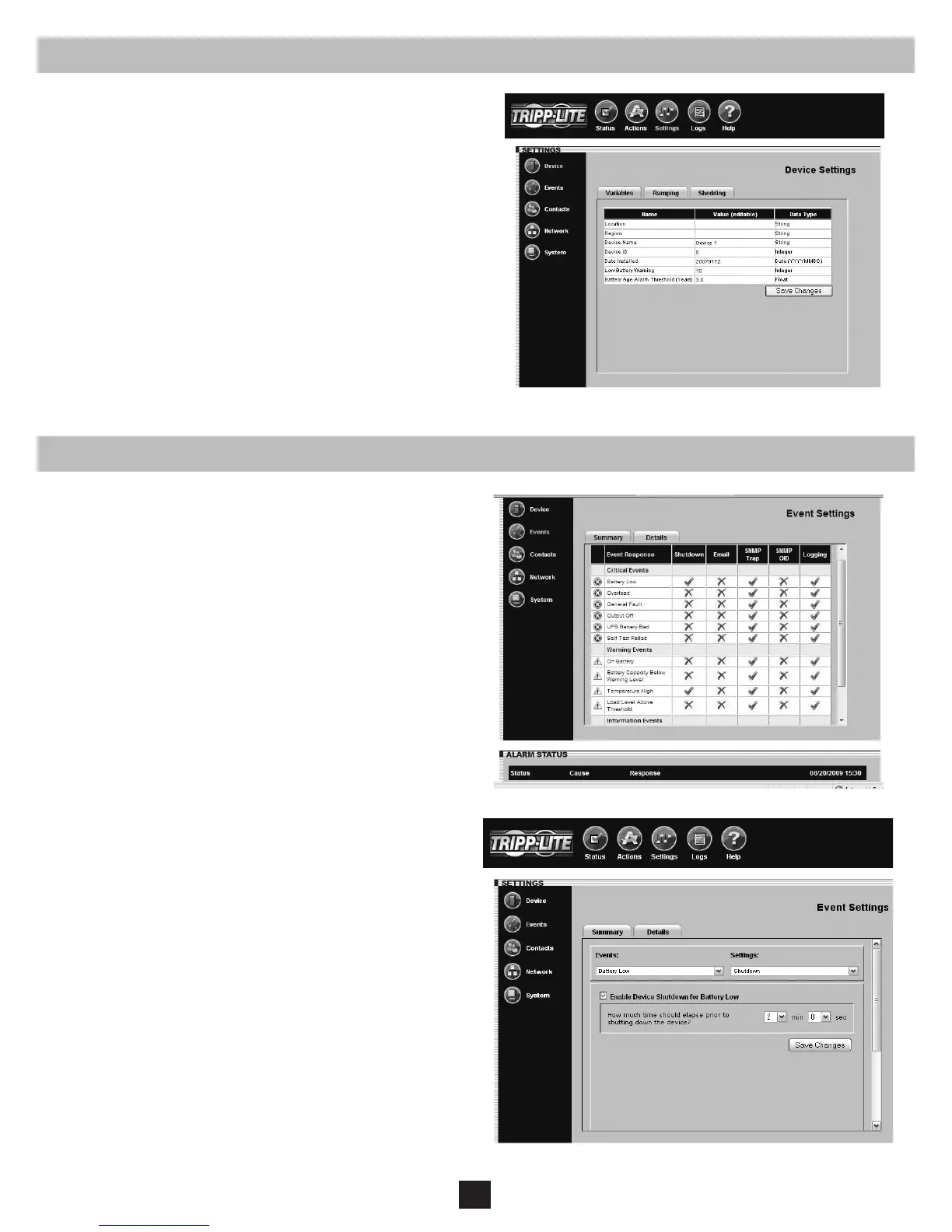
3.6 Settings > Device
Click the “Settings” menu button and the “Device” submenu button
to display the Settings > Device page (Figure 3-11). You can edit the
device variables for the UPS system.
Note: Some UPS systems have fewer device variables; some
have more. Some UPS systems will ll the “Serial Number” eld
automatically. The “Low Battery Warning” eld is tied to the
“Battery Capacity Below Warning” event.
See Section 5 – Load Ramping and Shedding for information about
the “Ramping” and “Shedding” tabs. The tabs will only be accessible
if the device supports these features.
Figure 3-11: Settings > Device > Variables Tab


 To Next Page