Operation SeaKing & SeaPrince Imaging Sonars
0374-SOM-00001, Issue: 08 23 © Tritech International Ltd.
Sonar (this will be renamed for other devices, e.g., Sidescan, Profiler, Bathy)
1. Colours Use to select a saved colour scheme.
2. Colour Setup Use to configure the existing colour scheme or create a new colour
scheme.
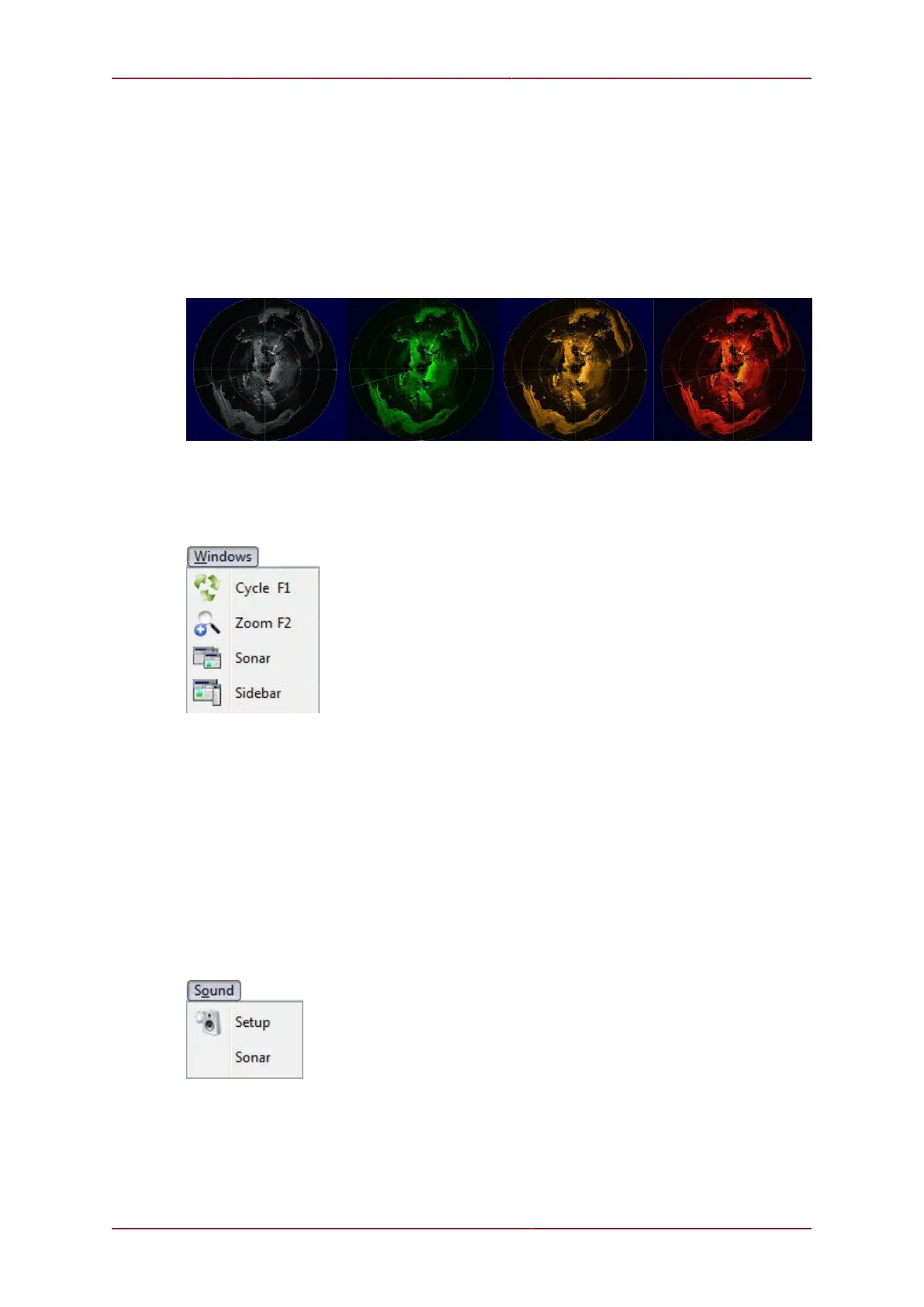
Some examples of colour schemes that are available by default:
Figure 5.10.
Figure 5.11.
Windows (only functional in multi-Sensor Applications)
1. Cycle F1 Cycle to the next Display Window (can also be done using the F1 key).
2. Zoom F2 Enlarge the current Display Window to fill the window, click again to display all
the Display Windows (can also be done with the F2 key).
3. Sonar Switch focus to Sonar Display window.
4. Sidebar Will be replaced with name of another Sensor in a Multi-Sensor Application.
Figure 5.12.
The Sound menu enables an acoustic representation of the visuals presented on the Main
Screen of the Seanet Pro application. Clicking on Setup allows configuration of how this
sound is represented.


 To Next Page