Operation SeaKing & SeaPrince Imaging Sonars
0374-SOM-00001, Issue: 08 22 © Tritech International Ltd.
1. GPS Pop-up Form to display GPS data received through a COM port.
2. Compass Pop-up Form to display Compass data received through a COM port.
3. Auxiliary Device Pop-up Form to display Aux Device data (i.e. Digiquartz Pressure
Sensor or PA/NMEA Altimeter data) received through a COM port.
4. Com Setup Configure and Enable COM ports for various serial inputs/devices including
GPS, Pipetracker, Barometer and Compass.
5. GPS Diagnostic Terminal window for viewing received serial data.
6. Compass Diagnostic Terminal window for viewing received serial data.
7. Auxiliary Device Diagnostic Terminal window for viewing received serial data.
8. Barometer Diagnostic Terminal window for viewing received serial data.
Figure 5.7.
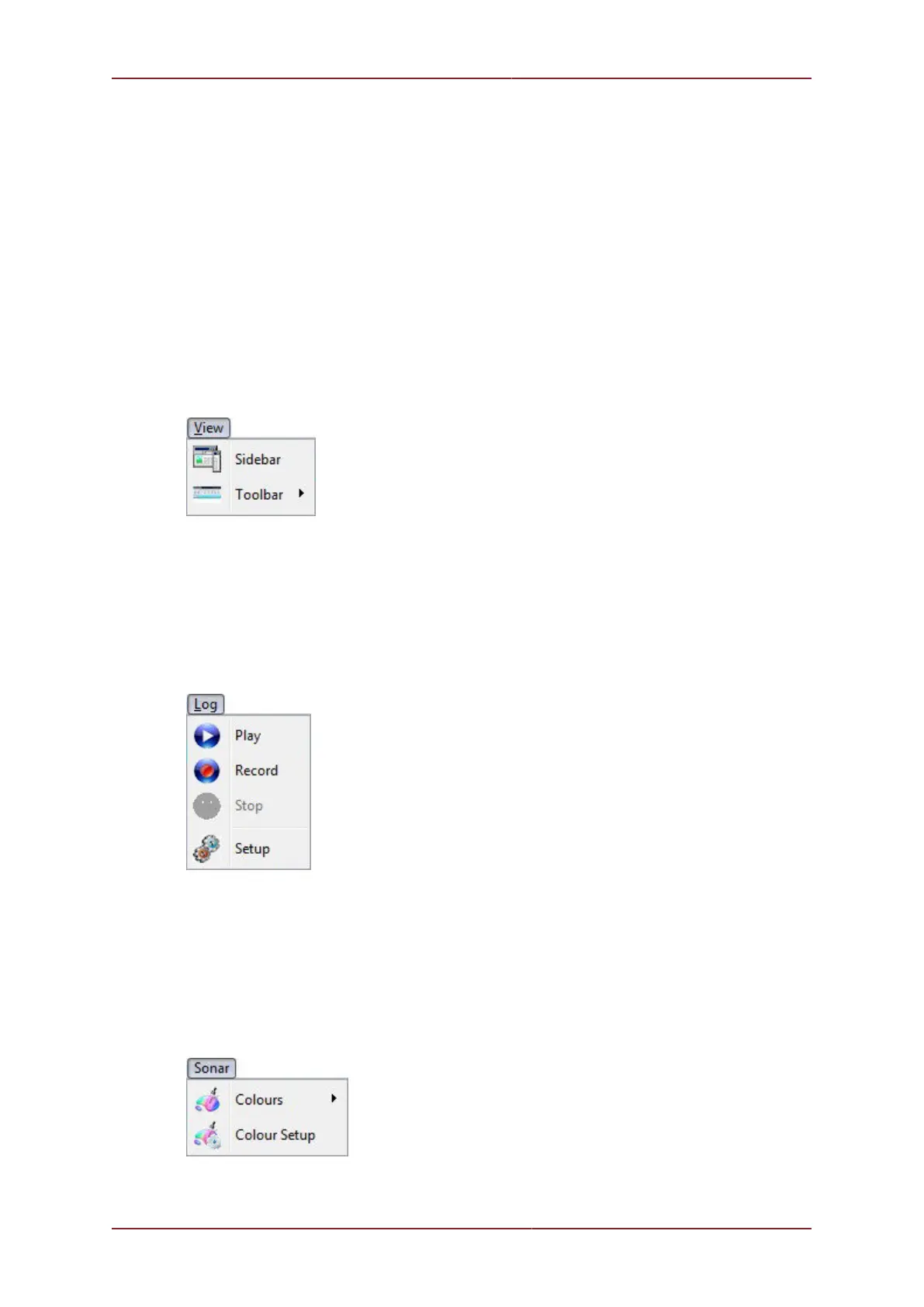
1. Sidebar Enable/Disable the Sidebar. Note: In certain applications, i.e. ‘Sonar Video’, the
Sidebar will be opened and docked to the blank ¼ window panel filler.
2. Toolbars There are several toolbars containing shortcut buttons which can be displayed
in the Menu Bar area or docked to the sides of the Display Area. For details see the
"Toolbar Shortcut Buttons" section.
Figure 5.8.
1. Play Use to play back recorded log data (follow the on screen display).
2. Record Use to record Sonar data (follow the on screen display).
3. Stop Stop recording and/or Auto Logging.
4. Setup Select file options for recording log files (Follow the on screen display).
Figure 5.9.


 To Next Page