EasyManua.ls Logo

TSC MH240 - User Manual

TSC MH240
78 pages
Print Icon
To Next Page IconTo Next Page
Loading...
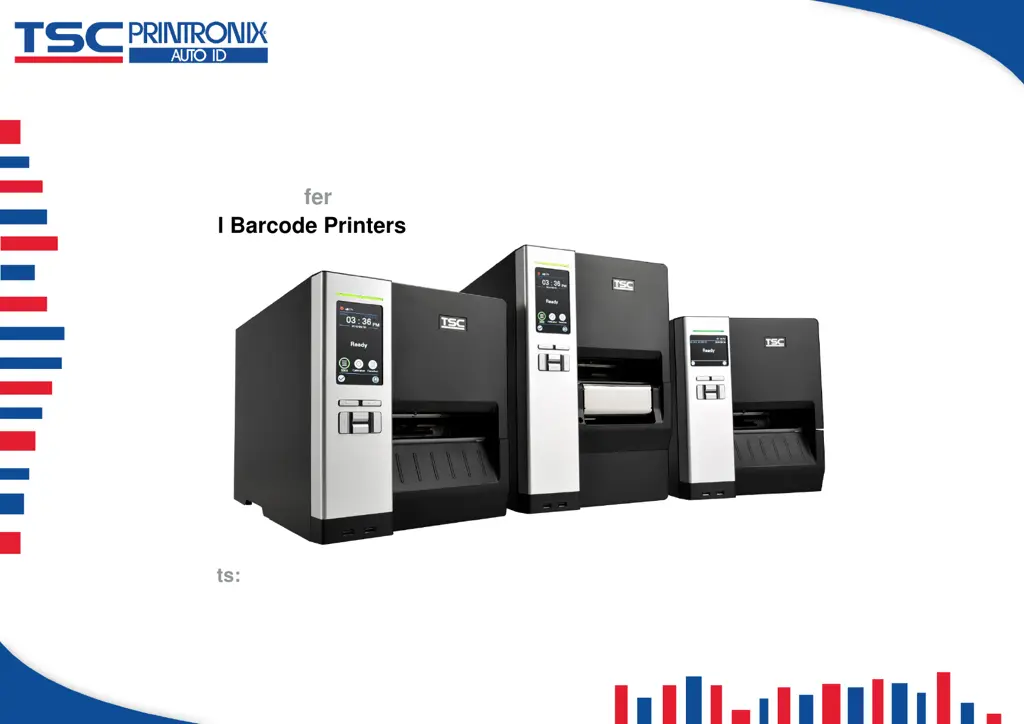
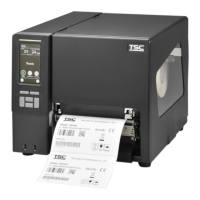
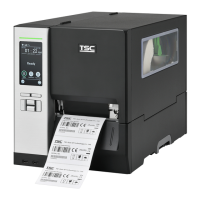
MH240 Series
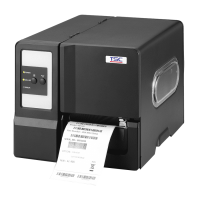
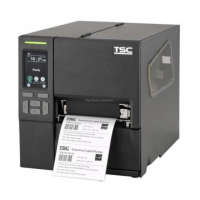
Industrial Barcode Printers
User Manual
Series Lists:
MH240/MH340/MH640
MH240T/MH340T/MH640T
MH240P/MH340P/MH640P
Thermal Transfer
Direct Thermal

Questions and Answers

  • D
    deanzacharySep 2, 2025
    Why is my TSC MH240 not printing?
    • R
      Richard BradySep 2, 2025
      Your TSC Barcode Reader might not be printing because the interface cable isn't properly connected. Ensure the cable is securely connected or try using a new cable. If you're using a wireless or Bluetooth device, verify that it is properly connected between the host and printer, and reset the wireless device settings if needed. Also, ensure the correct printer port is selected in the Windows driver. Check that the printhead’s harness connector is well connected with the printhead, and reconnect it if necessary after turning off the printer. Finally, ensure your program has a PRINT command at the end of the file and that each command line ends with CRLF.
  • C
    Christopher MeyerAug 31, 2025
    How to fix incorrect printing position of small label on TSC MH240 Barcode Reader?
    • J
      Jasmine SellersAug 31, 2025
      If the printing position of a small label is incorrect on your TSC Barcode Reader, it could be due to several reasons. Calibrate the sensor sensitivity again. Set the correct label size and gap size. Fine-tune the parameter of Shift Y by pressing [Menu] [Setting] [Shift Y]. If using BarTender software, set the vertical offset in the driver.
  • P
    Paula SimsAug 29, 2025
    What to do if my TSC MH240 displays 'No Paper'?
    • T
      Thomas RamseyAug 29, 2025
      If your TSC Barcode Reader displays 'No Paper', it means you are either running out of labels or the label is installed incorrectly, or the gap/black mark sensor is not calibrated. Supply a new label roll, refer to the user’s manual to reinstall the label roll, or calibrate the gap/black mark sensor.
  • G
    Gloria GarciaAug 27, 2025
    What to do if TSC MH240 Barcode Reader shows 'No Ribbon'?
    • M
      melissa52Aug 28, 2025
      If your TSC Barcode Reader indicates 'No Ribbon', it means that you are either running out of ribbon or the ribbon is installed incorrectly. Supply a new ribbon roll or refer to the user’s manual for instructions on how to reinstall the ribbon correctly.
  • S
    Samantha RiveraAug 26, 2025
    How to fix irregular printing on TSC Barcode Reader?
    • C
      Casey MasonAug 26, 2025
      Irregular printing on your TSC Barcode Reader might be due to the printer being in Hex Dump mode. Turn the printer off and on to exit the dump mode. Alternatively, the RS-232 setting might be incorrect, so reset the Rs-232 setting.
  • S
    Stephen CochranAug 25, 2025
    How to resolve paper jam issue with TSC MH240 Barcode Reader?
    • L
      Lisa CaldwellAug 25, 2025
      A paper jam in your TSC Barcode Reader can occur if the gap/black mark sensor is not set properly. Calibrate the media sensor. Ensure the label size is set correctly. Remove any labels stuck inside the printer mechanism.
  • T
    Taylor Stone Jr.Aug 22, 2025
    What to do if my TSC MH240 Barcode Reader skips labels when printing?
    • E
      edwardsjustinAug 22, 2025
      If your TSC Barcode Reader is skipping labels, it might be due to a few reasons. First, check if the label size is set up correctly. If not, specify the correct label size. Also, the sensor sensitivity might not be set properly. Calibrate the sensor using Auto Gap or Manual Gap options. Finally, the media sensor could be covered with dust. Clear the GAP/Black mark sensor with a blower.

Summary

Introduction

Product Specification

Details standard and advanced features for different MH240 models.

Printer Optional Features

Lists available optional hardware modules and accessories for the printers.

Label Print Module Features

Specifies features of the label print modules, including resolution and speed.

Printer Specifications

Print Specifications

Ribbon Specifications

Media Specifications

Operation Overview

Unpacking and Inspection

Instructions for safely unpacking and inspecting the printer upon arrival.

Printer Front View

Identifies and labels the components visible on the front of the printer.

Printer Interior View

Details the internal components and mechanisms of the printer for reference.

Printer Rear View

Identifies the ports and interfaces located on the rear panel of the printer.

Operator Control

Explains the controls, display, and indicators used to operate the printer.

LED Indication and Keypads

Describes the meaning of LED colors and the functions of the printer's keypads.

LCD;LED Icon Indication

Explains the meaning of various icons displayed on the printer's LCD screen.

Touch Screen Manipulation

Guides users on how to navigate and use the printer's touch screen interface.

Power-on Utilities

Details the functions accessible during the printer's power-on sequence.

Setup

Setting up the printer

Provides step-by-step instructions for the initial physical setup of the printer.

Loading the Ribbon

Detailed instructions for correctly installing the ribbon into the printer.

Loading the Media

Step-by-step guide for loading various types of media into the printer.

Loading Fanfold;External Media

Instructions for loading fanfold or external media rolls into the printer.

Loading Media in Peel-off Mode

Guide for setting up and loading media for peel-off label dispensing.

Loading Media in Rewinder Mode

Instructions for loading media when using the optional rewinder function.

Knob Adjustment

Printhead Pressure Adjustment Knob

Explains how to adjust the printhead pressure for optimal print quality.

Ribbon Tension Adjustment Knob

Details the adjustment of the ribbon tension to prevent wrinkles and ensure clarity.

Mechanism Fine Adjustment for Ribbon Wrinkles

Provides guidance on fine-tuning mechanisms to prevent ribbon wrinkles.

TSC Console Software

Start TSC Console

Steps to launch the TSC Console software and add printers to the interface.

Setup Ethernet Interface

Instructions for configuring the printer's Ethernet network connection via TSC Console.

Set WiFi and Add to TSC Console

Guide to connect the printer via Wi-Fi and integrate it with TSC Console.

Initialize Printer WiFi Setting

How to reset the printer's Wi-Fi module to its factory default settings.

Printer Function

Overview of printer management functions available within the TSC Console software.

Setting Post-Print Action

How to configure the printer's actions after a print job is completed.

LCD Menu Function

Enter the Menu

Explains how to access the printer's main menu using touch display or physical keys.

Menu Overview

Outlines the main categories and their purposes within the printer's LCD menu.

Setting Menu

How to access and modify general printer settings via the LCD menu.

TSPL Settings

Details the configuration options available for the TSPL command language.

ZPL2 Settings

Details the configuration options available for the ZPL2 command language.

Sensor Calibration

Steps for calibrating the printer's media sensors for accurate media detection.

Interface Settings

How to configure the printer's communication interfaces (Serial, Ethernet, Wi-Fi, Bluetooth).

Serial Communication Settings

Configuration parameters for the RS-232 serial communication port.

Ethernet Configuration

Settings for the printer's internal Ethernet module, including IP and MAC.

Wi-Fi Settings

Configuration parameters for establishing a Wi-Fi connection.

Bluetooth Settings

Settings for the printer's Bluetooth module, including local name and ping code.

Advanced Settings

Access to settings like language, printer information, initialization, and display.

File Manager

Tools for managing files stored in the printer's DRAM, Flash, or Card memory.

Diagnostic Tools

Features for diagnosing printer issues, including print config and dump mode.

Favorites Management

How to add, manage, and delete frequently used settings for quick access.

Troubleshooting

Printing Problems

Lists common printing issues like no print, no ribbon, no paper, and paper jam.

Labeling Issues

Addresses problems like missing print, gray lines, irregular printing, and skipping labels.

Print Quality Issues

Covers issues related to wrinkles, incorrect position, and print density.

Maintenance

Cleaning Procedures

Guidelines and tools for cleaning various parts of the printer.

Disinfecting Procedures

Guidelines for sanitizing the printer to prevent the spread of viruses.

Agency Compliance and Approvals

CE Statement and Restrictions

EU compliance information and specific national restrictions for wireless operation.

Safety Instructions

Important Safety Instructions

General safety guidelines and precautions to follow during printer operation.

RF Exposure Information

Details on radio frequency exposure limits and compliance for Wi-Fi and Bluetooth.

Revise History

TSC MH240 Specifications

General IconGeneral
Print technologyDirect thermal / Thermal transfer
Maximum resolution203 x 203 DPI
Maximum printing width104 mm
Display typeLCD
Product colorBlack
Built-in displayYes
Display resolution320 x 240 pixels
Maximum media length25400 mm
Maximum roll diameter203.2 mm
Supported paper width20 - 114 mm
AC input voltage100 - 240 V
Power source typeAC
AC input frequency50 - 60 Hz
Wi-Fi standards802.11a, 802.11b, 802.11g, Wi-Fi 4 (802.11n)
Serial interface typeRS-232
Connectivity technologyWired & Wireless
Storage temperature (T-T)-40 - 60 °C
Operating temperature (T-T)5 - 40 °C
Storage relative humidity (H-H)10 - 90 %
Operating relative humidity (H-H)25 - 85 %
Sustainability certificatesENERGY STAR
Ethernet LAN data rates10, 100 Mbit/s
Flash memory512 MB
Storage mediaFlash
Internal memory256 MB
Built-in barcodes1D, 2D, AZTECCODE, Code 11, Code 128 (A/B/C), Code 39, Code 49, Code 93, Code-128 Codabar Library, Data Matrix, EAN128, EAN13, EAN8, GS1 DataBar, Interleaved 2/5, MaxiCode, MicroPDF417, PDF417, QR Code, UPC-A, UPC-E
Compatible memory cardsMicroSD (TransFlash)
Maximum memory card size32 GB
Page description languagesTSPL-EZ
Weight and Dimensions IconWeight and Dimensions
Depth502 mm
Width276 mm
Height326 mm

Related product manuals