EasyManua.ls Logo

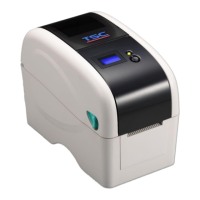
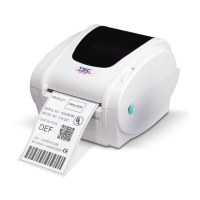
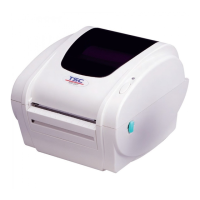
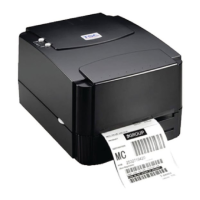
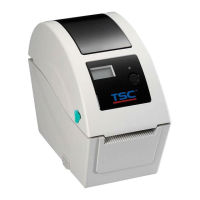
TSC TDP-225 - User Manual

TSC TDP-225
41 pages
Print Icon
To Next Page IconTo Next Page
Loading...
USER’S
MANUAL
TDP-225 / TDP-225W
DIRECT THERMAL BAR CODE PRINTER

Other manuals for TSC TDP-225

Questions and Answers

  • L
    Lisa VegaSep 9, 2025
    How to fix a paper jam in my TSC TDP-225?
    • A
      Aaron JensenSep 9, 2025
      To address a paper jam in your TSC Barcode Reader, calibrate the gap/black mark sensor. Ensure the label size is correctly set in your labeling software. Also, check for and remove any labels stuck inside the printer mechanism near the sensor area.
  • M
    Michael MendozaSep 8, 2025
    What to do if my TSC TDP-225 Barcode Reader is not printing?
    • U
      ucooperSep 8, 2025
      If your TSC Barcode Reader is not printing, check if the interface cable is securely connected. If using a serial port, ensure the cable is pin-to-pin connected; if not, replace it. Verify that the serial port settings are consistent between the host and the printer, and reset if necessary. Confirm that the correct printer port is selected in the Windows driver. If using Ethernet, ensure the IP address, subnet mask, and gateway are properly configured.
  • D
    Deborah WalshSep 7, 2025
    Why is my TSC TDP-225's print quality poor?
    • B
      burgesschristopherSep 7, 2025
      To resolve poor print quality on your TSC Barcode Reader, ensure the top cover is completely closed and latched properly. Verify that the correct 24V DC power supply is connected. Reload the supply correctly. Clean the print head if there's dust or adhesive accumulation. Adjust the print density and print speed. Finally, run a printer self-test to check the print head test pattern for any missing dots.
  • M
    Morgan SmithAug 22, 2025
    Why is my TSC Label Maker not printing?
    • R
      rrichardsAug 22, 2025
      If your TSC Label Maker isn't printing, several factors could be the cause. Ensure the interface cable is securely connected. If using a serial port, the cable's pin configuration must be pin-to-pin; if it is not, replace the cable. Also, verify that the serial port settings are consistent between your host and the printer, and that the correct printer port is selected in the Windows driver. For Ethernet connections, confirm that the IP address, subnet mask, and gateway are properly configured.
  • K
    Kayla RileySep 4, 2025
    How to resolve a 'Cutter Error' on my TSC Label Maker?
    • K
      Kevin EvansSep 5, 2025
      If your TSC Label Maker displays 'Cutter Error', it could be due to several reasons. First, check for a cutter jam and remove any jammed labels. If there is no cutter installed on the printer, ensure that the media thickness is equal to or less than 0.19mm. If the cutter or cutter driver circuit board is damaged, replace the affected component.
  • E
    eric81Sep 3, 2025
    What does 'Take Label' mean on my TSC Label Maker and how do I resolve it?
    • A
      Adrian HayesSep 3, 2025
      If your TSC Label Maker displays 'Take Label', and the peeler function is enabled, take the label away to print the next one, especially if a peeler module is installed. If the peeler module is installed and the label has been removed but the message remains, check if the peeler module connector is properly connected to the main board. If no peeler module is installed, disable the peeler function.
  • D
    davispatrickSep 2, 2025
    How to fix 'Out of Mem' error on my TSC Label Maker?
    • S
      sarahallSep 2, 2025
      If your TSC Label Maker shows 'Out of Mem', it means the space of FLASH/DRAM or MicroSD card is full. Delete unused files in the FLASH/DRAM or MicroSD card to free up space.
  • M
    moorecarolSep 1, 2025
    How to resume printing on a paused TSC Label Maker?
    • J
      Julia BanksSep 1, 2025
      If your TSC Label Maker is paused, press the FEED button to resume printing.
  • Z
    Zachary MartinezAug 31, 2025
    What does 'Head Open' mean on my TSC Label Maker?
    • S
      Shawn PowellAug 31, 2025
      If the TSC Label Maker displays 'Head Open', it means the printer top cover is open. Please close the top cover.
  • J
    jill30Aug 29, 2025
    What to do if my TSC Label Maker says 'No Paper'?
    • J
      Jason HayesAug 30, 2025
      If your TSC Label Maker displays 'No Paper', it could be due to a few reasons. You might be running out of labels, so try supplying a new label roll. Alternatively, the label roll may be installed incorrectly; refer to the user’s manual for the correct reinstallation steps. It's also possible that the gap/black mark sensor needs calibration.

Summary

Introduction

Product Introduction

Overview of the TDP-225/TDP-225W bar code printer's features and performance.

Compliances

Lists regulatory compliances for the printer, including CE, FCC, UL, CUL, and C-Tick.

Operations Overview

Unpacking and Inspection

Instructions for inspecting the printer and its included accessories after unpacking.

Printer Overview

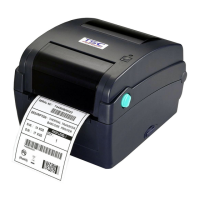
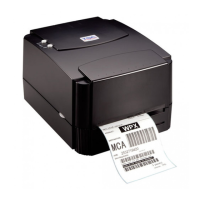
Detailed views of the TDP-225 and TDP-225W printer models, showing front, interior, and rear components.

Setup

Setting Up the Printer

Steps for physically setting up the printer, including placement and power connection.

Loading the Media

Comprehensive guide on loading various types of media, including roll labels, external, peel-off, and cutter modes.

Diagnostic Tool

Explains how to use the Diagnostic Utility for printer configuration, firmware updates, and troubleshooting.

Setting Ethernet by Diagnostic Utility

Step-by-step instructions for configuring the printer's Ethernet interface via USB or direct Ethernet connection.

Install MicroSD Memory Card

Guide on installing a MicroSD card and details on recommended specifications and file system.

Mount the Printer on the Wall

Provides instructions and dimensions for securely mounting the printer on a wall.

LED and Button Functions

LED Indicator

Describes the meaning of different LED colors and blinking patterns for printer status indication.

Regular Button Function

Details the basic functions of the printer's button, such as feeding labels and pausing print jobs.

Power on Utilities

Explains how to access and utilize power-on utilities for sensor calibration, initialization, and self-tests.

Troubleshooting

LED Status

Guides users through common LED status issues, their possible causes, and recovery procedures.

Print Problem

Addresses common printing issues like 'Not Printing', 'No print on the label', 'Paper Jam', and 'Poor Print Quality'.

LCD display

Explains LCD error messages for the TDP-225 model, including causes and solutions.

Maintenance

Cleaning Procedures

Provides detailed methods and intervals for cleaning printer parts like the print head, platen roller, and sensors.

TSC TDP-225 Specifications

General IconGeneral
Print technologyDirect thermal
Vertical printingYes
Maximum resolution203 x 203 DPI
Maximum print height2286 mm
Maximum printing width54 mm
Ethernet LANNo
USB 2.0 ports quantity1
Connectivity technologyWired
Flash memory4 MB
CertificationFCC, CE, TUV, CUL, UL, CCC, C-Tick
Internal memory8 MB
Built-in barcodes1D, 2D, CODABAR (NW-7), Code 128 (A/B/C), Code 39, Code 93, EAN128, EAN13, EAN8, Interleaved 2/5, MaxiCode, PDF417, POSTNET, QR Code, UPC-A, UPC-E
Built-in processorRISC 32-bit
Compatible memory cardsSD
Power requirements100 - 240
AC adapter output current2 A
AC adapter output voltage24 V
DisplayLCD
Product color-
Core diameter38 mm
Ribbon length90 m
Media thickness0.06 - 0.19 mm
Maximum label width60 mm
Maximum label length2.286 m
Maximum roll diameter127 mm
Supported paper width15 - 60 mm
Maximum media length (imperial)90 \
Supported paper width (imperial)0.59 - 2.36 \
LED indicatorsPower, Status
Storage temperature (T-T)-40 - 60 °C
Operating temperature (T-T)41 - 104 °F
Weight and Dimensions IconWeight and Dimensions
Depth209 mm
Width109 mm
Height171 mm

Related product manuals