C
H
6
123
C
H
6
122
SETTINGSSETTINGS
FONT SIZE
2
Press [FONT SIZE].
Select “Small”, “Large” or “Normal” with the
Navigation Key.
3
Press .
1
Press [MENU] and then select “Messaging”
menu, press [SETTINGS] or press
[MESSAGES], press [SETTINGS].
ENTRY MODE
2
Press [ENTRY MODE].
Select “Word”, “Abc”, “ABC” or “123” with the
Navigation Key.
3
Press .
Sets an Entry Mode as a default. For example, if input Mode is the
default, its icon will appear.
1
Press [MENU] and then select “Messaging”
menu, press [SETTINGS] or press
[MESSAGE], press [SETTINGS].
To edit the Quick Text message you have saved:
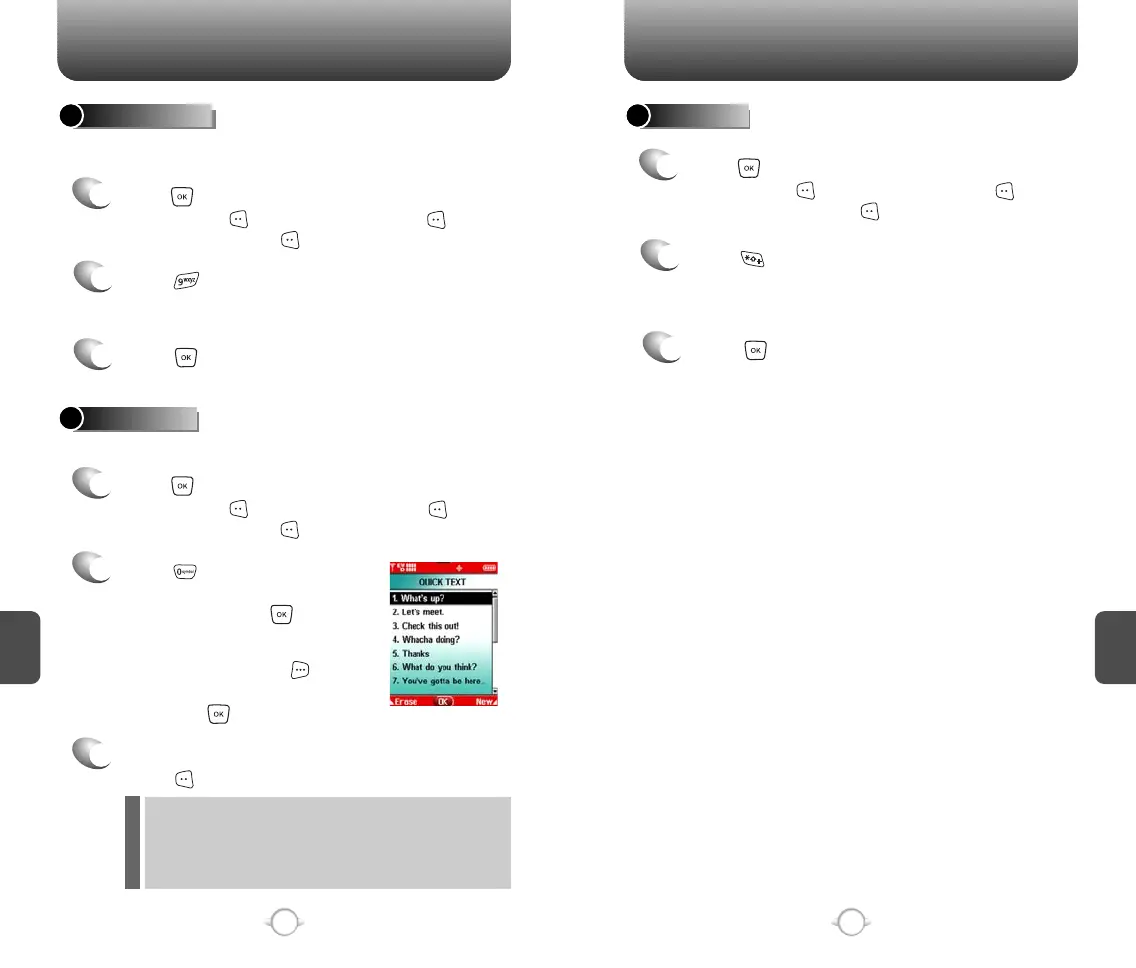
QUICK TEXT
2
Press [QUICK TEXT].
2.1. Select a message from
the list. Press .
2.2. To add a new Quick Text
message, press
[NEW] then enter text,
press .
3
To erase the saved Quick Text message,
press [ERASE].
1
Press [MENU] and then select “Messaging”
menu, press [SETTINGS] or press
[MESSAGE], press [SETTINGS].
Pre-defined Quick Text messages include:
1. What’s up?/2. Let’s meet./3. Check this out!/4. Whacha
doing?/5. Thanks/6. What do you think?/7. You’ve gotta be here
to enjoy this./8. Would you like to join me for a date tonight?/
9. On my way./10. Yes/11. You’re the best!/12. Call me.



 To Next Page