163
/ TROUBLESHOOTING
verizon.com/business/products/fios-internet | ©2020 Verizon. All Rights Reserved
• If rebooting your router does not resolve your connection issue,
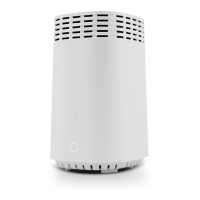
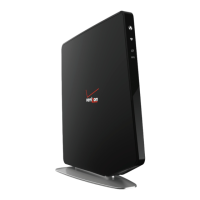
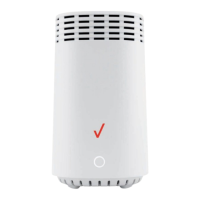
try power cycling the Fios Router by unplugging the power cable
from the adapter or the wall and wait 2 minutes. During the 2
min. wait period, also power cycle the network device (e.g. the
computer, tablet, etc.) and then plug the power cable back into
the Fios Router. After 3-5 minutes, recheck the Router Status
LED and try again to access the internet.
9.0b/ IF YOU ARE UNABLE TO CONNECT TO YOUR
FIOS ROUTER USING WIFI:
• Be sure your Wi-Fi device is within range of your Fios Router;
move it closer to see if your connection improves.
• Check your network device’s Wi-Fi settings to be sure your
device’s Wi-Fi is on (enabled) and that you have the correct Wi-Fi
network and password (if using a Wi-Fi password) as configured
on your Fios Router.
• Be sure you are connecting to the correct Wi-Fi network; check
to be sure you are using your Fios Router’s SSID. In some cases,
if using a Wi-Fi password, you may need to enter the Wi-Fi
password into your network device again to be sure your device
accepts the password.
• Check to be sure you are running the latest software for your
network device.










 To Next Page