Chapter 3 Web Interface of RDU501
RDU501 Intelligent Monitoring Unit User Manual
3.2.2 Login page
1.
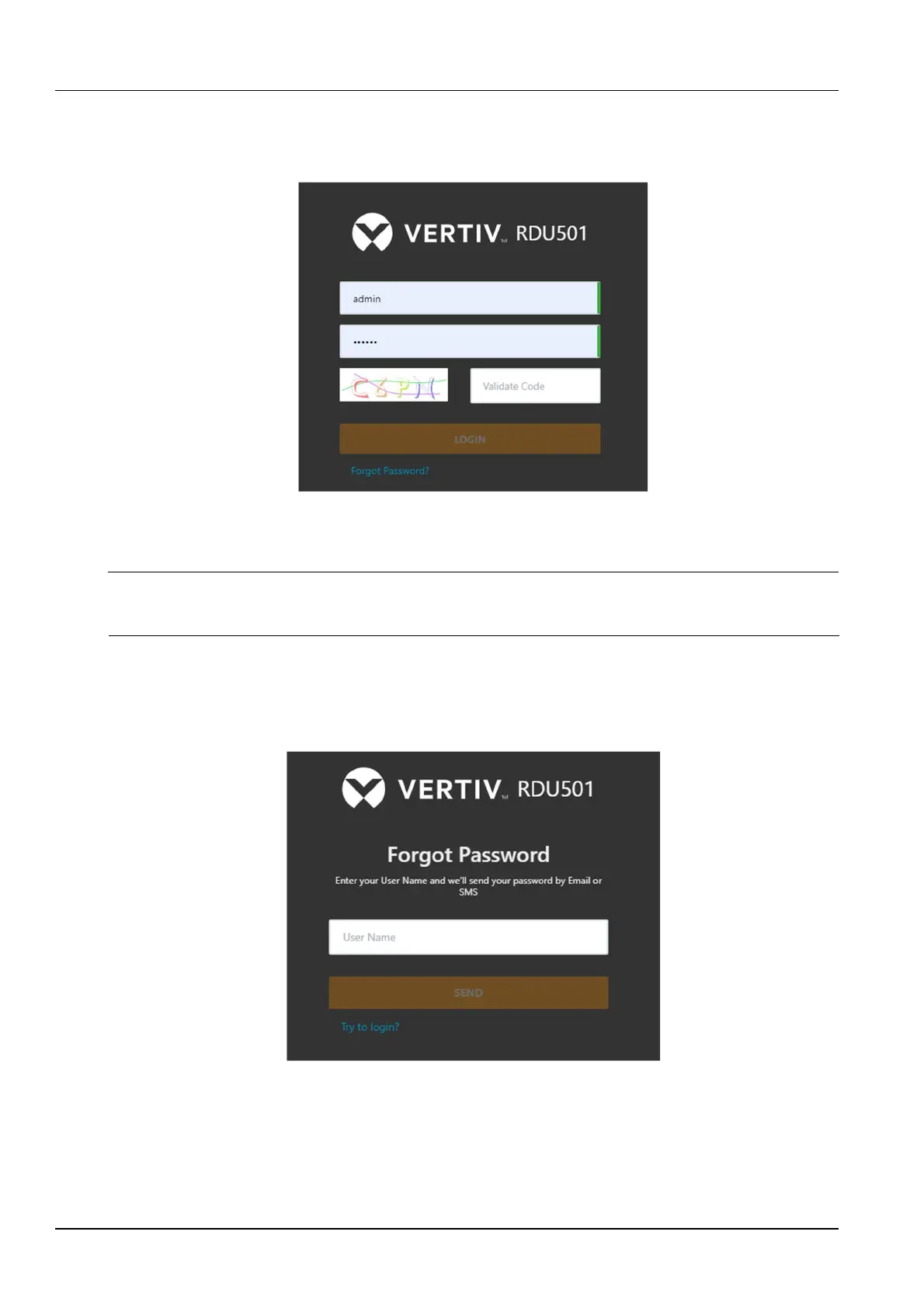
Open the browser and enter the IP address of the RDU501 in the address bar. The login page appears, as shown
in Figure 3-2. If the login page does not appear, see “Question 5” in section 4.2 Troubleshooting.
Figure 3-2 RDU501 login page
2.
Enter the username and password (default username: admin, default password: Vertiv) and click the Login button,
which will open the home page as shown in Figure 3-4.
Note
1.
After logging in to the system for the first time, it is recommended to change the default password of the system.
2.
It is recommended to change the password periodically.
3.2.3 Retrieving the password
If you forget the user password, you can click the Forgot Password link on the login page to display the Retrieve
Password page, as shown in Figure 3-3.
Figure 3-3 Retrieve Password page
Enter your username, click the Send button, your password will be sent to your previously set mailbox or phone; click
the Continue Login link to return to the login page.



 To Next Page