IP camera management
29
EN
1-MakesurethePCandIP-CamareconnectedtotheLANandtheIP-ToolisinstalledinthePCfromtheCD.
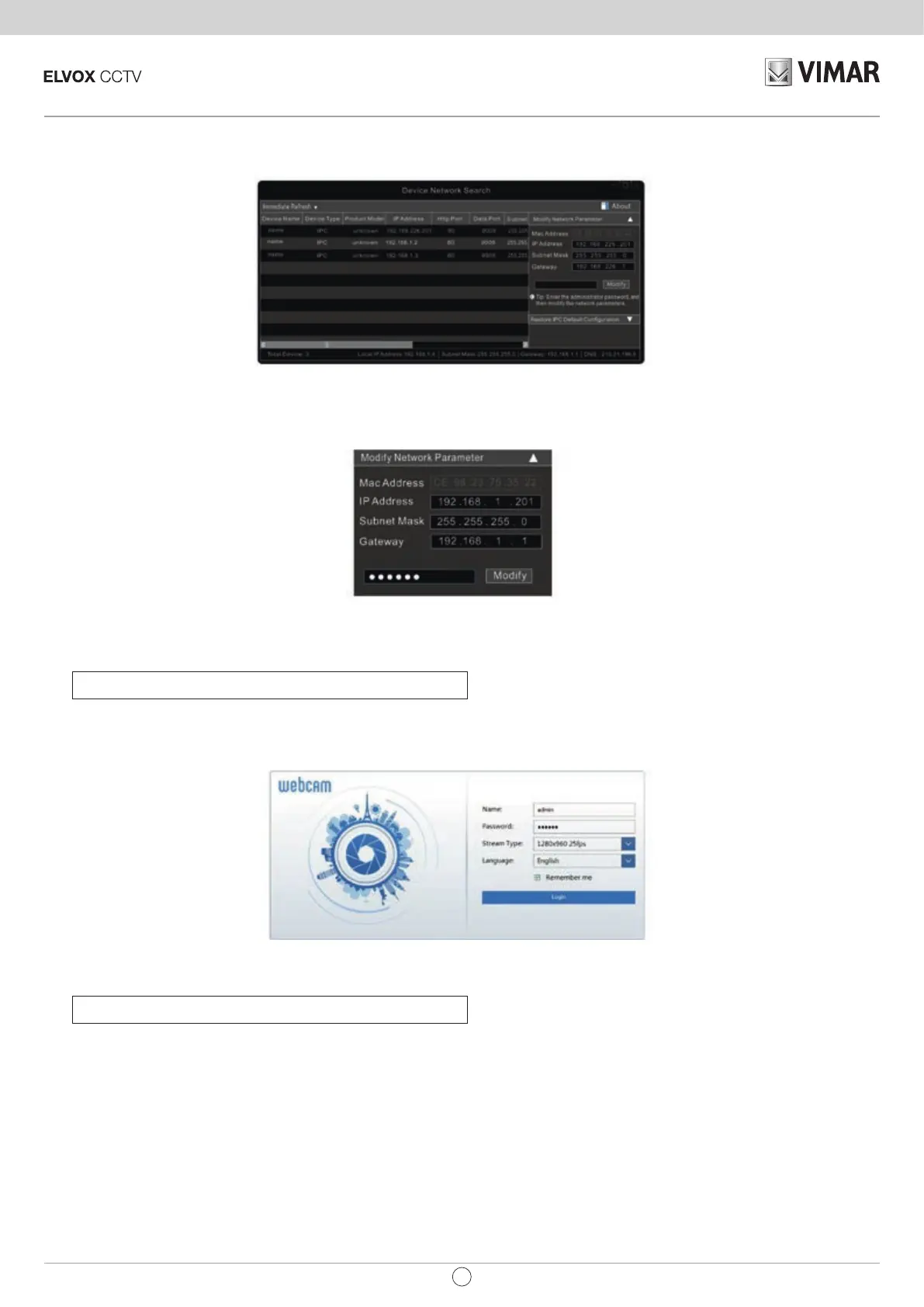
2-DoubleclicktheIP-Toolicononthedesktoptorunthissoftwareasshownbelow:
3-ModifytheIPaddress.ThedefaultIPaddressofthiscamerais192.168.226.201.Clicktheinformationofthecameralistedintheabovetabletoshow
thenetworkinformationontherighthand.ModifytheIPaddressandgatewayofthecameraandmakesureitsnetworkaddressisinthesamelocalnet-
worksegmentasthecomputer’s.PleasemodifytheIPaddressofyourdeviceaccordingtothepracticalsituation.
Forexample,theIPaddressofyourcomputeris192.168.1.4.SotheIPaddressofthecamerashallbechangedto192.168.1.X.Aftermodication,please
inputthepasswordoftheadministratorandclick“Modify”buttontomodifythesetting.
4-DoubleclicktheIPaddressandthenthesystemwillpopuptheIEbrowsertoconnectIP-CAM.IEbrowserwillautodownloadtheActiveXcontrol.After
downloading,aloginwindowwillpopupasshownbelow.
Inputtheusernameandpasswordtologin.Ifyouinputthewrongpasswordforthersttime,youshallwaitfor10secondsandtheninputtherightpassword.
Thedefaultusernameis“admin”;thedefaultpasswordis“123456”.
Thedefaultusernameis“admin”;thedefaultpasswordis“123456”.
►
►
2.1.2 - Directly Access through IE
Thedefaultnetworksettingsareasshownbelow:
IPaddress:192.168.226.201
SubnetMask:255.255.255.0
Gateway:192.168.226.1
HTTP:80
Dataport:9008
Youmayusetheabovedefaultsettingswhenyouloginthecameraforthersttime.Youmaydirectlyconnectthecameratothecomputerthroughnetwork
cable.


 To Next Page