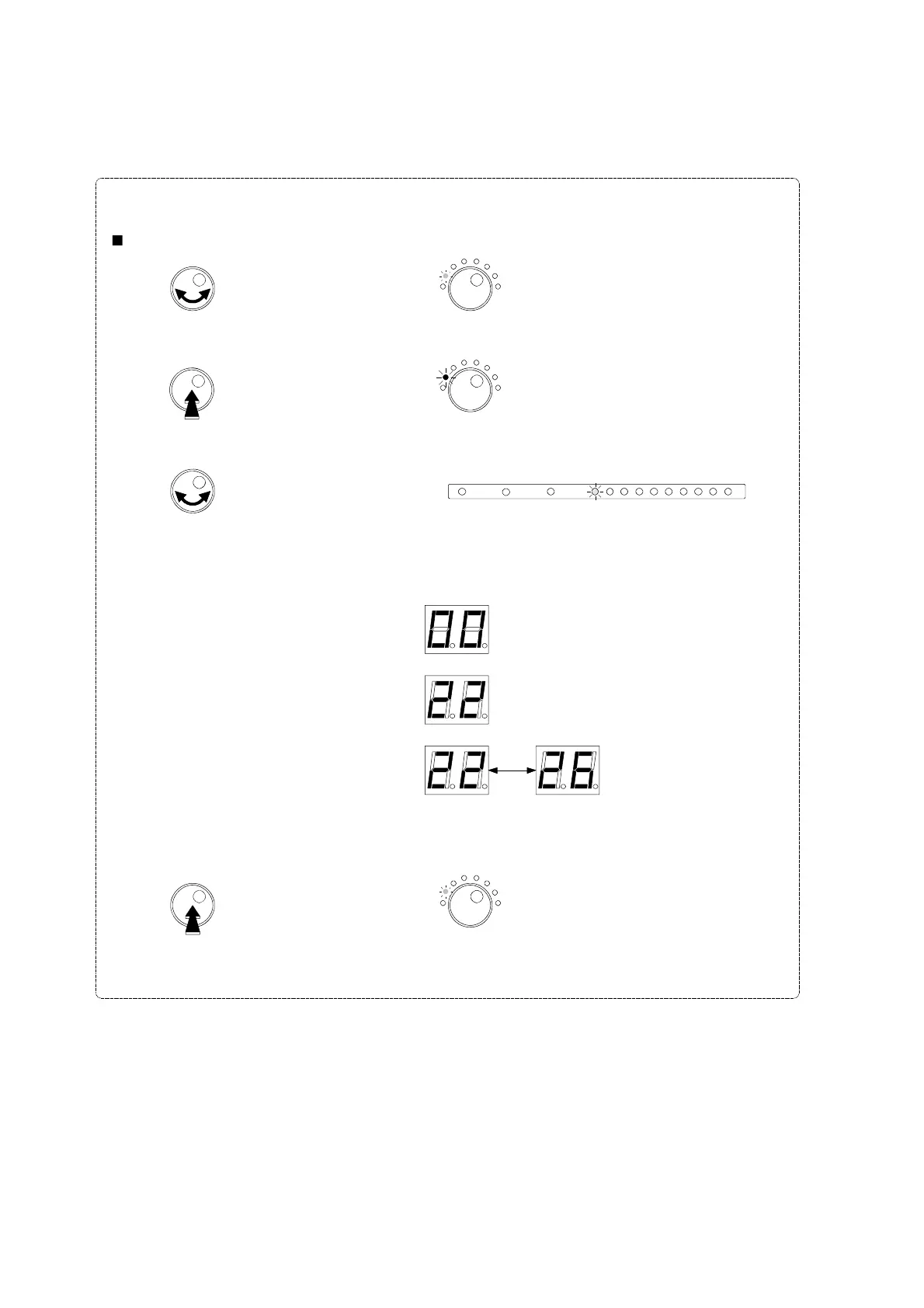
To check the channel settings of each cluster :
- Turn the rotary button to select
Select Filter.
- Push the rotary button to enter the selected mode.
The LED is now RED colored.
Select Filter
The LED is GREEN.
- Turn the button to choose the cluster to be checked.
1
2
3
4
56
7
8
9
10
UHF Clusters
- The display shows the channels which have been set.
Select Filter
Examples :
- Push the button to exit.
The LED is GREEN.
Select Filter
Cluster is parked.
Cluster is set to channel 22.
Blinking 22 and 26:
cluster is set from 22 to 26.
27


 To Next Page