Auto Scan:
Select Auto Scan from the Video Settings menu and press or to turn this feature on or off. When set to
On, Auto Scan causes the input select function (using the SOURCE button on the remote control unit or keypad ) to skip
over unused inputs, saving time.
Select Source:
Choose Select Source from the Video Settings menu and press or to select the video source.
Audio Settings
Volume:
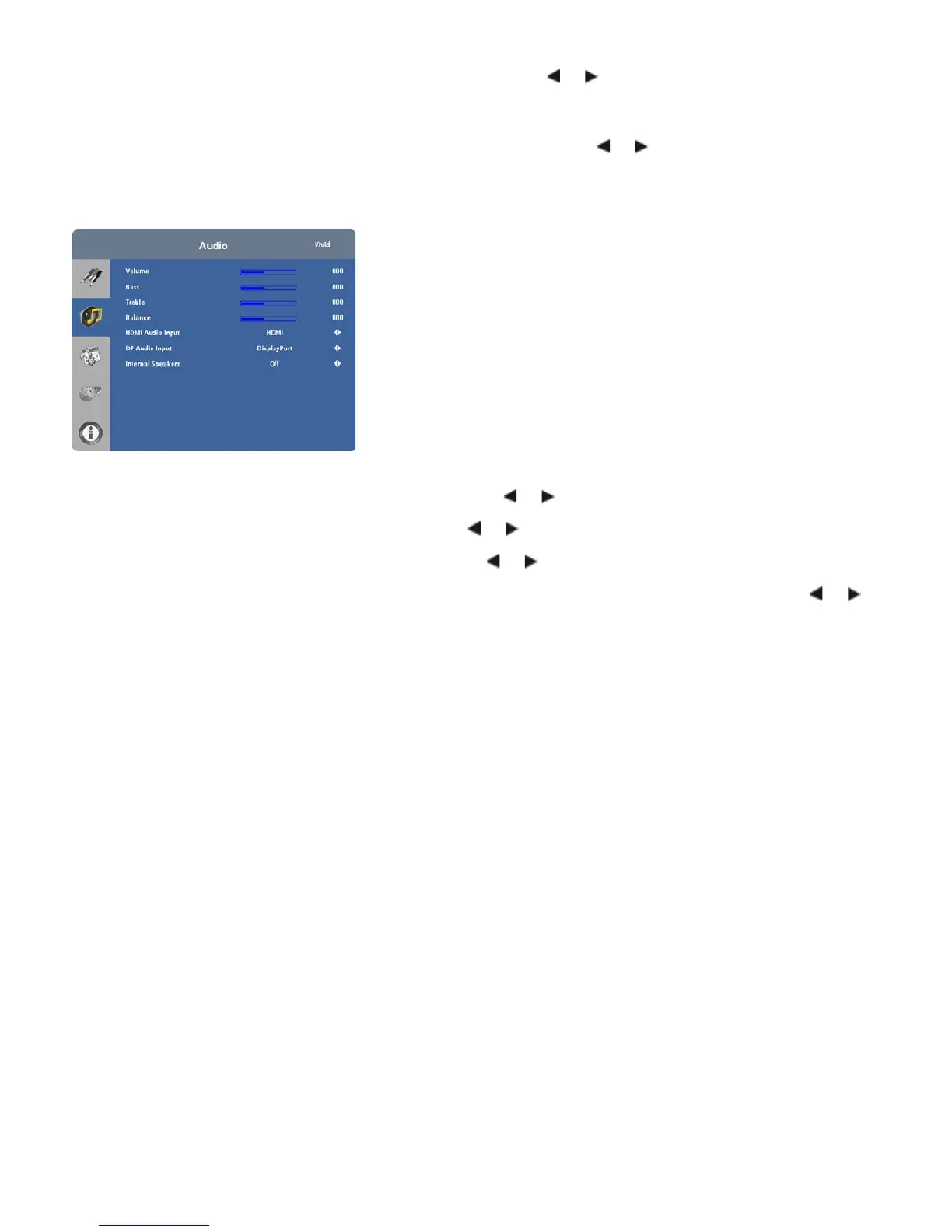
Select Volume from the Audio Settings menu and press or to change the audio volume.
Bass:
Select Bass from the Audio Settings menu and press or to cut or boost the low audio frequencies.
Treble:
Select Treble from the Audio Settings menu and press or to cut or boost the high audio frequencies.
Balance:
To adjust the left/right speaker balance, select Balance from the Audio Settings menu and press or to
make one channel louder than the other.
HDMI Audio Input:
If you are using one of the HDMI inputs with a PC or other device that does not support audio output
via HDMI, set HDMI Audio Input to
PC
for that input. (Also connect the audio output from your source as shown in Figure
3-5.) This setting associates the
PC Audio In
input with that HDMI input.
DP Audio Input:
If you are using the DisplayPort input with a PC or other device that does not support audio output via
DisplayPort, set DP Audio Input to
PC
for that input. (Also connect the audio output from your source as shown in Figure
3-5.) This setting associates the
PC Audio In
input with the DisplayPort input.
Internal Speakers:
Set Internal Speakers to
Off
to disable the internal speakers on the display. Set it to On to enable
them.


 To Next Page