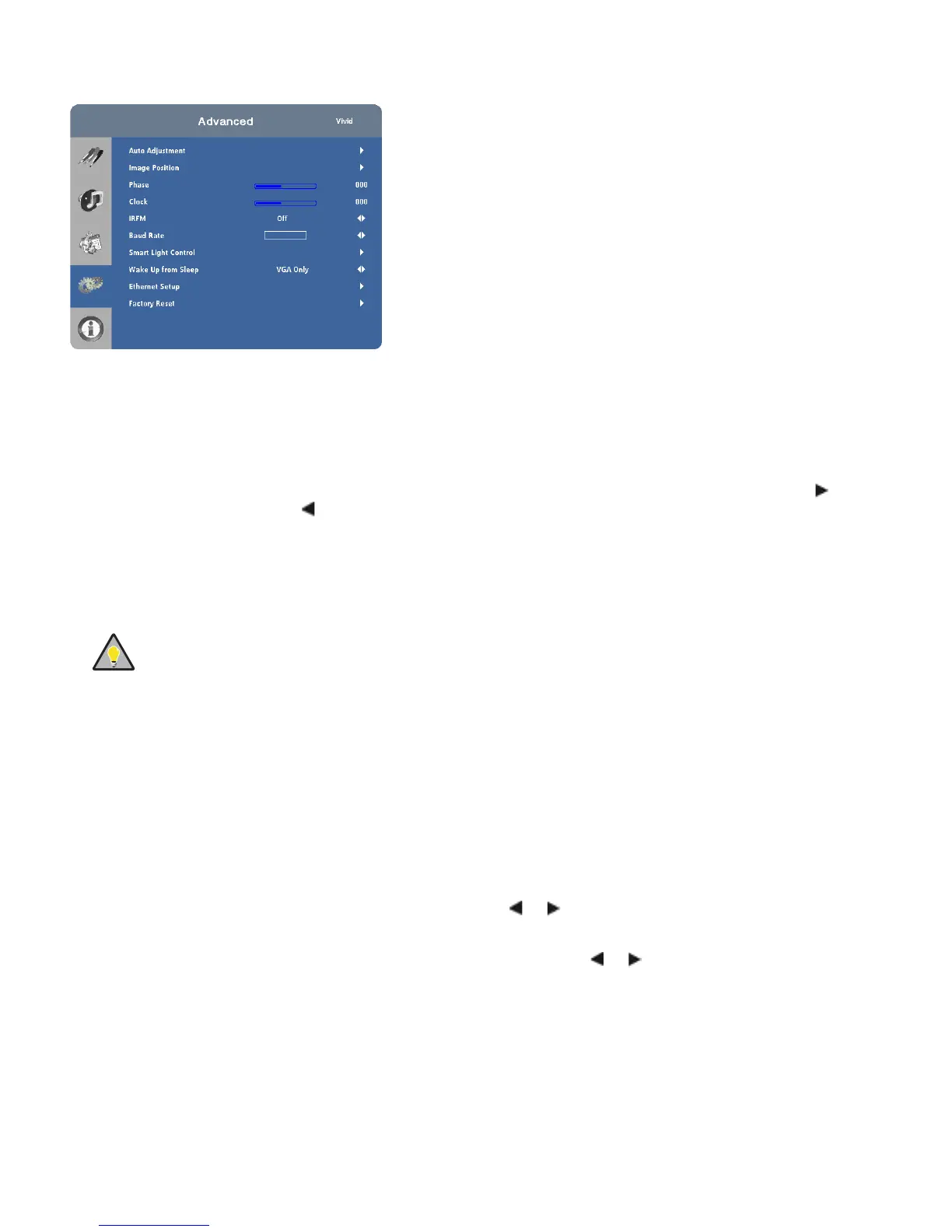
Advanced Settings
Auto Adjustment:
Select Auto Adjustment from the Advanced Settings menu to force the display to reacquire and lock to
the input signal. This is useful when the signal quality is marginal.
Image Position (VGA sources):
Use the controls in the Image Position (VGA sources) Menu to fine-tune the image
position.
•
Left/Right:
Select Left/Right from the Input Position menu to shift the projected image horizontally. Press to shift
the image to the right; press to shift it to the left.
•
Up/Down:
Select Up / Down from the Input Position menu to shift the projected image vertically.
Phase (VGA sources):
This control adjusts the phase of the pixel sampling clock relative to the incoming signal. Adjust the
phase when an image still shows shimmer or “noise” after the Clock setting has been optimised.
TIP
Adjust the Phase after adjusting Clock (see below).
For best results, use a good test pattern such as a smooth grey consisting of a clear pattern of black and white pixels, or a
similar “half on, half off” graphic image. Adjust the slidebar until the image stabilises and each pixel is clearly defined. You
may notice that you can stabilise the image at more than one point. Use either setting in such cases.
Clock (VGA sources):
This control sets the frequency of the pixel sampling clock, indicated by the number of incoming
pixels per line, so that all pixels generated by a particular source are sampled.
Steady flickering or several soft vertical stripes or bands across the entire image indicates poor pixel tracking. Proper pixel
tracking helps ensure that the image quality is consistent across the screen, that aspect ratio is maintained and that pixel
phase (see above) can be optimised.
IRFM:
Select IRFM from the Advanced Settings menu and press or to enable or disable this feature, which creates
slight frame motion to help avoid image retention.
Baud Rate:
Select Baud Rate from the Advanced Settings menu and press or to set the data rate of the RS-232
communication link.


 To Next Page