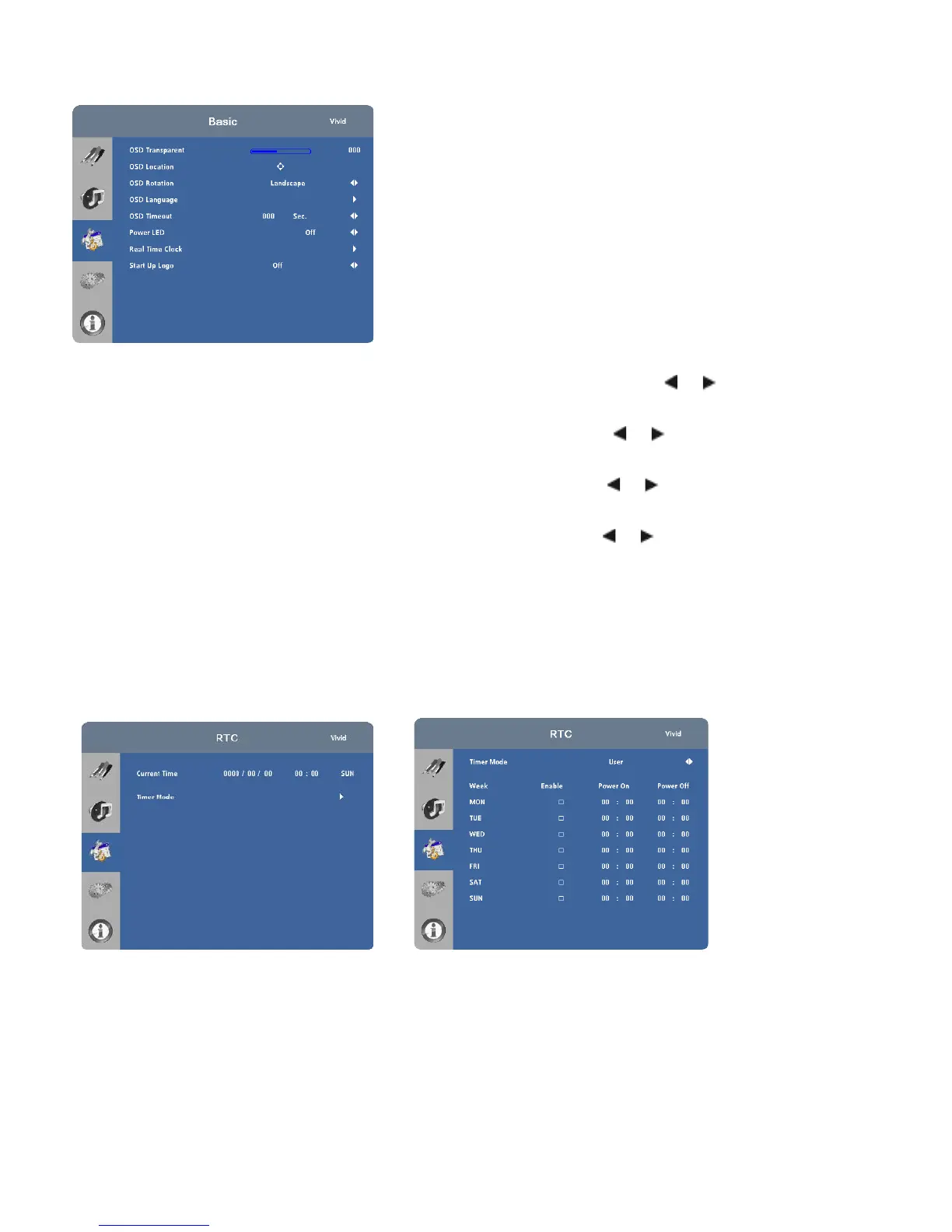
Basic Settings
OSD Transparent:
Select OSD Transparent from the Basic Settings menu and press or to adjust the degree of
translucence (show-through) in the menus and message boxes. Zero (0) means that the menus are opaque.
OSD Location:
Select OSD Location from the Basic Settings menu and press or to move the OSD menu to the
desired location.
OSD Rotation:
Select OSD Rotation from the Basic Settings menu and press or to change the orientation of the
OSD menu to match that of the display.
OSD Language:
Select OSD Language from the Basic Settings menu and press or to select the OSD Language
.
OSD Timeout:
Select OSD Timeout from the Basic Settings menu to specify how long the menus remain on-screen after
selecting them. Select from 5 to 120 seconds, in five-second increments.
Power LED:
Select Power LED from the Basic Settings menu to change the behaviour of the status indicator LED (see
Figure 2-1) during standby mode. When set to On, the LED lights orange to indicate that the display is in standby mode.
When set to Off, the LED is always off, regardless of the operational state of the display.
Real Time Clock:
Select Real Time Clock from the Basic Settings menu to set the display’s internal real-time clock.


 To Next Page