Changing the OSD Language
The display OSD language is initially set to English, but can also display the menus in different languages.
To change the OSD language:
1. Press MENU.
2. Select Basic Settings from the Main Menu.
3. Select OSD Language from the Basic Settings Menu.
4. Press or to select the desired language and press ENTER. The change takes effect immediately.
Enabling the Touch Screen
Before setting up your display to support touch screen capability, ensure that:
The touch screen controller host computer is turned off.
The display is turned on.
The video output from the computer is connected to a video input on the display. See Figure 3-4, Figure 3-5 or
Figure 3-6.
Connecting the Touch Screen Controller Host Computer to the Display
1. Connect the signal cable witch display, and then turn on the display.
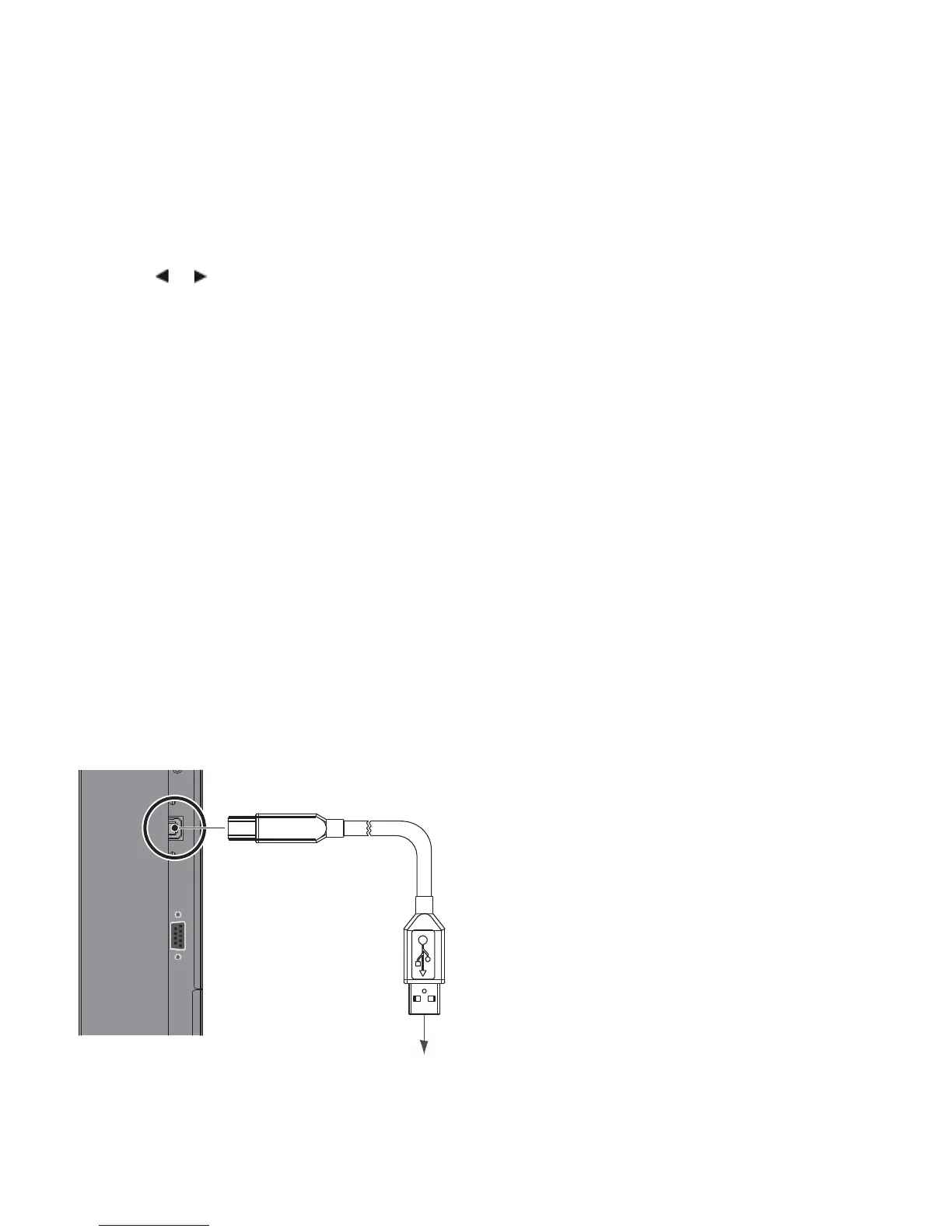
2. Connect the USB cable with display and the computer; connect one side of USB cable (Type-B USB connector) on
the display side.
3. Connect the other side of USB cable (Type-A USB) to the USB port on computer. See picture below.
4. Then turn on the computer.
5. When USB cable connected, then wait for 5 seconds and the touch function is ready to go. It can be activated by
pen, finger, or any other pointer
to PC or USB Hub
Figure 3-7. Touch Screen Controller (USB) Connection


 To Next Page