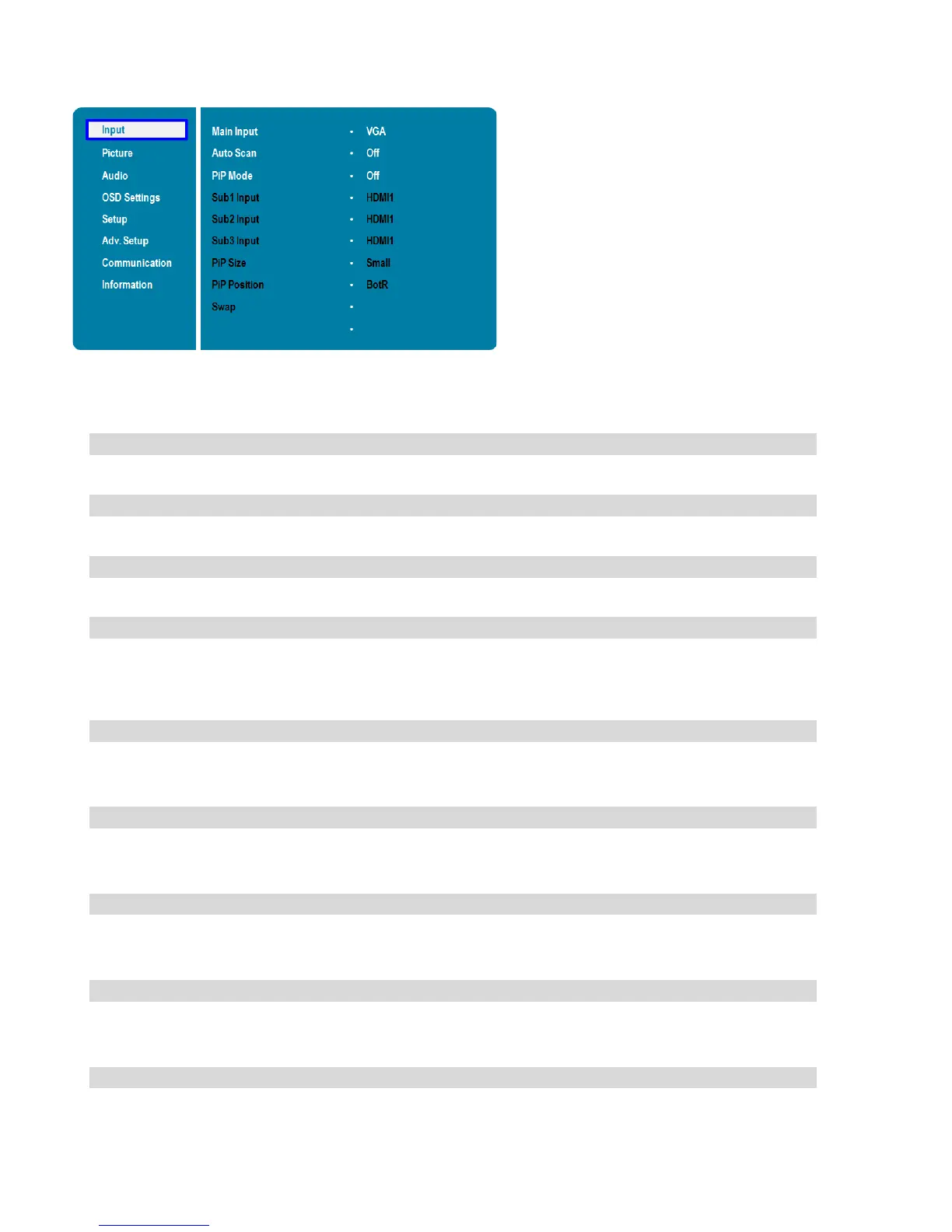
Input Menu
This menu is used for selecting the main input source (Main) and up to three Picture-in-Picture input sources (Sub1,
Sub2 and Sub3). Up to four sources can be displayed at the same time.
Select the main input source
Options: VGA, DisplayPort, HDMI1, HDMI2, HDMI3, HDMI4, OPS, Front HDMI, PC
Select whether the display will automatically scan for a main input source
Options: Off, Main, PxP, All
Select the PiP (Picture-in-Picture) mode
Options: Off, PiP, PbP, 3Window, 4Window
Select the source for the primary PiP window
Options: VGA, DisplayPort, HDMI1, HDMI2, HDMI3, HDMI4, OPS, Front HDMI, PC
Note: This function is only available when PiP Mode is set to PiP, PbP, 3Window or
Select the source for the secondary PiP window
Options: VGA, DisplayPort, HDMI1, HDMI2, HDMI3, HDMI4, OPS, Front HDMI, PC
Note: This function is only available when PiP Mode is set to 3Window or 4Window
Select the source for the tertiary PiP window
Options: VGA, DisplayPort, HDMI1, HDMI2, HDMI3, HDMI4, OPS, Front HDMI, PC
Note: This function is only available when PiP Mode is set to 4Window
Select the size of the primary PiP window
Options: Small, Mid, Large
Note: This function is only available when PiP Mode is set to PiP
Set the position of the primary PiP window
Options: TopR, TopL, BotR, BotL
Note: This function is only available when PiP Mode is set to PiP
Swap the main input source with the primary PiP source
Note: This function is only available when PiP Mode is set to PiP, PbP, 3Window or


 To Next Page