18
Descriptions and Functions
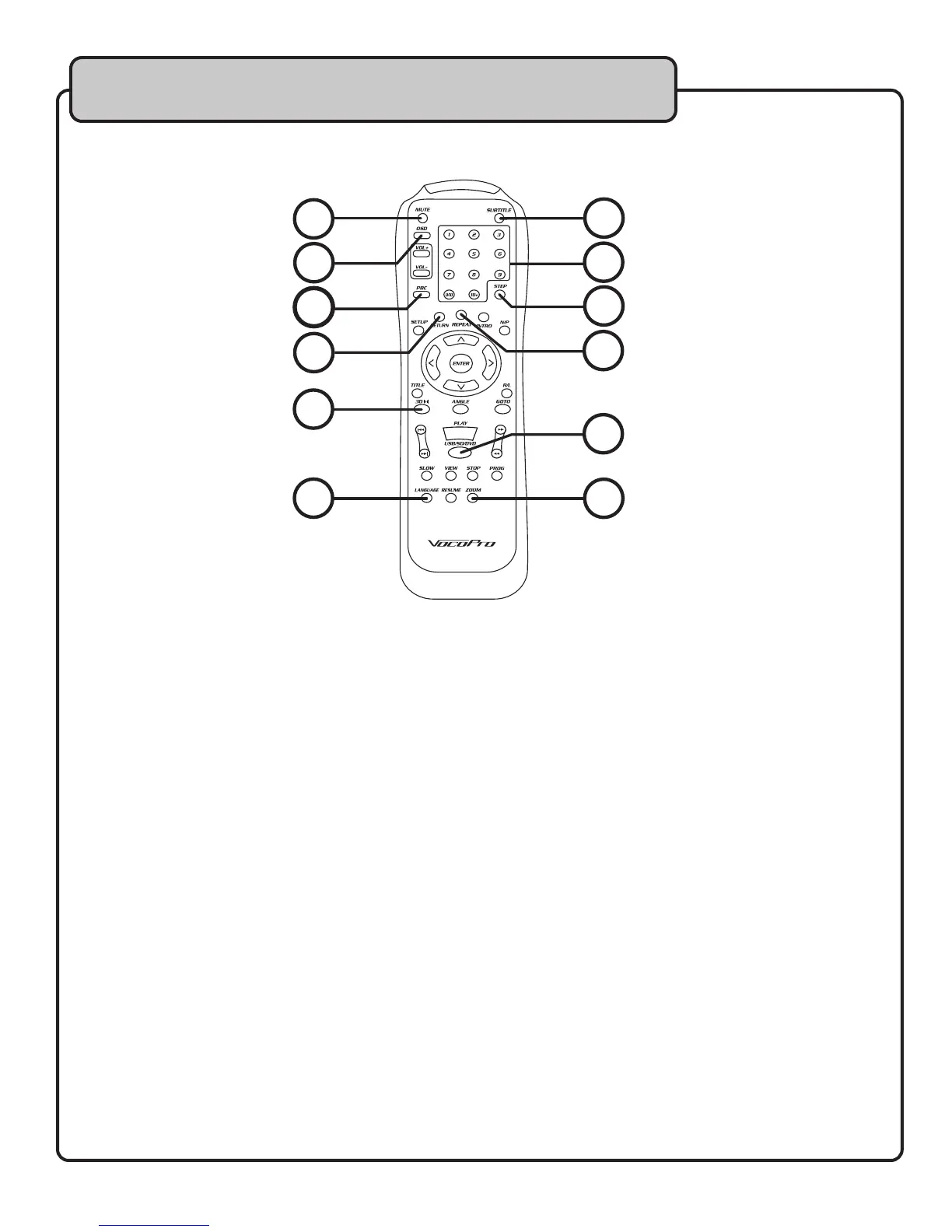
Remote Control
1. SUBTITLE – Use this button to select subtitles when viewing a DVD movie.
NOTE: This button only works with DVD discs. Not all DVDs contain subtitles.
2. MUTE – Press this button to MUTE audio output.
3. OSD – Use this button to toggle through the on-screen display options.
Track elapsed>Track remaining>Disc elapsed>Disc remaining>Off
4. PBC - This button activates menu navigation on VCD Discs.
NOTE: This button is only functional when playing a VCD disc.
5. LANGUAGE – Use this button to toggle through available audio tracks on a DVD disc. Some DVD
movies contain dialog in different languages, and some karaoke DVDs have audio tracks with and
without vocals.
NOTE: This button only works when playing DVD discs. Not all DVDs contain multiple audio tracks.
6. ZOOM – This button zooms in the video when playing a DVD, VCD or AVI media file.
7. NUMBER PAD – Use these buttons to select track numbers. Press the 10 button to access
track 10. For tracks larger than 10, press the 10+ button and another number. For example, for
track 22, press the 10+ button two times, and then press 2.
8. STEP – Press this button to view playback one frame at a time. Each time STEP is pressed, the
playback will advance one frame. To exit step mode, press the PLAY button.
9. RETURN – Press this button to return to the main menu when playing a DVD.
10. REPEAT – Use this button to enter a REPEAT play mode. Repeat modes depend on the type of
disc you are playing:
CD/CDG/VCD – Repeat One>Repeat All>Off
DVD – Repeat Chapter>Repeat Title>Repeat All>Off
11. 3D – Use this button to enter the audio properties menu. In the audio properties menu,
you can apply surround sound, EQ, and key control settings. Refer to the Operations section for
instructions on how to adjust audio settings.
NOTE: This button does not work when playing a DVD disc.
12. USB/SD/DVD - Use this button to switch between USB/SD/DVD for playback.
NOTE: The INPUT (DVD/AUX) BUTTON must be set to DVD.
A video connection is required to see the options on screen when using this button.
This button is only functional when an SD or USB device is connected.
1
3
4
5
7
6
8
9
10
2
11
12


 To Next Page