26
Using the Disc Player
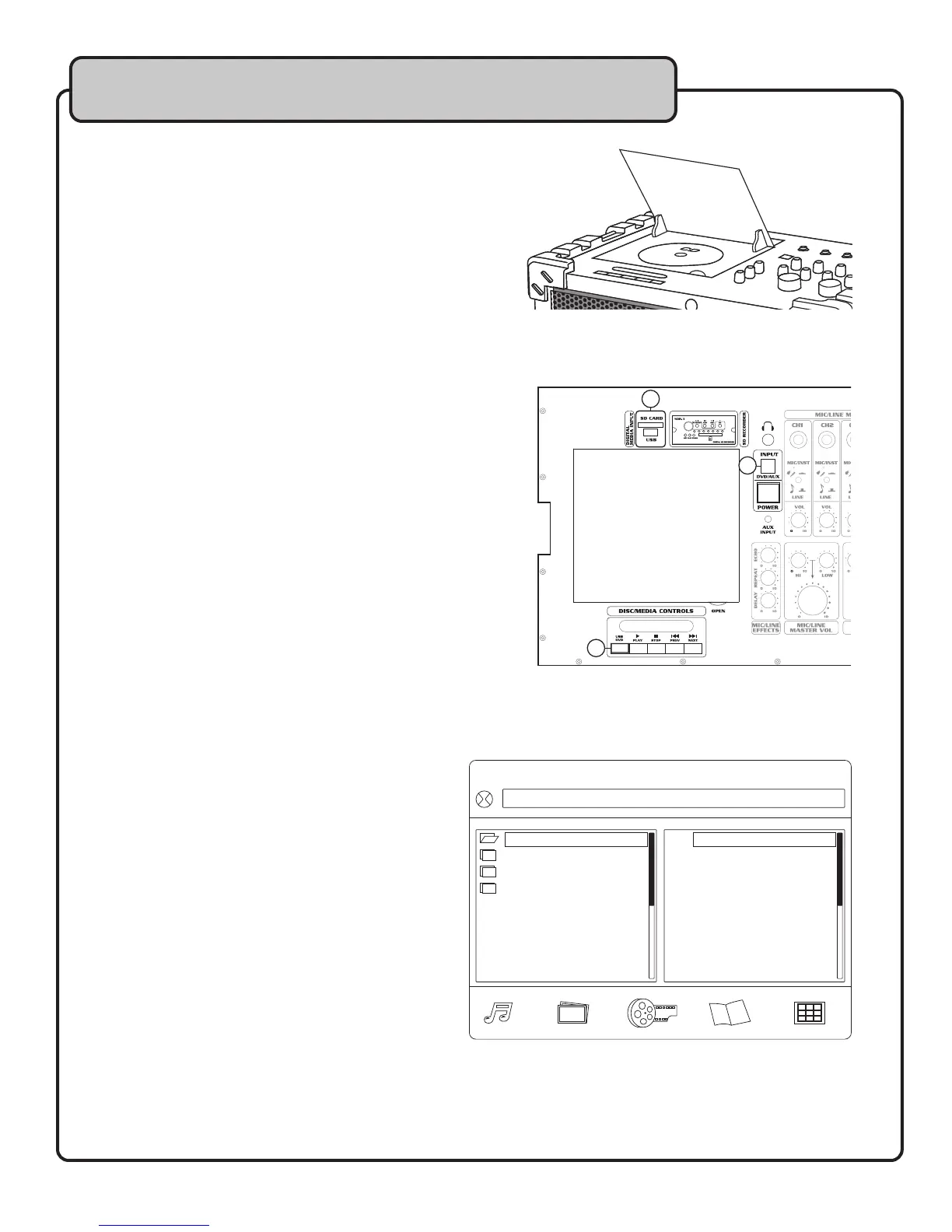
To play a disc:
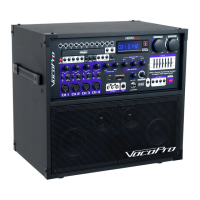
1. Set the INPUT (DVD/AUX) BUTTON to DVD.
2. Open the disc tray.
3. Place a disc in the tray, label side up.
4. Close the tray.
5. The disc will automatically begin to play.
Playing from the USB flash drive or SD Card
To play songs, videos and other files from a USB flash
drive or SD card:
1. Plug a USB flash drive or SD card into the
appropriate slot on the top panel of the
JAMCUBE.
2. Set the INPUT (DVD/AUX) BUTTON to DVD.
3. Use the USB/DVD BUTTON to select the slot
you are playing from (USB/SD).
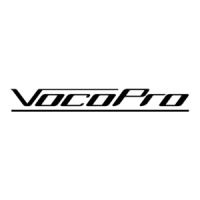
4. The media menu selection window will appear,
and the first track from the first folder will begin
playing.
NOTE: To view the media menu selection window,
you will need to have a video device connected and
turned on.
Navigating the Media Menu Selection Window
The media menu selection window is divided into 3
sections: folders on the left side, folder contents (media
files) on the right side, and media file icons on the
bottom.
To view a folder’s contents, highlight the folder using
the direction pad on the remote control, and press
ENTER. To select a particular file, highlight that file in
the folder contents window and press ENTER.
NOTE: Only files of the selected type will be shown in
the folder contents window.
The icons on the bottom of the screen represent
the different media types: MUSIC, PICTURE, MOVIE,
E-BOOK and GAME. To select a media type, highlight
an ICON and hit ENTER.
NOTE: The icons are only accessible if there are files of
that type present on the USB/SD device.
General Operations
[C: ] LIN0003.MP3
01 .C: 01 .LIN0002
02 .LIN0003
03 .LIN0004
02 .RECORD
03 .AUDIO
04. LINE_IN
Media Menu Selection
1
2
3


 To Next Page