INTERNET MAP
}}
99
5. Select route options (p. 106) (e.g. road type,
tunnels, ferries).
6. Select map options (p. 107) (e.g. full screen,
map type, position information).
> The position of the car is shown on the
Internet map with traffic information and
selected points of interest (POI).
Show route
Show the overview map of the route, in the nor-
mal view for the source, press OK/MENU and
select
Route Map of remaining route.
Show detailed route information (p. 105).
Change destination
To change destination: enter destination
(p. 102).
Cancel/resume guidance
In the normal view for the source, press
OK/MENU and select
Cancel/Resume
guidance.
Change of car ownership
In the event of change of ownership it is impor-
tant to reset all user data and system settings to
the original factory settings, see Change of own-
ership (p. 10).
Internet map
3
- character wheel and
keyboard
Use the character wheel or the centre console
keypad for entering and selecting options. For
example, enter information about an address or
a facility.
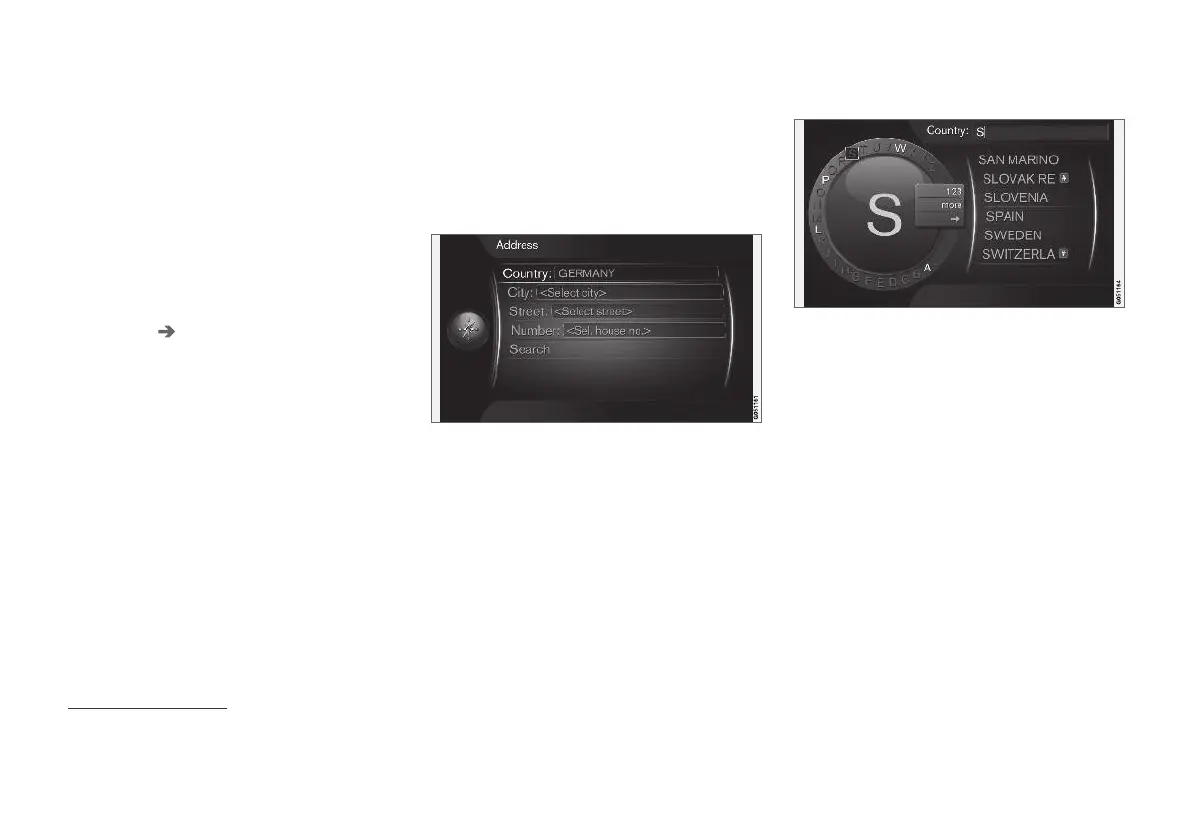
Screen view with text field.
This system uses a "character wheel" to enter
specific information, e.g. type of POI, city/town,
area/country, address, street or postcode.
Activate an option
After highlighting a desired function/menu bar
using the thumbwheel or the TUNE knob, press
the thumbwheel/OK to see the next level of
functions/options.
Entering text with the character wheel
the character wheel.
1. Highlight a text field.
2.
Press OK to call up the character wheel.
3.
Select the characters using the thumb-
wheelTUNE knob and enter them by press-
ing thumbwheelOK once.
2
Applies to certain markets.
3
Applies to certain markets.



 To Next Page