EasyManua.ls Logo

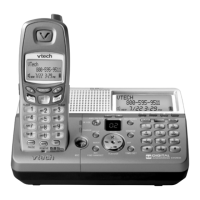
VTech mi6877 - User Manual

VTech mi6877
63 pages
Print Icon
To Next Page IconTo Next Page
Loading...
Users Manual
w w w . v t e c h p h o n e s . c o m
Models:
mi6897/6877

Table of Contents

Other manuals for VTech mi6877

Questions and Answers

  • C
    Colleen PhillipsAug 20, 2025
    How to fix VTech Cordless Telephone when it doesn’t work at all?
    • R
      Robert SmithAug 20, 2025
      If your VTech Cordless Telephone isn't working, ensure the power cord and telephone line cord are securely plugged into the base and wall jack. Try disconnecting the AC adapter for a few minutes, then reconnect it. Charge the handset battery for 16 hours. You can also reset the telephone base by unplugging it for 15 seconds and plugging it back in. If none of these steps work, you might need a new battery.
  • D
    David HernandezAug 22, 2025
    Why is my VTech mi6877 Cordless Telephone handset not ringing?
    • C
      Christopher KimAug 22, 2025
      If your VTech Cordless Telephone handset isn't ringing, first ensure the ringer is activated. Check that the telephone line cord is firmly plugged into both the base and the wall jack. Charge the handset for 16 hours. Also, consider whether you have too many extension phones on the line. If other phones at your home are also not ringing, the problem might be with your wiring or local service.
  • L
    Laurie BarnesAug 25, 2025
    How to fix no dial tone on VTech mi6877?
    • A
      Aaron WellsAug 25, 2025
      If you can't get a dial tone on your VTech Cordless Telephone, try all the general troubleshooting suggestions first. Move the handset closer to the base. Your line cord might be faulty, so try a new one. If these steps don't work, disconnect the base and connect a different phone to the same jack. If that phone also lacks a dial tone, the issue lies with your wiring or local service.
  • E
    Emily JohnsonAug 26, 2025
    How do I register a new VTech mi6877 handset?
    • R
      Rhonda IngramAug 27, 2025
      To register a new handset for your VTech Cordless Telephone, press and hold INT/FIND HANDSET on the main base for 10 seconds, then place the handset in its charger. Alternatively, press and hold INT/FIND HANDSET on the base for four seconds. The handset will display 'HS REGISTERED' and beep.
  • D
    denniscarrollAug 28, 2025
    What to do if UNABLE TO CALL TRY AGAIN displays on VTech Cordless Telephone?
    • G
      Glen CarpenterAug 28, 2025
      If you see 'UNABLE TO CALL TRY AGAIN' on your VTech Cordless Telephone, try moving the handset closer to the telephone base. You can also reset the telephone base by unplugging it, waiting 15 seconds, and then plugging it back in. Ensure your phone is away from other electronic devices that might cause interference.
  • M
    Mr. Kerry Huffman IIAug 30, 2025
    Why is there noise or static on my VTech Cordless Telephone?
    • I
      imorrisAug 30, 2025
      To troubleshoot noise, static, or a weak signal on your VTech Cordless Telephone, consider that other cordless phones or 802.11 wireless routers might be interfering. Try moving the phone away from other electronic devices and relocate it to a higher position. If other phones in your home have the same issue, the problem might be with your wiring or local service.
  • S
    Stephanie EscobarSep 1, 2025
    Why do my calls fade or cut out on my VTech Cordless Telephone?
    • T
      Tiffany JonesSep 1, 2025
      If your VTech Cordless Telephone calls fade or cut in and out, it could be due to interference from other electronic products or microwaves operating on the same frequency. If your phone is plugged in with a modem or surge protector, try plugging it into a different location. Relocating the phone to a higher spot may also help. If other phones in your home are having the same issue, the problem might be in your wiring or local service.
  • D
    Daniel WareSep 3, 2025
    What to do if I cannot dial out on my VTech mi6877?
    • K
      kenneth56Sep 3, 2025
      If you can't dial out on your VTech Cordless Telephone, first ensure you have a dial tone. Check that your phone is set to the correct dial mode (pulse or touchtone) for your service type. If other phones in your home have the same problem, the issue is likely with your wiring or local service. Also, eliminate any background noise from TVs, radios, or other appliances that may interfere with dialing.
  • J
    Jay SmallSep 5, 2025
    Why does my VTech Cordless Telephone battery not hold a charge?
    • D
      Dale PerezSep 5, 2025
      If the battery of your VTech Cordless Telephone doesn't hold a charge, charge it for 16 hours. If that doesn't work, you may need a new battery. If problems persist, it is possible that your phone is malfunctioning.
  • M
    Mark BryantSep 7, 2025
    Why is the charge light off on my VTech mi6877 Cordless Telephone?
    • C
      changginaSep 7, 2025
      If the charge light is off on your VTech Cordless Telephone, clean the handset and base charging contacts monthly using a pencil eraser or cloth. Ensure the power and line cords are correctly and firmly plugged in. Reset the base by unplugging it for 15 seconds, then plugging it back in. If the issue persists, your phone might be malfunctioning.

Summary

Getting Started

Parts Checklist for mi6897

Lists all components included with the mi6897 phone.

Installation: Choose a Location

Install Handset Battery

Step-by-step instructions for installing the handset battery.

Installation: Power and Phone Line Connection

Connect Power and Phone Line

Instructions for connecting power adapters and the telephone line.

Installation: Checks and Optional Services

Check Battery and Dial Tone

Verifying battery status and ensuring a dial tone is present.

DSL Service Connection

Steps for connecting DSL service and installing a noise filter.

Installation: Wall Mounting

Handset Registration

Registering a New Handset

Process for registering a new handset to the telephone base.

De-registering Handsets

Instructions for removing all registered handsets from the base.

Device Layouts

Handset Layout

Diagram and list of controls on the telephone handset.

Telephone Base Layout

Diagram and list of controls on the telephone base unit.

Visual Indicators

Handset Icons and LEDs

Explains icons and LEDs on the handset.

Base Icons and LEDs

Explains icons and LEDs on the telephone base.

Telephone Operation: Core Functions

Making and Answering Calls

Instructions for initiating and receiving phone calls.

Volume and Flash Functions

Adjusting volume and using the flash function.

Telephone Operation: Advanced Features

Redial, Mute, and Intercom

Using redial, mute, and intercom features.

Call Forwarding and Transfer

How to forward and transfer external calls.

Conference Call and Paging

Setting up conference calls and paging handsets.

Paging All Handsets

Instructions for paging all system handsets simultaneously.

Directory Management

Storing Directory Entries

Steps to add a new contact number and name to the directory.

Directory Input and Editing

Using character input and editing directory entries.

Reviewing, Dialing, and Deleting Entries

Browsing, dialing, and removing contacts from the directory.

Deleting a Directory Entry

How to remove an entry from the phone directory.

Caller ID Features

Caller ID and Call Waiting

Viewing caller ID and call waiting information.

Reviewing and Storing Caller ID

Accessing call history and saving entries to the directory.

Dialing and Managing Caller ID Records

Making calls from CID and deleting records.

Telephone Settings

Ringer Settings (Volume and Tone)

Adjusting ringtone volume and selecting ringtones.

Language, Voicemail, and Dial Type

Setting language, clearing voicemail indicators, and dial type.

Answering System Operation: Basics

Managing the Answering Feature

Turning the answering system on/off and setting date/time.

Announcements and Memos

Recording and managing outgoing announcements and memos.

Message Playback and Options

Listening to messages and controlling playback.

Answering System Operation: Advanced

Deleting Messages and Alerts

Erasing messages and setting up message alerts.

Remote Access and Settings

Setting remote access codes and operating remotely.

Specific Answering System Functions

Recording announcements, memos, and managing alerts.

Announcement Only Mode

Setting the phone to announce calls without recording.

Call Screening and Rings

Listening to callers and setting the number of rings.

Message Window Displays

Explains various indicators shown in the message window.

Headset Operation

Headset Jack Connection

Instructions for connecting a VTech 2.5mm headset.

Operating Range

Information on the phone's wireless communication range.

Batteries

Battery Care and Replacement

Tips for battery maintenance and replacement.

Troubleshooting: Phone and Dial Tone Issues

Phone Not Working or No Dial Tone

Solutions for unresponsive phone or lack of dial tone.

Troubleshooting: Call and Signal Issues

Cannot Dial Out

Troubleshooting for problems initiating outgoing calls.

Noise or Weak Signal

How to resolve issues with poor call quality or signal strength.

Handset Not Ringing

Solutions for a handset that does not ring for incoming calls.

Troubleshooting: Handset, Battery, and System Issues

Unable to Call;Try Again and DSL Issues

Troubleshooting handset display errors and DSL interference.

Battery Not Holding Charge

Solutions for battery issues like not holding a charge.

Calls Fading and Charge Light Off

Troubleshooting intermittent audio and charging light errors.

Troubleshooting: Feature Specific Issues

Caller ID and Answering Machine Problems

Resolving issues with Caller ID and message recording/playback.

Common Electronic Equipment Cure

General troubleshooting for electronic issues.

Troubleshooting: Handset Registration

Registering New Handsets

Steps to register a replacement handset.

Maintenance

Telephone Care and Cleaning

Guidelines for cleaning and protecting the telephone.

Warranty Information

Warranty Coverage and Service

Details on product warranty, what it covers, and service.

Warranty Exclusions and Limitations

What is not covered by the limited warranty.

Important Safety Instructions

Regulatory Compliance

FCC, ACTA, and IC Regulations

Information on FCC, ACTA, and IC compliance standards.

RBRC Battery Recycling Seal

Explanation of the RBRC seal related to battery recycling.

Technical Specifications

VTech mi6877 Specifications

General IconGeneral
Caller IDYes
DECT 6.0 TechnologyYes
Digital Answering SystemYes
Handset SpeakerphoneYes
DisplayLCD
Frequency1.9 GHz
Call WaitingYes
ExpandableUp to 5 handsets
Backlit DisplayYes
RangeUp to 300 meters (outdoor)
IntercomYes
Answering SystemUp to 14 minutes recording time
Phonebook Memory50 entries

Related product manuals