32
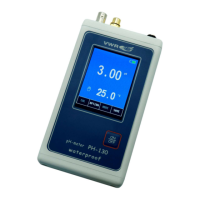
Set User’s Information
Click Main Menu→Options, pop-up Options window, click User’s Information tag, choose it and input relative
user information, click OK to save settings, all this information will appear in your testing report.
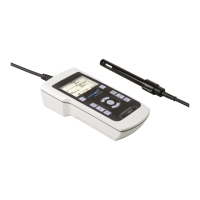
Set Data Format
Click Main Menu→Options, a dialog box of Options will display in the screen, click Data Format tag, choose the
displaying format, and click OK to save setting.
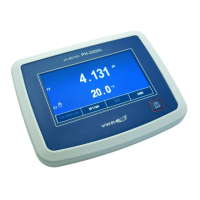
Set Interface Style
Click Main Menu→Options, a dialog box of Options will display in the screen, and click Interface tag. You can
custom the style and color schemes of the interface as you like. Click OK to save setting.
Connect to PC
After enter the Main Interface, click in the Tool Bar to connect with PC. After connection, the icon is on the
pitched on state, you can release PC if you click the icon again.
Introduction
We will introduce the VWR Software Multi Wave Pro in this chapter.
Main Interface
This is the main interface after start.


 To Next Page