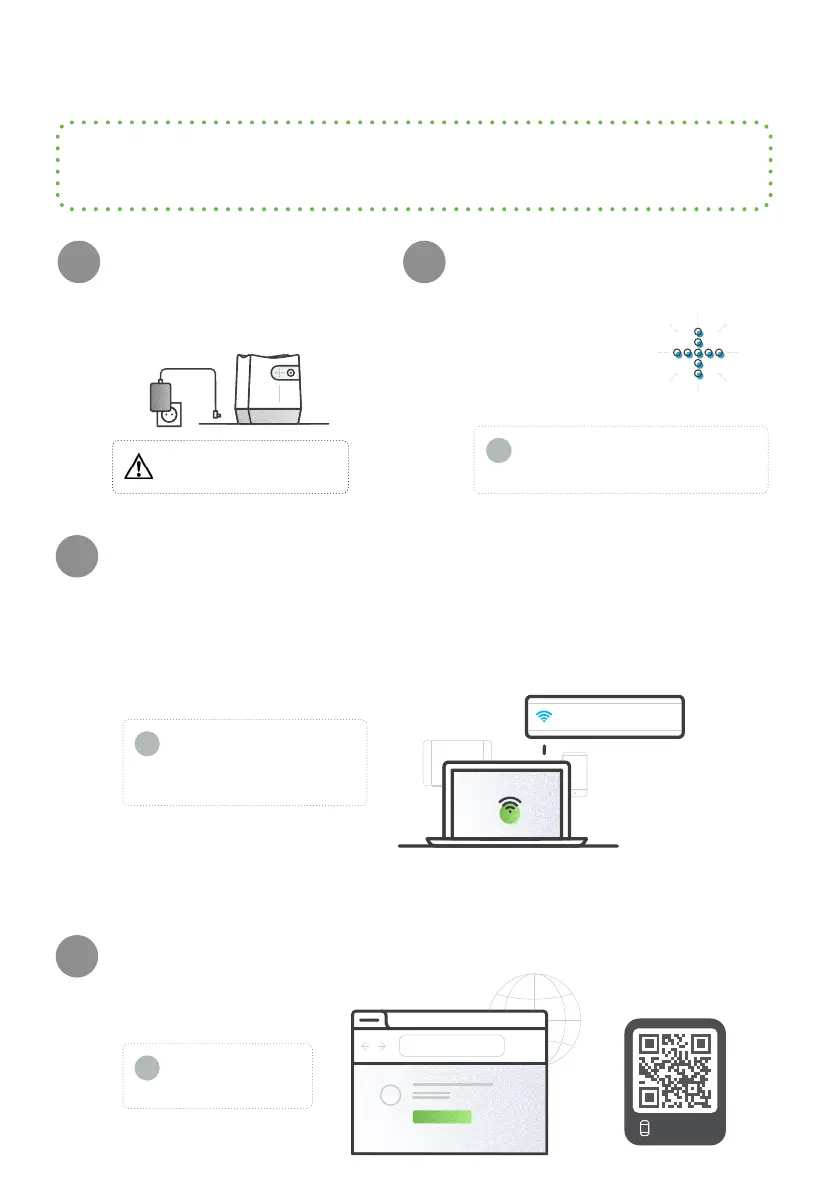
C. Connection to OneLab
If you have a OneLab account, plug
your Extraction+ vacuum pump
into a power source.
Wait for the LED indicator to
turn blue and blink.
After a couple of minutes,
the Extraction+ vacuum
pump will inform you
when it is in installation
mode.
Connect your computer, tablet, or smartphone to the Extraction+ vacuum pump.
Launch a Web browser, type http://192.168.2.1, and follow the on-
screen steps to continue installation.
A. Go to your WiFi settings
and select the network named Extraction-xxx.xxxx.xxxxx.
1 2
3
4
scan me
Note that the installa-
tion page might open
automatically.
If you do not have access to a
WiFi-compatible device, refer to
our online Help:
help.andrewalliance.com
!
!
xxxx.xxxxx is the Extraction+ device serial number (found on the back of the
Extraction+ vacuum pump or on top of the Extraction+ vacuum manifold).
B. The LED indicator stops blinking when the device is successfully
connected.
Extraction-xxx.xxxx.xxxxx
If the Extraction+ vacuum pump does not
automatically enter installation mode,
press the power button ve times.
!
http://192.168.2.1
Before
you begin
If you do not have a OneLab account, create one at:
https://onelab.com/signup
The device will automatically start up.
Only use the provided AC/DC
power supply unit and cords.



 To Next Page