87
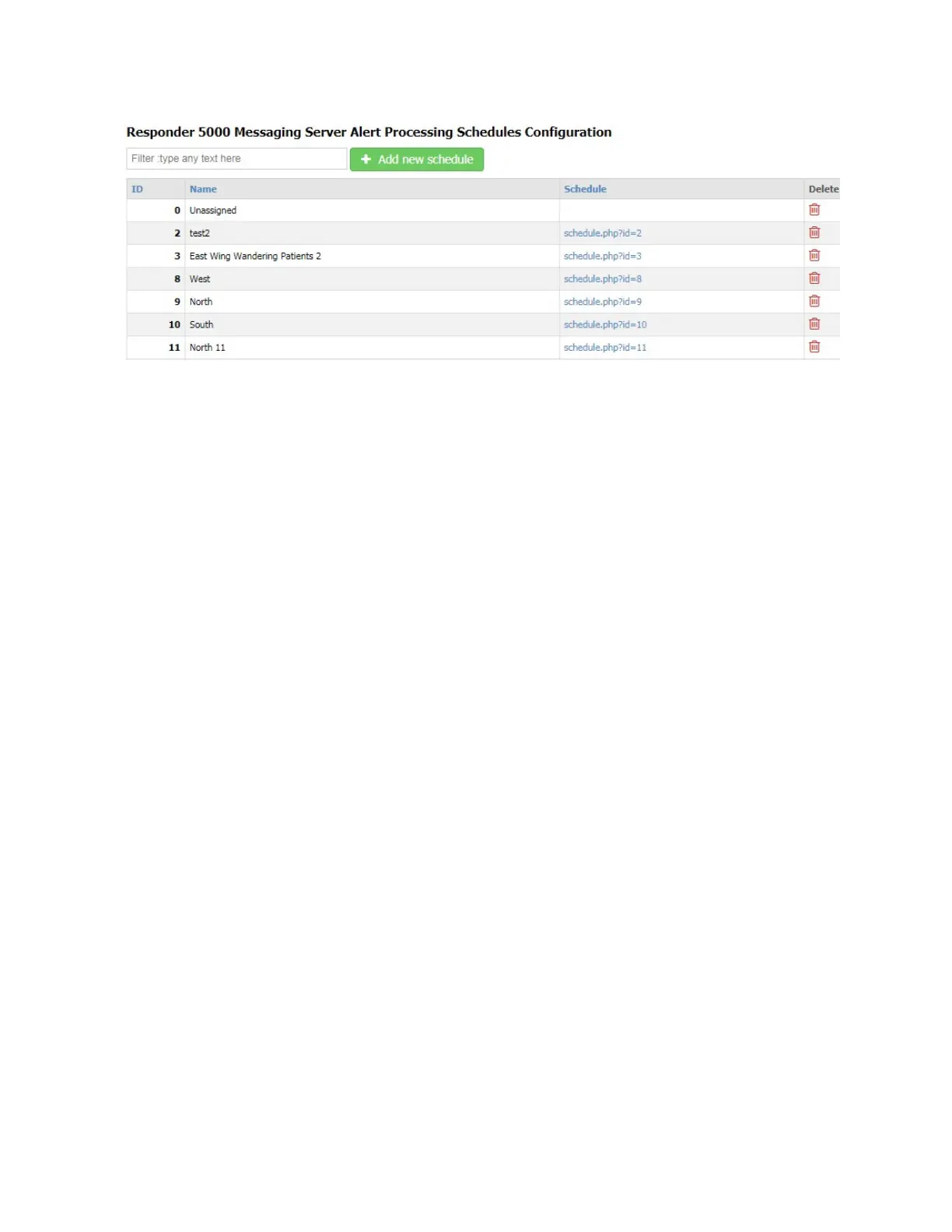
Figure 49 - Alert Processing Schedules Configuration
Filter
The Filter field allows you to search the grid for any text value. The grid auto-adjusts to show you
records that contain the filter value. To clear the filter, remove the filter text, press the Enter key when
the cursor is in a blank Filter field, or refresh the page.
Add new schedule
The Add new schedule button allows you to create a new record. To create a new record, click the Add
new schedule button.
ID
The ID field is a reference field identifying the database record ID value
Name
A reference name for the Schedule
Schedule
The schedule defining when alerts should be processed. Click on the Schedule link to review/edit the
selected Alert Processing Schedule. Schedules are configurable so that you can define up to three
different schedules, and apply each to one or more days of the week.
In the following figure, the Schedule named West is being edited. In this example, the schedule is, by
default, applied to all days of the week, and is active 24 hours a day. If you want this schedule to only be
active on certain days of the week, you can click on a Day button to disable schedule operation for a
particular day.



 To Next Page