EasyManua.ls Logo

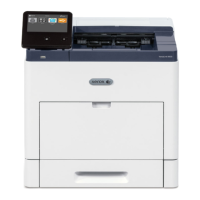
Xerox B210 - User Manual

Xerox B210
199 pages
Print Icon
To Next Page IconTo Next Page
Loading...
Version 1.0
august 2019
702P07620
Xerox
®
B210 Printer
User Guide

Table of Contents

Other manuals for Xerox B210

Questions and Answers

  • A
    Adrian CruzAug 13, 2025
    What to do if the Xerox B210 print job fails to print?
    • N
      Nicholas MeltonAug 13, 2025
      If your Xerox Printer print job fails, it might be due to several reasons. The printer may have an error, in which case you should power it off and on again. Another reason could be that the printer is out of paper, so load paper into the tray. Alternatively, the toner cartridge might be empty, so replace it. Finally, check that the power cord is correctly plugged into the printer and the outlet; if not, power off the printer, plug the cord in correctly, and power the printer back on.
  • M
    Miss Melissa MitchellAug 17, 2025
    How to fix a Xerox Printer that fails to power on?
    • D
      Denise CoxAug 17, 2025
      If your Xerox Printer fails to power on, first ensure that the power switch is turned on at the printer control panel. If it still doesn't power on, check that the power cord is correctly plugged into both the printer and the outlet. Try performing a full reset by powering off the printer, unplugging the power cord for 30 seconds, then plugging it back in and powering on the printer. Verify the outlet is working by plugging another electrical appliance into it or trying a different outlet. Lastly, ensure the power source matches the printer's electrical specifications.
  • S
    Stephanie FlowersAug 21, 2025
    How to fix Xerox B210 printing from the wrong tray?
    • C
      Courtney ClineAug 21, 2025
      If your Xerox Printer prints documents from the wrong tray, it could be due to conflicting tray selections between the application and print driver. To resolve this, first ensure that you have selected the correct tray in the print driver. Then, access the application from which you are printing, go to the page setup or printer settings, and set the paper source to match the tray selected in the print driver, or set the paper source to Auto Select.
  • J
    jacobsmithAug 25, 2025
    Why is printing taking too long on my Xerox Printer?
    • C
      Charles CruzAug 26, 2025
      If printing takes too long on your Xerox Printer, check the following: Ensure the paper type is set properly in the print driver. If the printer is in power saver mode, wait for it to exit this mode. For print-quality mode in the print driver, change it to Standard. If the job is complex, wait for the document to finish printing.
  • S
    Sherri Wells DDSAug 28, 2025
    What to do if Xerox B210 resets or powers off frequently?
    • Z
      zperezAug 28, 2025
      If your Xerox Printer resets or powers off frequently, ensure the power cord is correctly plugged into the printer and the outlet. If the issue persists, power off the printer, then power it on again; if the error continues, contact a service representative. Make sure the printer is not connected to an uninterruptible power supply; if it is, connect the power cord to a suitable outlet. Also, verify the printer isn't connected to a power strip shared with other high-power devices; if it is, plug the printer directly into the outlet or into a power strip not shared with such devices.
  • B
    bwoodsSep 1, 2025
    Why condensation has formed inside the Xerox B210 Printer?
    • S
      stantonthomasSep 1, 2025
      If condensation has formed inside your Xerox Printer, it may be because the printer has been sitting in a cold room. Allow it to acclimate for several hours before operating it, or let it operate for several hours at room temperature. High relative humidity in the room can also cause this issue. Reduce the humidity in the room or move the printer to a location where the temperature and relative humidity are within the operating specifications.
  • D
    David RichardsonSep 4, 2025
    How to fix Xerox B210 making unusual noises?
    • D
      Dalton MooreSep 5, 2025
      If your Xerox Printer is making unusual noises, there may be an obstruction or debris inside the printer. Power off the printer, then remove any obstruction or debris. If you cannot remove the obstruction or debris, contact a service representative.
  • B
    Brian RodriguezSep 9, 2025
    What to do if Xerox B210 paper tray fails to close?
    • A
      Alexis MurphySep 9, 2025
      If the paper tray on your Xerox Printer fails to close, it is likely that debris or an object is blocking it. Remove any debris or object that is obstructing the paper tray.

Summary

Safety

Notices and Safety

Provides important warnings and safety precautions for operating the printer and its supplies.

Electrical Safety

Covers general guidelines and warnings related to electrical hazards, power cords, and emergency power off procedures.

Operational Safety

Details guidelines for safe operation, ozone release, printer location, and handling of printer supplies.

Maintenance Safety

Outlines safety procedures and precautions to be followed during printer maintenance activities.

Printer Symbols

Explains various symbols used in the manual and on the printer to indicate hazards and instructions.

Environmental, Health, and Safety Contact Information

Provides contact details for obtaining further information on environmental, health, and safety matters related to the printer.

Getting Started

Parts of the Printer

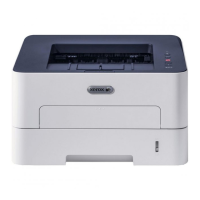
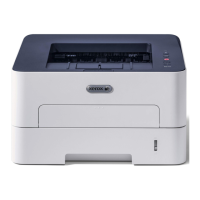
Identifies and illustrates the various external components and parts of the Xerox B210 printer.

Power Options

Explains how to power the printer on, off, and manage its power saver modes.

Information Pages

Describes how to print various reports such as configuration and supplies usage from the printer.

Xerox CentreWare Internet Services

Introduces the web-based administration software for printer configuration and management.

Xerox Easy Printer Manager

Describes the software for managing printer settings and functions from a computer.

Installing Software

Provides instructions for installing printer drivers and related software for different operating systems.

More Information

Lists resources and locations for obtaining additional documentation and support for the printer.

Installation and Setup

Installation and Setup Overview

Provides a general overview of the initial steps required to set up and connect the printer.

Xerox CentreWare Internet Services

Details how to access and use the web interface for printer administration.

Initial Setup

Covers physically connecting the printer and assigning network addresses for initial configuration.

General Setup

Explains how to configure basic printer settings like name, location, and power management.

Network Connectivity

Guides users on configuring network settings like TCP/IP, wireless, and other protocols.

Installing Printer Software

Provides step-by-step instructions for installing printer drivers on Windows, Macintosh, and Linux.

Setting Up the Printing Service

Details how to configure printing services, including startup pages and banner pages.

Printing

Printing Overview

Introduces the printing capabilities and how to access print drivers for the printer.

Printing Using Windows

Explains the print procedure and options available when printing from Windows.

Xerox Easy Printer Manager

Describes how to use the Easy Printer Manager for printing functions and status checks.

Printing Using Macintosh

Guides users on how to print documents using a Macintosh operating system.

Printing Using Linux

Provides instructions for printing documents from Linux applications and using CUPS.

Printing Using Xerox CentreWare Internet Services

Explains how to print files directly from the web interface without needing a print driver.

Paper and Media

Supported Paper

Details the types of paper and media supported by the printer for optimal performance and jam prevention.

Loading Paper

Provides instructions on preparing and loading paper into the printer trays and manual feed slot.

Setting Paper Size and Type

Explains how to configure paper size and type settings via the computer or printer control panel.

Media Output Locations

Describes the different locations where printed output can be collected.

Maintenance

General Precautions

Lists general safety precautions and warnings to be observed before and during maintenance.

Cleaning the Printer

Provides instructions for cleaning the printer's exterior and interior components to maintain print quality.

Supplies

Details consumables like toner and drum cartridges, their handling, and status.

Managing the Printer

Covers billing meter information and software update procedures for printer management.

Moving the Printer

Provides safety instructions and procedures for safely moving the printer to a new location.

Troubleshooting

Troubleshooting Overview

Introduces the troubleshooting section and explains how to interpret printer status lights for errors.

General Troubleshooting

Offers solutions for common printer issues like power failures, resets, and incorrect tray usage.

Paper Jams

Explains how to minimize, locate, and clear paper jams from various printer areas.

Printing Problems

Addresses issues related to the printer not printing, slow printing, or incorrect output.

Print-Quality Problems

Details common print quality issues and their solutions, such as faded print or streaks.

Getting Help

Guides users on how to obtain assistance, view alerts, and use troubleshooting tools.

Security

Xerox CentreWare Internet Services

Explains how to access and use the web interface for managing printer security settings.

Setting Print Permissions

Describes how to configure print permissions, such as enforcing 2-sided printing.

Secure HTTP

Details how to enable TLS encryption for secure communication with the printer via HTTPS.

IP Filtering

Explains how to create IP filters to block or allow network access to the printer.

IPSec

Covers the configuration of Internet Protocol Security (IPSec) for secure network communications.

Security Certificates

Explains digital certificates and how to create machine digital certificates for enhanced security.

Concealing or Showing Job Names

Describes how to manage the display of job names in the printer's activity lists.

802.1 x

Details the configuration of 802.1x for port-based network access control and authentication.

System Timeout

Explains how to set timeout values for logging out inactive users from the web interface.

USB Port Security

Covers enabling or disabling USB ports to prevent unauthorized access and software updates.

Restricting Access to the Web User Interface

Explains how to lock or unlock the printer's web user interface for enhanced security.

Software Verification Test

Describes how to test printer software files to ensure they are not corrupt.

Specifications

Printer Specifications

Lists standard printer features, hardware configuration, connectivity, and print speed.

Feature Specifications

Details specific print features, including speed, print area, resolution, and toner yields.

Network Environment

Outlines network interface, supported operating systems, and network protocols.

System Requirements

Specifies the CPU, RAM, and HDD space needed for various operating systems.

Electrical Specifications

Provides details on frequency, voltage, and average power consumption of the printer.

Environmental Specifications

Lists operating temperature, humidity range, and elevation recommendations for optimal performance.

Regulatory Information

Basic Regulations

Covers FCC regulations for the US, Canadian compliance, and European Union directives.

Safety Certification

Lists the agencies and safety standards the device is certified against.

Material Safety Data

Provides links for obtaining material safety data sheets and customer support contact information.

Recycling and Disposal

All Countries

General information on disposal of Xerox products, including potential hazardous materials.

North America

Information on Xerox environmental programs and local recycling/disposal contacts in North America.

European Union

Details WEEE directives for household and business waste, and battery disposal regulations.

Other Countries

Guidance on contacting local authorities for disposal information in countries outside the EU.

Xerox B210 Specifications

General IconGeneral
ColorNo
Duplex printingYes
Print technologyLaser
Maximum resolution1200 x 1200 DPI
Time to first page (black, normal)8.5 s
Print speed (black, normal quality, A4/US Letter)30 ppm
Printing colorsBlack
Country of originChina
Maximum duty cycle30000 pages per month
Number of print cartridges1
Page description languagesPCL 5, PCL 6, PostScript 3, XPS
Paper input typePaper tray
Total input capacity250 sheets
Total output capacity120 sheets
Multi-Purpose tray input capacity1 sheets
Custom media width105 - 216 mm
Maximum print size216 x 356 mm
Custom media length149 - 356 mm
Paper tray media types-
Paper tray media weight60 - 163 g/m²
Multi-purpose tray media typesBond paper, Envelopes, Heavyweight paper, Labels, Plain paper, Preprinted forms, Thicker paper, Transparencies
Maximum ISO A-series paper sizeA4
Multi-Purpose Tray media weight60 - 220 g/m²
Wi-Fi standards802.11b, 802.11g, Wi-Fi 4 (802.11n)
Cabling technology10/100Base-T(X)
Ethernet LAN data rates10, 100 Mbit/s
Mobile printing technologiesApple AirPrint, Google Cloud Print, Mopria Print Service
USB connectorUSB Type-B
USB 2.0 ports quantityUSB 2.0 ports have a data transmission speed of 480 Mbps, and are backwards compatible with USB 1.1 ports. You can connect all kinds of peripheral devices to them.
Internal memory256 MB
Processor frequency600 MHz
Maximum internal memory- MB
Sound pressure level (printing)- dB
Sustainability certificatesENERGY STAR
CertificationEPEAT
Product colorBlack, White
Market positioningBusiness
Power consumption (standby)46 W
Power consumption (printing)- W
Power consumption (PowerSave)2 W
Mac operating systems supportedMac OS X 10.10 Yosemite, Mac OS X 10.11 El Capitan, Mac OS X 10.12 Sierra, Mac OS X 10.13 High Sierra, Mac OS X 10.14 Mojave, Mac OS X 10.9 Mavericks
Server operating systems supportedWindows Server 2008, Windows Server 2008 R2, Windows Server 2012, Windows Server 2012 R2, Windows Server 2016, Windows Server 2019
Windows operating systems supportedWindows 10, Windows 7, Windows 8
Package weight10000 g
Cables includedAC
Included cartridge capacity (black)1500 pages
CompatibilityXerox B210
Recommended monthly print volume4000 pages
Operating temperature (T-T)10 - 32 °C
Operating relative humidity (H-H)20 - 80 %
Harmonized System (HS) code84433210
Weight and Dimensions IconWeight and Dimensions
Depth420 mm
Width460 mm
Height350 mm
Weight7560 g

Videos

How to Fix Paper Jam in Xerox B210

How to Connect Xerox B210 to WiFi

How to Replace the Pickup Roller Assembly on Xerox B210

How to Print Self Test Page on Xerox B210

Related product manuals