EasyManua.ls Logo

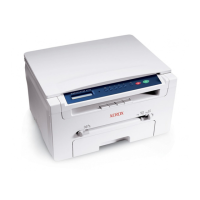
Xerox WorkCentre Pro 128 - User Manual

Xerox WorkCentre Pro 128
360 pages
Print Icon
To Next Page IconTo Next Page
Loading...
WorkCentre ProWorkCentreCopyCentre
C123/C128 M123/M128 123/128
User Guide
604P17457

Table of Contents

Other manuals for Xerox WorkCentre Pro 128

Questions and Answers

  • B
    Brian RileyAug 30, 2025
    How to fix uneven print quality on Xerox All in One Printer?
    • G
      Gordon SmithAug 30, 2025
      To fix uneven print quality on your Xerox All in One Printer, try replacing the drum cartridge. If the screen displays a message for replacement, replace the toner cartridge as well.
  • C
    Calvin RiceSep 8, 2025
    How to fix paper stacking issues in Xerox All in One Printer?
    • C
      Colton Moore DDSSep 8, 2025
      If paper delivered to an output tray is not properly stacked up on your Xerox All in One Printer, try flipping over the paper stack in the paper tray, or rotate it head to toe.
  • A
    alexis68Aug 29, 2025
    How to adjust print darkness on Xerox All in One Printer?
    • S
      smithzacharyAug 29, 2025
      If the output from your Xerox All in One Printer is too light or too dark, try loading fresh paper and check the quality of the original document. You can also select the Lighten/Darken option on the touch screen. Run off more prints to see if the copy quality improves. If the issue persists, consider replacing the drum cartridge.
  • M
    Monica WeissSep 18, 2025
    What to do if my Xerox All in One Printer output does not reflect the selections made on the touch screen?
    • C
      Cindy MillerSep 19, 2025
      If the output from your Xerox All in One Printer does not reflect the selections made on the touch screen, select [Save] after each selection on the touch screen, if one exists.
  • B
    beverly97Sep 9, 2025
    How to fix Xerox All in One Printer that will not power on?
    • M
      Michelle MaddenSep 9, 2025
      If your Xerox All in One Printer won't power on, please check the following: * Ensure the power cord is properly connected. * Verify the power switch is in the ON position. * Make sure the RESET button on the back of the machine is not tripped (popped up); push it to reset. * Confirm the AC outlet is supplying voltage by connecting another appliance.
  • J
    Jeffrey StevensSep 12, 2025
    Why is my Xerox All in One Printer producing uneven prints?
    • L
      lisaharrisonSep 12, 2025
      If your Xerox All in One Printer is producing uneven prints: * Replace the drum cartridge. * Replace the toner cartridge if the screen message for replacement is displayed.
  • A
    Andrew AndersonSep 18, 2025
    What to do if my Xerox All in One Printer is producing ghosting?
    • J
      Jill JamesSep 18, 2025
      If your Xerox All in One Printer is producing ghosting: * Check the quality of the documents. * If transparencies are used, select [Transparency] in [Paper Type]. The machine automatically adjusts the quality for transparencies. * Feed the document SEF. * Replace the drum cartridge.
  • J
    Jacqueline MartinezAug 27, 2025
    What to do if I cannot store a document for secure polling on my Xerox All in One Printer due to full memory?
    • J
      Justin BryantAug 27, 2025
      If you cannot store a document for secure polling on your Xerox All in One Printer due to full memory, cancel the operation and try again later when additional memory is available.
  • T
    Taylor ColeAug 26, 2025
    What to do if my Xerox All in One Printer displays a memory full error message?
    • J
      James HumphreyAug 26, 2025
      If your Xerox All in One Printer displays a memory full error message: * Check with the Key Operator about available memory. * Divide the remaining pages of the job into several small jobs and run the job again.
  • G
    George BautistaAug 25, 2025
    What to do if Xerox All in One Printer cannot store document due to full memory?
    • A
      Andrea BlairAug 26, 2025
      If you cannot store a document for secure polling on your Xerox All in One Printer due to full memory, cancel the operation and try again later when additional memory is available.

Xerox WorkCentre Pro 128 Specifications

General IconGeneral
Printing TechnologyLaser
Print ResolutionUp to 600 x 600 dpi
Copy ResolutionUp to 600 x 600 dpi
Max Document Enlargement400 %
Max Document Reduction25 %
Scanning Resolution600 x 600 dpi
Fax Transmission Speed33.6 Kbps
DisplayLCD
FunctionsCopier, Fax, Printer, Scanner
Gray Scale Half Tones256
Supported Media TypeEnvelopes, Plain paper, Transparencies
Scanner TypeFlatbed
Data Compression SystemMH, MR, MMR
Connectivity TechnologyUSB
Operating System CompatibilityWindows, Mac

Related product manuals