EasyManua.ls Logo

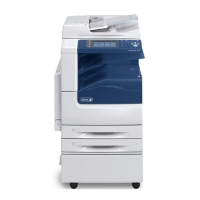
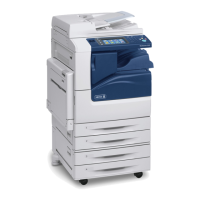
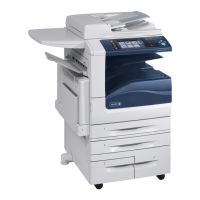
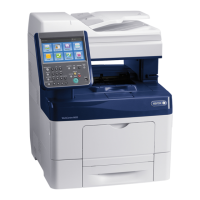
Xerox WorkCentre6655 - User Manual

Xerox WorkCentre6655
282 pages
Print Icon
To Next Page IconTo Next Page
Loading...
Xerox
®
WorkCentre
®
6655/6655i
Color Multifunction Printer
2016 Xerox
®
ConnectKey
®
Technology
User Guide

Table of Contents

Other manuals for Xerox WorkCentre6655

Questions and Answers

  • J
    jimenezmelissaSep 12, 2025
    Why Xerox All in One Printer fails to power on?
    • J
      John LopezSep 12, 2025
      Your Xerox All in One Printer might fail to power on for several reasons: * One or both of the power switches are not turned on. Turn on both power switches. * The power cord is not correctly plugged into the outlet. Turn off the printer power switch, and plug the power cord securely into the outlet. * There could be something wrong with the outlet. Plug another electrical appliance into the outlet to see if it operates properly, or try a different outlet. * The printer is connected to an outlet with incorrect voltage or frequency. Use a power source that matches the printer's electrical specifications.
  • A
    allen93Aug 25, 2025
    Why is my Xerox Printer printing from the wrong tray?
    • D
      Dana JohnsonAug 25, 2025
      If your Xerox printer is printing documents from the wrong tray, the application and print driver may have conflicting tray selections. Check the tray selected in the print driver. Go to the page setup or printer settings of the application from which you are printing. Set the paper source to match the tray selected in the print driver or set the paper source to Automatically Select. To have the print driver select the tray, set the tray used as the paper source to Auto Selection Enabled.
  • A
    Alejandro YangAug 27, 2025
    Why is automatic 2-sided printing not working on my Xerox Printer?
    • E
      Eric NguyenAug 27, 2025
      If you're experiencing issues with automatic 2-sided printing on your Xerox printer, it could be due to unsupported or incorrect paper. Ensure that you are using a supported paper size and weight for 2-sided printing. Remember that envelopes and labels cannot be used for 2-sided printing. Also, verify that the '2-Sided Print' option is selected in the print driver properties under the Paper/Output tab.
  • N
    Nathan HernandezAug 27, 2025
    Why does my Xerox All in One Printer reset or turn off frequently?
    • J
      James LopezAug 28, 2025
      Your Xerox All in One Printer might reset or turn off frequently due to: * The power cord not being plugged into the outlet correctly. Turn off the printer, ensure the power cord is correctly plugged into both the printer and the outlet, then turn the printer back on. * A system error. Turn the printer off, then on again. * The printer being connected to an uninterruptible power supply. Turn off the printer and connect the power cord to a suitable outlet. * The printer being connected to a power strip shared with other high-power devices. Plug the printer directly into the outlet or into a power strip not shared with other high-power devices.
  • P
    Peter SmithAug 29, 2025
    How to fix automatic 2-sided printing problems on Xerox All in One Printer?
    • H
      Heather HughesAug 29, 2025
      To fix automatic 2-sided printing problems on your Xerox All in One Printer: * Ensure that you are using a supported paper size and weight for 2-sided printing. Note that envelopes and labels cannot be used for 2-sided printing. * In the print driver Properties, select 2-Sided Print on the Paper/Output tab.
  • T
    Tiffany LesterAug 31, 2025
    Why does my Xerox Printer reset or turn off frequently?
    • R
      Ryan WeaverAug 31, 2025
      If your Xerox Printer frequently resets or turns off, the issue might stem from a few causes. Ensure the power cord is correctly plugged into both the printer and the outlet. If a system error occurred, turn the printer off and on again. You can print the Error History from the Information Pages of the Printer Setting Utility. Avoid connecting the printer to an uninterruptible power supply; instead, use a suitable outlet. Also, make sure the printer isn't sharing a power strip with other high-power devices; plug it directly into the outlet or a dedicated power strip.
  • D
    David PrestonSep 19, 2025
    Why Xerox All in One Printer makes unusual noises?
    • C
      Colleen RichardsonSep 22, 2025
      If your Xerox All in One Printer is making unusual noises, it could be due to an obstruction or debris inside the printer. Turn off the printer and remove any obstruction or debris.
  • M
    Melissa CameronNov 22, 2025
    What to do if Xerox Printer fails to print?
    • J
      Jason KellyNov 22, 2025
      If your Xerox Printer fails to print, there are several possible reasons. The printer might have an error, so follow any onscreen prompts to clear it, or try turning the printer off and on again. Check if the printer is out of paper and load paper into the tray if needed. Also, verify that none of the toner cartridges are empty and replace them if they are. Ensure that the front door is completely closed and that the toner cartridge and imaging unit are correctly installed. Lastly, confirm that the power cord is properly plugged into the outlet. If the printer is busy, a previous print job might be the problem. On your computer, you can use the printer properties to delete all print jobs in the print queue. At the control panel, touch Job Status. If the print job does not appear check the ...
  • J
    James MclaughlinSep 9, 2025
    Why is my Xerox All in One Printer not working, even though it's plugged in?
    • B
      Brianna SmithSep 9, 2025
      If your Xerox All in One Printer is plugged in but not working, it might be connected to an outlet with incorrect voltage or frequency. Use a power source that matches the electrical specifications of the printer.
  • M
    Michael SmithSep 6, 2025
    What to do if my Xerox All in One Printer won't turn on, and I suspect the outlet?
    • S
      Shawn HendersonSep 6, 2025
      If your Xerox All in One Printer isn't powering on, and you think the outlet might be the issue: • Plug another electrical appliance into the same outlet to see if it works. • Try plugging the printer into a different outlet.

Xerox WorkCentre6655 Specifications

General IconGeneral
FunctionsPrint, Copy, Scan, Fax
Print Resolution1200 x 2400 dpi
Copy Resolution600 x 600 dpi
Scan Resolution600 x 600 dpi
Fax Resolution300 x 300 dpi
Fax Speed33.6 kbps
Duplex PrintingAutomatic
Display7-inch color touchscreen
Operating System CompatibilityWindows, macOS, Linux
ConnectivityUSB, Ethernet, Wi-Fi
Mobile PrintingApple AirPrint, Xerox Mobile Print
Weight28.6 kg

Related product manuals