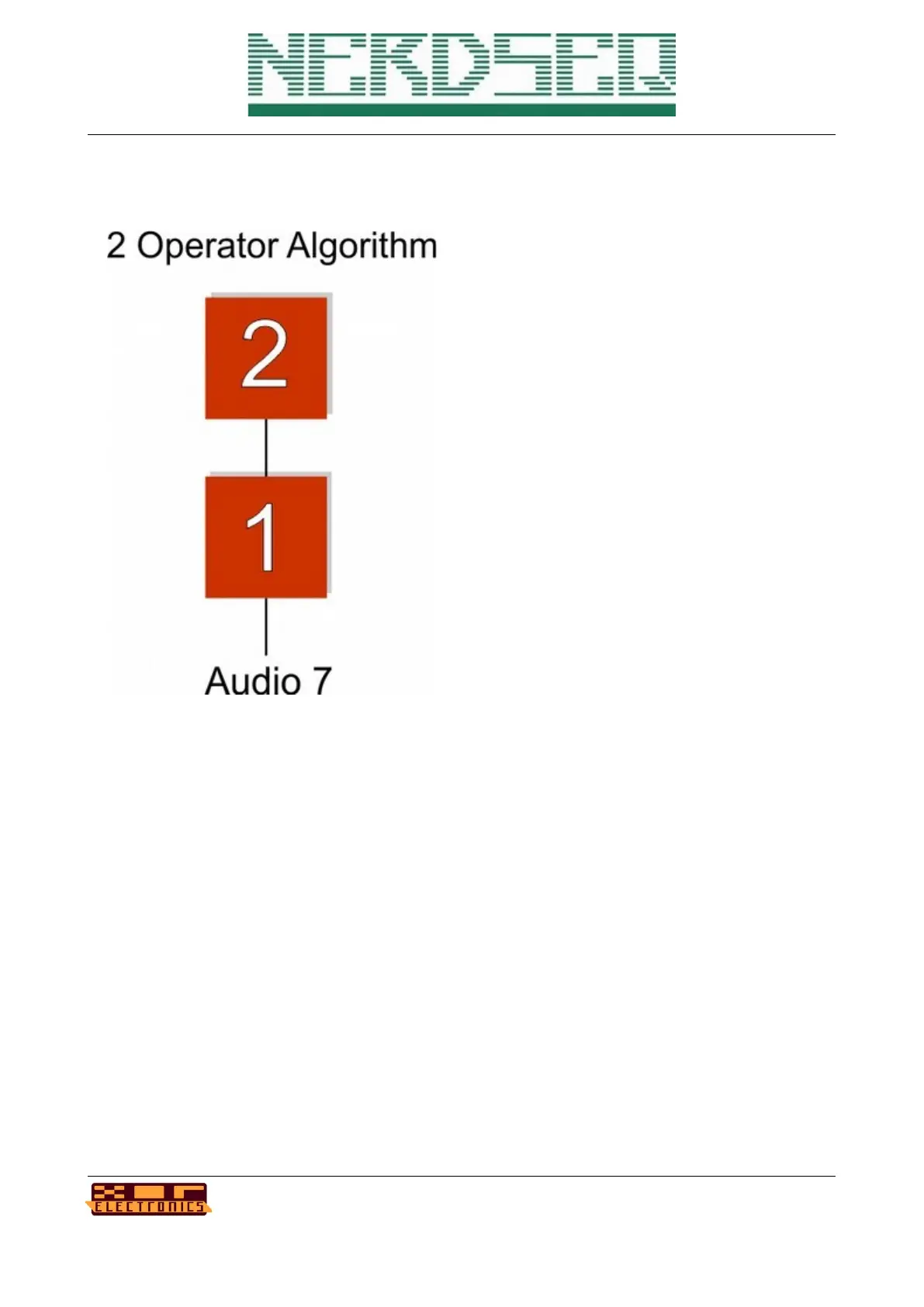
Examples of generating typical FM synthesis:
- Go to the → Track Setup (Audio Track)
- Choose Sample/Wave 1
- Set Modulation Source to FM OP2 (which
means this operator is being modulated by
Operator 2)
- Choose Sample/Wave 2
- Set Muted to yes (otherwise you will hear
the sound of oscillator/operator 2 on the
audio output)
- Set Clone notes from to 1 (So the key is the
same as the one from Operator 1. This will
keep things harmonic in the first place)
- Make a sequence in the pattern screen
while audio 1 is set to one of the waveforms
(sine for the classic FM sounds)
- Play the sequence. Play around a bit with
the Volume and the Clone coarse of Operator
2. OP2 will automatically start with a sine.
This can of course be changed.
For now it is more a FM oscillator. Lets apply some envelopes to get a real FM synth voice:
- First you may want to set the volume of Operator 2 to a high value, because this makes
the envelope more effective.
- Go to the → Envelope screen (double tap AUTOMATOR button)
- Choose envelope 1. Set to ‘One Shot’ (for now).
- Set the Source to T7 Audio 1 (where each note on of track 7 audio 1 will trigger the
envelope)
- Set the Destination to Volume 1 (which then acts as a VCA for Operator 1)
- Press the OK button so the source/destination will be activated
- Change the envelope settings so the envelope sounds nice with your sequence
- Choose envelope 2. Set to ‘One shot’ as well. Set source to ENV1 Start (so it will always
be triggered when envelope 1 is being triggered. (There are multiple ways to have it
triggered by the first sample/wave/audio).
- Set the destination to Volume 2 (which then also acts as a VCA for Operator 2. The effect
is, that it defines the ‘modulation index’ or the ‘deepness’ of the modulation).
- change the envelope parameters so they match the first envelope nicely
- to create more percussive sounds, you can set envelope 2 destination to Pitch 2.
NerdSEQ – a tracker based Eurorack sequencer Page 101
User Manual Revision V1.26 for Firmware V1.26 12 July 2022


 To Next Page