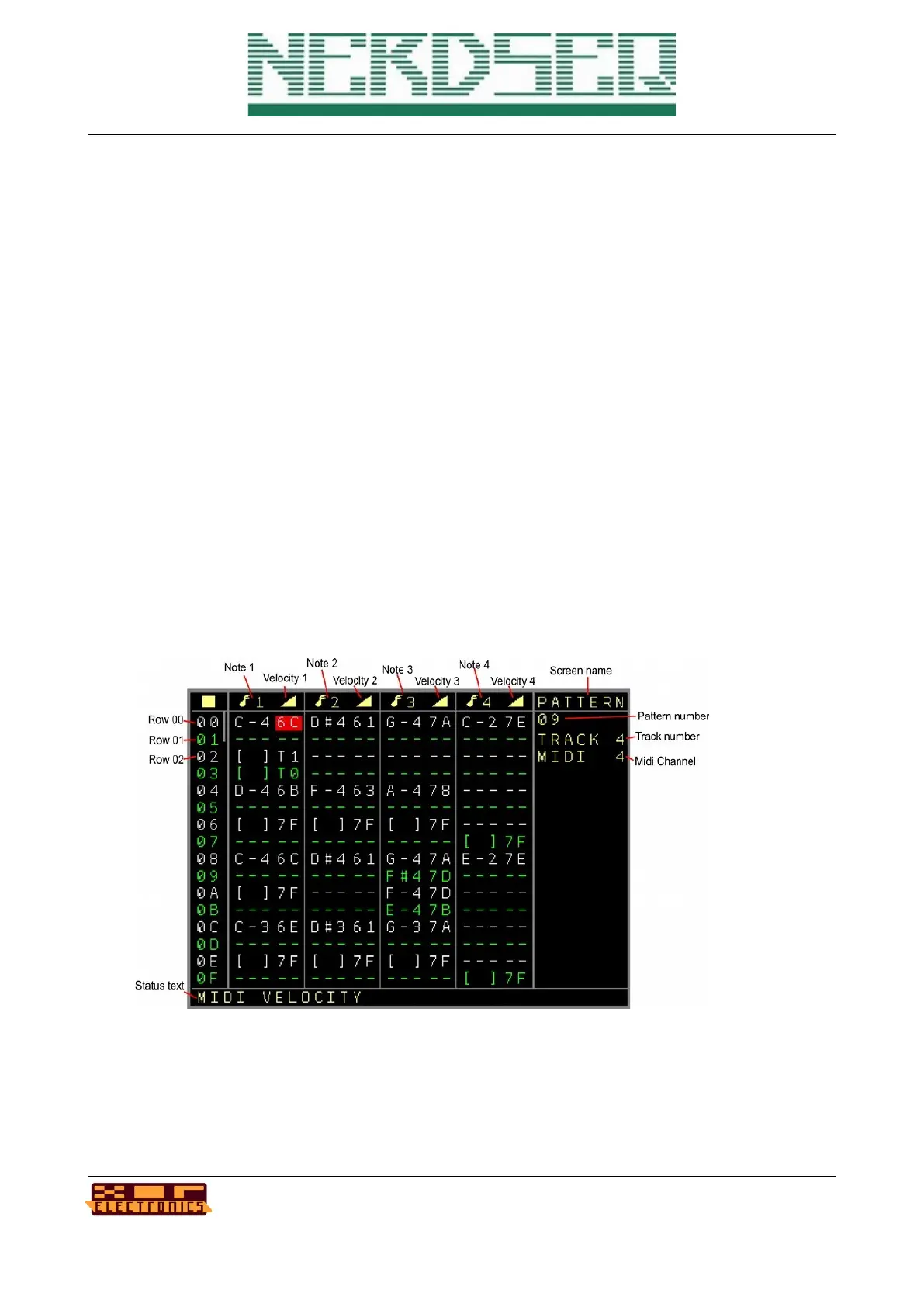
Basic usage:
To add a sample to the slot, you open the → Load Sample window by pressing either the PATCH
button when you are in a sample pattern or by pressing OK when on the sample column.
Pressing OK (and maybe scrolling up/down) on the sample notes can be used to ‘pre-view’ the
sample with the note-pitch. This function is similar to the note-prelisten in the modular pattern
screens.
Waveforms can be mixed or synchronised and even manipulated from the Automators.
Pattern Screen (Midi track)
If a track is assigned to Midi, then the midi pattern screen is used. You can assign a track to be
used for Midi in the → Track Assign Screen.
The midi screen is here split up to different pages. You move the cursor further to the right to get to
the next pages.
Page 1:
First again the sequencer row (up to 64).
NerdSEQ – a tracker based Eurorack sequencer Page 44
User Manual Revision V1.26 for Firmware V1.26 12 July 2022


 To Next Page