12
6.2.2. Keystone Correction
6.2.2. Keystone Correction
Attention: The range of auto keystone correction is ±18 degrees horizontally and
vertically.
Auto keystone is enabled by default. If you need to disable this feature, navigate
through [Home] - [Settings] - [Projection Mode] - [Auto Keystone].
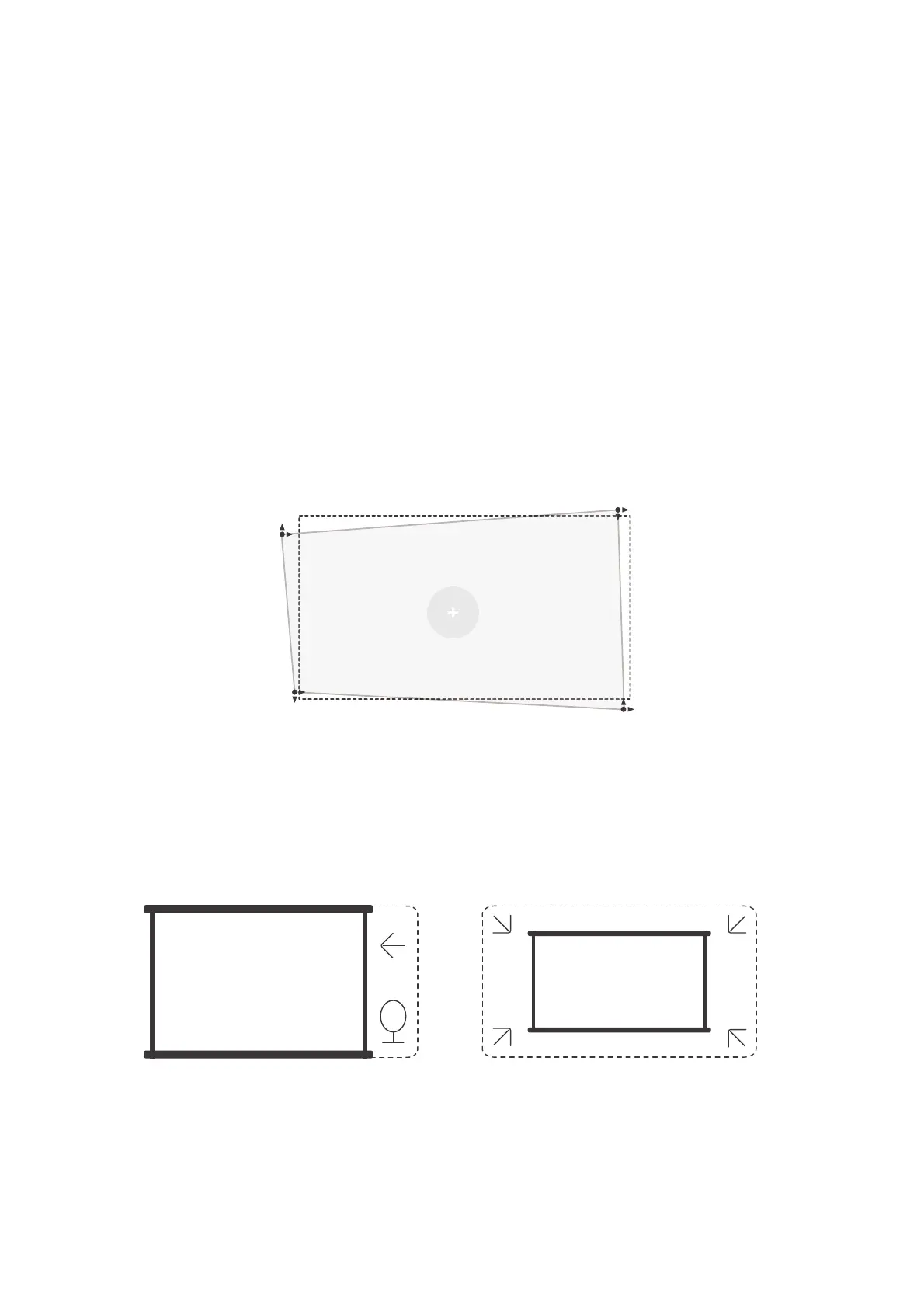
If further screen adjustments are needed, please select [Manual Keystone in [Projection
Mode and adjust the screen by dragging the arrows.
Attention: If you have already set the screen through the manual keystone, please
turn off the automatic keystone, otherwise the screen will be reset after the next
movement of the projector.
1. If there are white or other light-colored objects on the target screen, obstacles may
not be avoided.
2. The backdrop should have a distinct black or other colored border, except for anti-
light screens which do not require a border.
3. Before using the auto screen fitting function:
Please ensure the projection screen is larger than the screen area and do not block
the central area of the screen.
Please do not block the area within the central square frame of the screen.
Manual keystone


 To Next Page