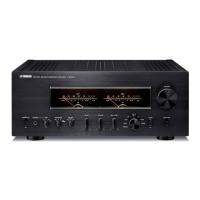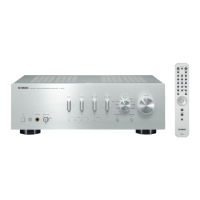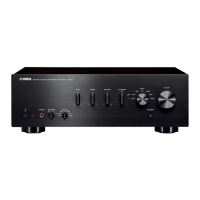
EasyManua.ls Logo

Yamaha A-S500 - User Manual

Yamaha A-S500
20 pages
Print Icon
To Next Page IconTo Next Page
Loading...
Integrated Amplifier
OWNER’S MANUAL
AB

Other manuals for Yamaha A-S500

Questions and Answers

  • T
    Teresa BryantSep 7, 2025
    Why isn't my iPhone/iPod charging when using the Wireless System for iPod with my Yamaha Amplifier?
    • S
      Steve Brown MDSep 7, 2025
      If your iPhone/iPod isn't charging when using the Wireless System for iPod with your Yamaha Amplifier, ensure that: * The unit is turned on or set to standby mode. * The YID-W10 transmitter is securely stationed in the YID-W10 receiver.
  • L
    Lisa PerezAug 25, 2025
    Why does my Yamaha A-S500 Amplifier turn off suddenly?
    • R
      richjosephAug 26, 2025
      If your Yamaha Amplifier turns off suddenly and the POWER indicator blinks, several issues could be the cause. First, check the speaker wires to ensure they are not touching each other or shorting against the rear panel; connect them properly. Next, verify that the IMPEDANCE SELECTOR switch is correctly set. Also, excessive input, volume, or internal temperature can activate the protection circuitry; decrease the volume and allow the unit to cool down for about 30 minutes. If the issue persists, the unit may have been exposed to a strong electric shock; set it to standby, disconnect the power cable for 30 seconds, and then reconnect it. If an unusual odor or noise is generated, immediately disconnect the power cable and contact a service center.
  • A
    Andrea ShortAug 26, 2025
    How to fix no sound on Yamaha Amplifier?
    • N
      Nicole HernandezAug 26, 2025
      If there is no sound from your Yamaha Amplifier, first ensure that the sound is not muted by checking the MUTE button on the remote or the VOLUME control. Verify that all cables, including stereo cables and speaker wires, are correctly connected. Make sure that the connected component is turned on and playing. Select the appropriate input source using the INPUT selector on the front panel or the remote. Finally, confirm that the SPEAKERS selector is set to A, B, or A+B as needed.
  • D
    Douglas OconnorSep 16, 2025
    What to do if my iPhone/iPod is not working with my Yamaha A-S500 Amplifier?
    • C
      Charles FloydSep 16, 2025
      If you experience no sound or cannot operate your iPhone/iPod with your Yamaha Amplifier, there may be a problem with the signal path. Turn off the unit and reconnect the Universal Dock for iPod or the Wireless System for iPod to the DOCK jack of the unit. Also, ensure that the iPhone/iPod being used is supported by the unit.
  • B
    Brad ValenciaNov 23, 2025
    What to do if my Yamaha A-S500 suddenly turns off and the POWER indicator blinks?
    • J
      Jennifer FordNov 23, 2025
      If your Yamaha Amplifier turns off suddenly and the POWER indicator blinks, several issues could be the cause: * Speaker wires may be touching each other or shorting out against the rear panel. Ensure the speaker cables are properly connected and press the A switch again. The INPUT indicators blink and the volume is decreased automatically. After the volume has decreased to the lowest setting, the INPUT indicators stop flashing, the INPUT indicator of the last input source selected lights up, and the unit may be used again. Confirm normal sound output from speakers by increasing the volume gradually, then operate this unit normally. * The speaker might be malfunctioning. Replace the speaker set and press the A switch again. The INPUT indicators blink and the volume is decreased automa...
  • D
    deanna70Sep 12, 2025
    Why is the sound degraded when listening with headphones on my Yamaha A-S500?
    • T
      Thomas GomezSep 12, 2025
      If the sound quality is degraded when listening with headphones connected to a CD player or tape deck connected to your Yamaha Amplifier, ensure that the unit is turned on and not in standby mode.
  • R
    Ruth LawsonSep 2, 2025
    How to fix a 'humming' sound from Yamaha Amplifier?
    • T
      Tracey StewartSep 3, 2025
      If you're hearing a humming sound from your Yamaha Amplifier, try these solutions: * Incorrect cable connections. Connect the audio plugs firmly. If the problem persists, the cables may be defective. * No connection from the turntable to the GND terminal. Make the GND connection between the turntable and this unit.
  • K
    karen86Sep 3, 2025
    What causes a lack of bass and no ambience in Yamaha A-S500 sound?
    • M
      mbrownSep 3, 2025
      If you're experiencing a lack of bass and no ambience with your Yamaha Amplifier, it might be due to the + and – wires being connected in reverse at the amplifier or the speakers. Connect the speaker wires to the correct + and – phase.
  • R
    Ryan RamosSep 23, 2025
    What to do if there is no sound and I cannot operate my iPhone/iPod with Yamaha A-S500?
    • L
      lwelchSep 23, 2025
      If there is no sound and you cannot operate your iPhone/iPod with the Yamaha Amplifier, first, turn off the unit and reconnect the Universal Dock for iPod or the Wireless System for iPod to the DOCK jack. If the issue persists, ensure that the iPhone/iPod model is supported by the unit.
  • C
    Craig Sellers PhDAug 29, 2025
    What to do if Yamaha A-S500 is not turning on?
    • F
      Frank RandolphAug 29, 2025
      If your Yamaha Amplifier isn't turning on and the POWER indicator is off, first, ensure the power cable is firmly connected. If you're using the remote, make sure to press the A switch on the front panel to ON, not the remote. If problems persist, disconnect the power cable and contact an authorized Yamaha dealer, especially if you notice any unusual odors or noises.

Summary

Safety Precautions

Controls and Functions

Front Panel Controls

Details of buttons, switches, and indicators on the amplifier's front panel.

Remote Control Operation

Instructions for using the remote control, including battery installation and handling.

Rear Panel Connections

Description of input/output jacks and selector switches on the rear panel for connectivity.

Impedance Selector Switch

Guide to setting the impedance selector switch based on speaker impedance for safe operation.

Connections

Connecting Speakers and Source Components

Step-by-step instructions for connecting speakers and various audio source devices to the amplifier.

Bi-Wire Connection

Instructions for setting up a bi-wire speaker connection, including switch settings.

Power Cable and Settings

Connecting the power cable and information on Power Management and Voltage Selector switches.

Playing and Recording

Playing a Source

How to select, play, and adjust the volume and tonal quality of audio sources.

Tonal Quality Adjustment

Using Bass, Treble, Balance, Loudness, and Pure Direct controls for sound customization.

Recording a Source

Instructions on how to record audio from selected sources using the REC OUT feature (A-S500).

iPhone;iPod Playback

Using a Universal Dock for iPod

Guide to connecting and operating an iPhone/iPod via a Yamaha Universal Dock.

Using a Wireless System for iPod

Instructions for connecting and operating an iPhone/iPod using the Wireless System for iPod.

Troubleshooting

Remote Control Issues

Solutions for problems with remote control operation, battery replacement, and handling.

iPhone;iPod System Issues

Troubleshooting common problems with iPhone/iPod docks and wireless systems.

Specifications

Audio Specifications

Detailed technical specifications for audio performance, power output, and frequency response.

General Specifications

General specifications including power supply, consumption, dimensions, and weight.

Yamaha A-S500 Specifications

General IconGeneral
Frequency range10 - 1000 Hz
RMS rated power85 W
Audio output channels2.0 channels
Signal-to-Noise Ratio (SNR)100 dB
Total Harmonic Distortion (THD)0.015 %
Multichannel audio input typeRCA
Multichannel audio output typeTerminals
Display-
Product colorSilver
Audio decodersDolby Digital
Ethernet LANNo
Power consumption (standby)0.5 W
Dimensions (WxDxH)435 x 387 x 151 mm
Weight and Dimensions IconWeight and Dimensions
Weight10300 g

Related product manuals